How-to guide

How to change the text size and date format

Open Settings and pick a Text size, a Row density, a Clock and a Date format. Each change applies at once.

Tested in Chrome 155 and History Monk 0.1.4 Free for 7 days No account

Quick steps

Change how it looks in three steps

  1. Open Settings

    Text size and Row density are under Theme.

  2. Pick a size

    Five sizes, from Extra small to Extra large.

  3. Set your clock and dates

    12- or 24-hour, and 4 Sep, Sep 4 or 2026-09-04.

Before you start: add History Monk from the Chrome Web Store or Firefox Add-ons. The Chrome Web Store version also installs in Edge.

Step 1: Pick a text size

Open Settings from the sidebar. Under Text size, pick one of five sizes, from Extra small to Extra large. Every label, row and control grows or shrinks together, so the layout keeps its shape.
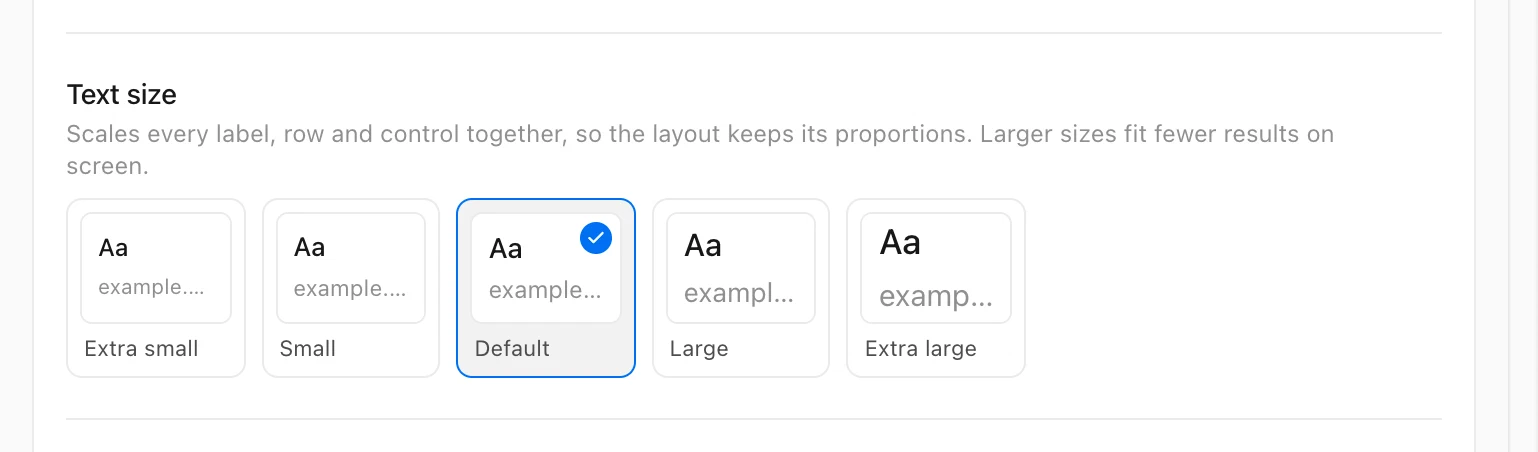
History Monk Text size setting with Extra small, Small, Default, Large and Extra large, Default picked
Five text sizes.

Step 2: Pick a row density

Under Row density, Default gives each result two lines, the title above its address. Compact puts both on one line, so more results fit on screen.
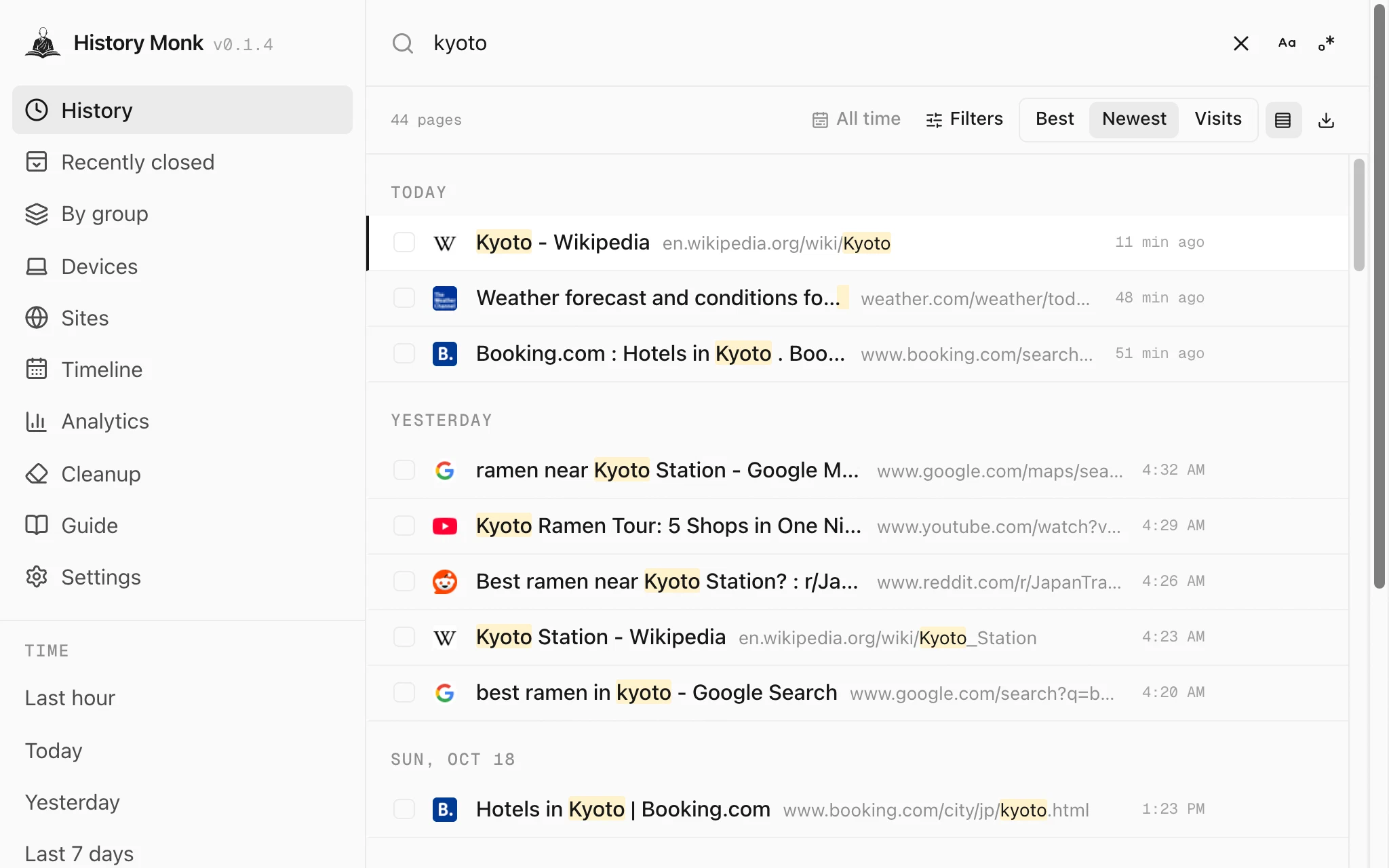
History Monk History view with Large text and Compact rows, each result's title and address on one line
Large text with Compact rows.

Step 3: Set your clock and how dates are written

  • Clock: 12-hour, 24-hour, or System, which follows the language you picked.
  • Date: how dates are written on entries older than today. Each option shows a sample.

History Monk Date setting with System, 4 Sep, Sep 4, 09/04/2026, 2026-09-04 and Fri, Sep 4
Pick the format you read fastest.

The year is only added for dates from an earlier year. Your clock and date format are used everywhere: History, Timeline, Analytics and the weekly digest.

More in the same Settings page

  • Layout width: Centred keeps the app at a comfortable width on wide screens. Full width fills the window.
  • Language: English, Español, Français, Deutsch, Português, 日本語, 简体中文 or हिन्दी.
  • Theme: see how to turn on dark mode.

Settings are stored in this browser only. Nothing is synced or sent anywhere.

FAQ

Questions about text size and dates

How do I make the text bigger in History Monk?

Open Settings and pick Large or Extra large under Text size. Every label, row and control scales together.

Can I fit more results on screen?

Yes. Set Row density to Compact, which puts each page's title and address on one line. A smaller text size helps too.

Which date formats are there?

System, 4 Sep, Sep 4, 09/04/2026, 2026-09-04 and Fri, Sep 4. System follows the language you picked.

The wise search once. History Monk remembers the rest.