Before you start: add History Monk from the Chrome Web Store or Firefox Add-ons. The Chrome Web Store version also installs in Edge.
History Monk opens from any tab with ⌥⇧H. If that clashes with another app, or you’d like something easier to reach, change it on your browser’s shortcuts page.
Step 1: Open your browser’s shortcuts page
Type this into the address bar and press ↵:
- Chrome:
chrome://extensions/shortcuts - Edge:
edge://extensions/shortcuts - Firefox: open Add-ons and themes from the menu, click the gear icon and choose Manage Extension Shortcuts.
Step 2: Find History Monk and click the pencil
History Monk has two rows:
- Activate the extension is the toolbar button. It has no shortcut at first.
- Open History Monk history search is set to ⌥⇧H.
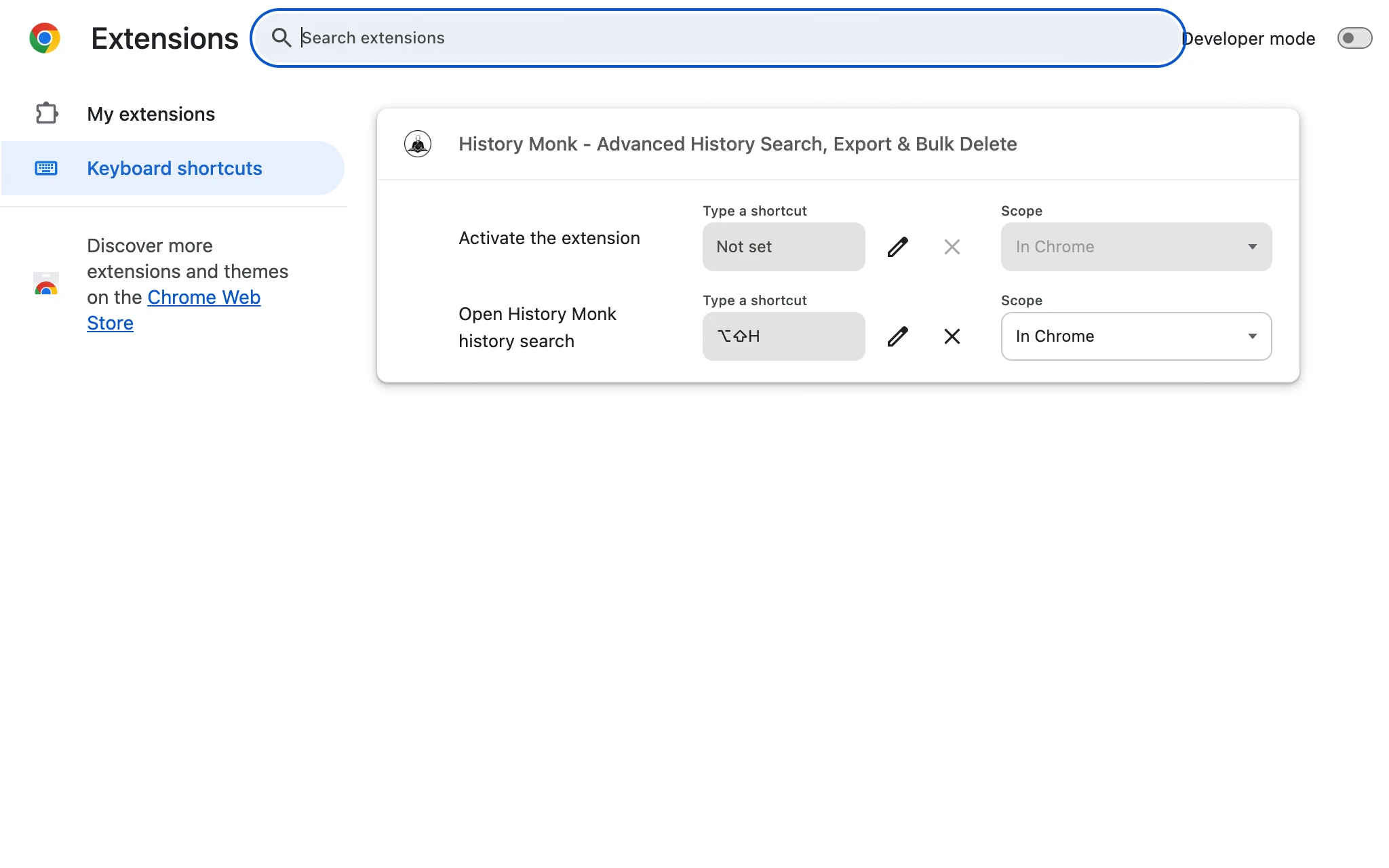
Click the pencil next to Open History Monk history search.
Step 3: Press the keys you want
Press the new combination, like ⌥⇧Y. It’s saved as soon as you press it.
To remove the shortcut, click the × next to it.
Tips
- In Chrome and Edge, the History shortcut works as well. CtrlH, or ⌘Y on a Mac, opens History Monk because it replaces the History page.
- Every key inside History Monk is in how to search your history with the keyboard.