Before you start: add History Monk from the Chrome Web Store or Firefox Add-ons. The Chrome Web Store version also installs in Edge.
Every search you run adds a page to your history, and those pages record what you looked for, not what you read. In the history used for these screenshots, more than a quarter of all pages were search pages.
Step 1: Open Cleanup
Click Cleanup in the sidebar. The line at the top counts how many pages in the range look removable.

Scroll down to the Search result pages card. It lists searches from Google, Bing, DuckDuckGo, YouTube and other search engines.
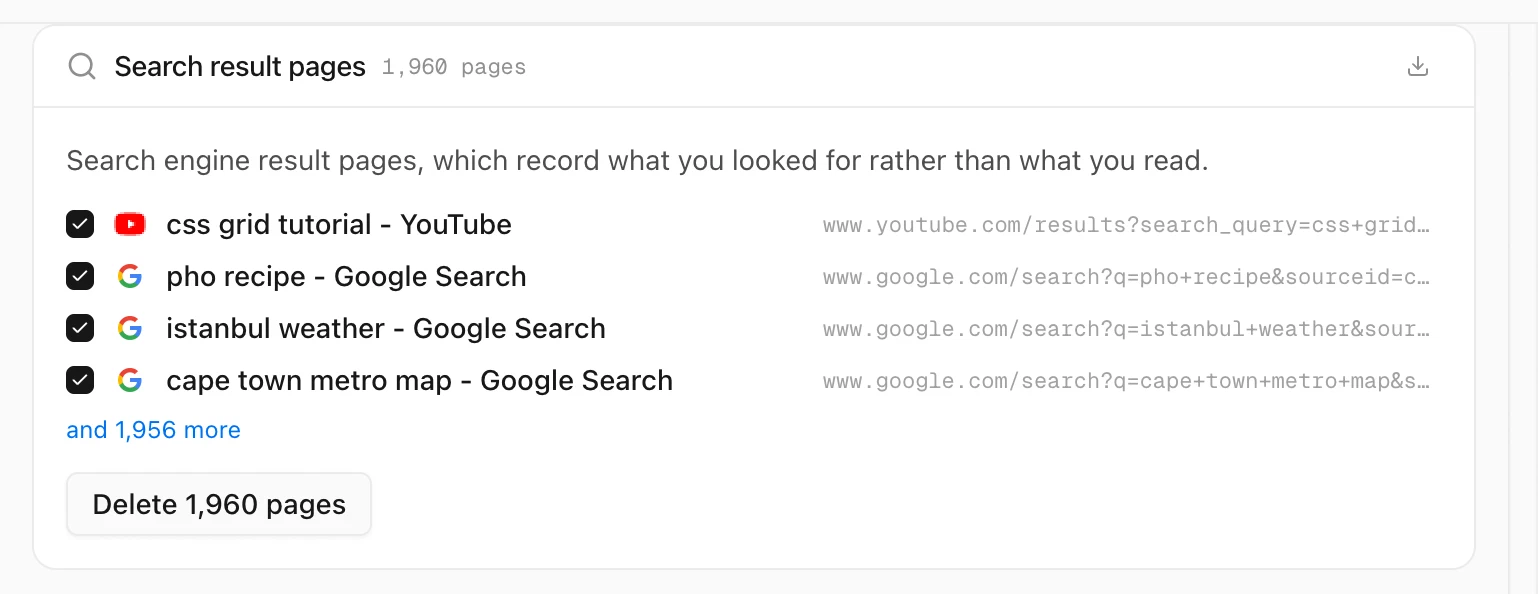
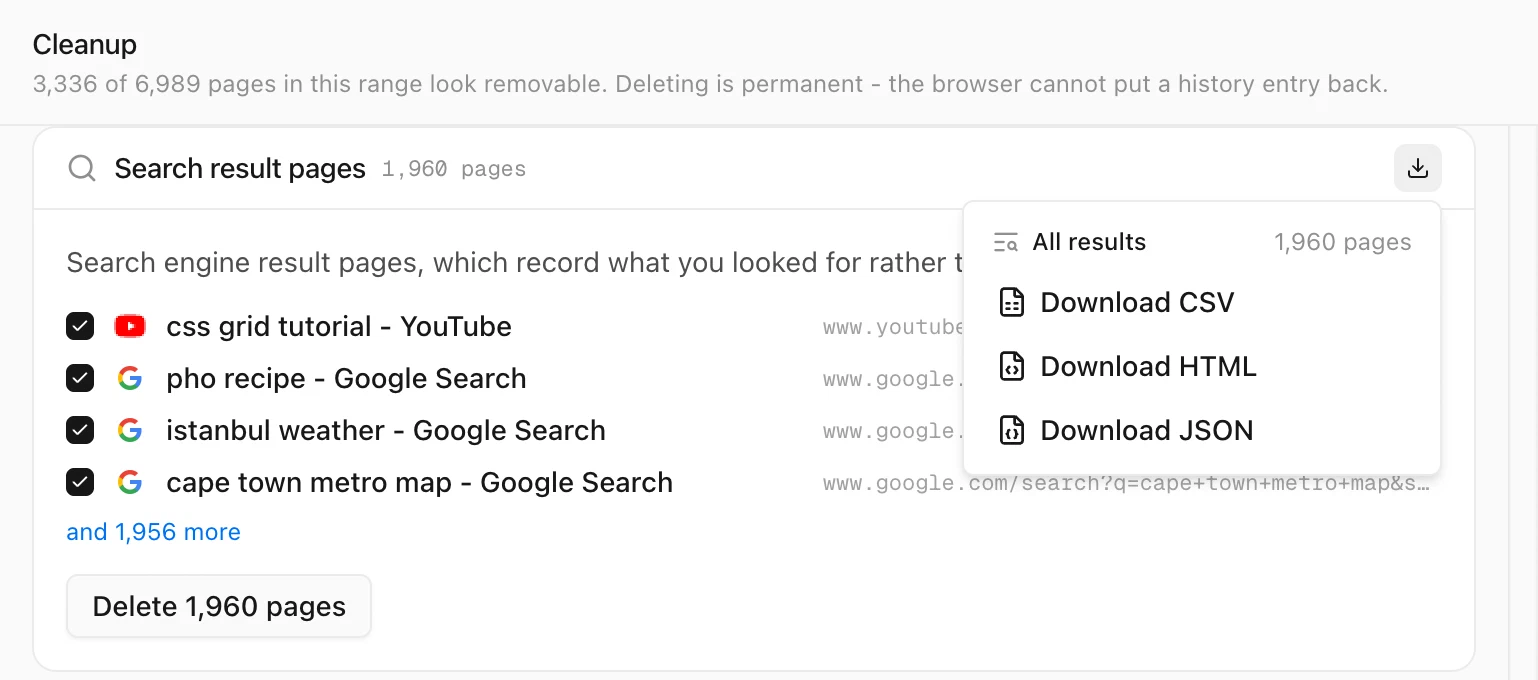
Step 2: Save a copy of your searches, if you want one
Click the export button at the top right of the card and choose Download CSV, Download HTML or Download JSON. The file holds every page in the card.
Step 3: Click Delete, then Confirm
Untick any search you want to keep, then click Delete and Confirm - permanently delete. The pages you opened from those searches stay in your history.
Deleting from Cleanup needs a license. Without one, the button is locked.
Tips
- Only real search pages. A page needs a search engine’s address and a search term in it, so
docs.google.comandgithub.com/searchare left alone. - See what you searched for first. Analytics lists your top searches. See how to see your top searches.
- Clear one search and what it led to. See how to delete a search and the pages it led to.
- Your Google account is separate. This clears your browser’s history on this computer, not activity saved in your Google account.