How-to guide

How to copy links from your browsing history

Tick the pages, then right-click one and choose Copy. Each address goes on its own line, ready to paste.

Tested in Chrome 155 and History Monk 0.1.4 Free for 7 days No account

Quick steps

Copy links in three steps

  1. Find the pages

    Search or filter so the pages you want are in the list.

  2. Tick them

    Click a box, then Shift-click another to tick the rows between.

  3. Right-click and copy

    Copy, Copy titles, or Copy titles + URLs.

Before you start: add History Monk from the Chrome Web Store or Firefox Add-ons. The Chrome Web Store version also installs in Edge.

Step 1: Find the pages

Search or filter until the pages you want are in the list. Here, site:wikipedia.org lists every Wikipedia page.

Step 2: Tick them

Each row has a box on the left. Click it to tick the row.

  • A range: tick one row, then hold ⇧ and click another. Every row between them is ticked too.
  • Everything: click Select all in the bar at the bottom, or press ⌘A when the cursor isn’t in the search box.
  • More rows: once something is ticked, a plain click on any row ticks it instead of opening it.

A bar appears at the bottom right with the number of ticked pages and what you can do with them.
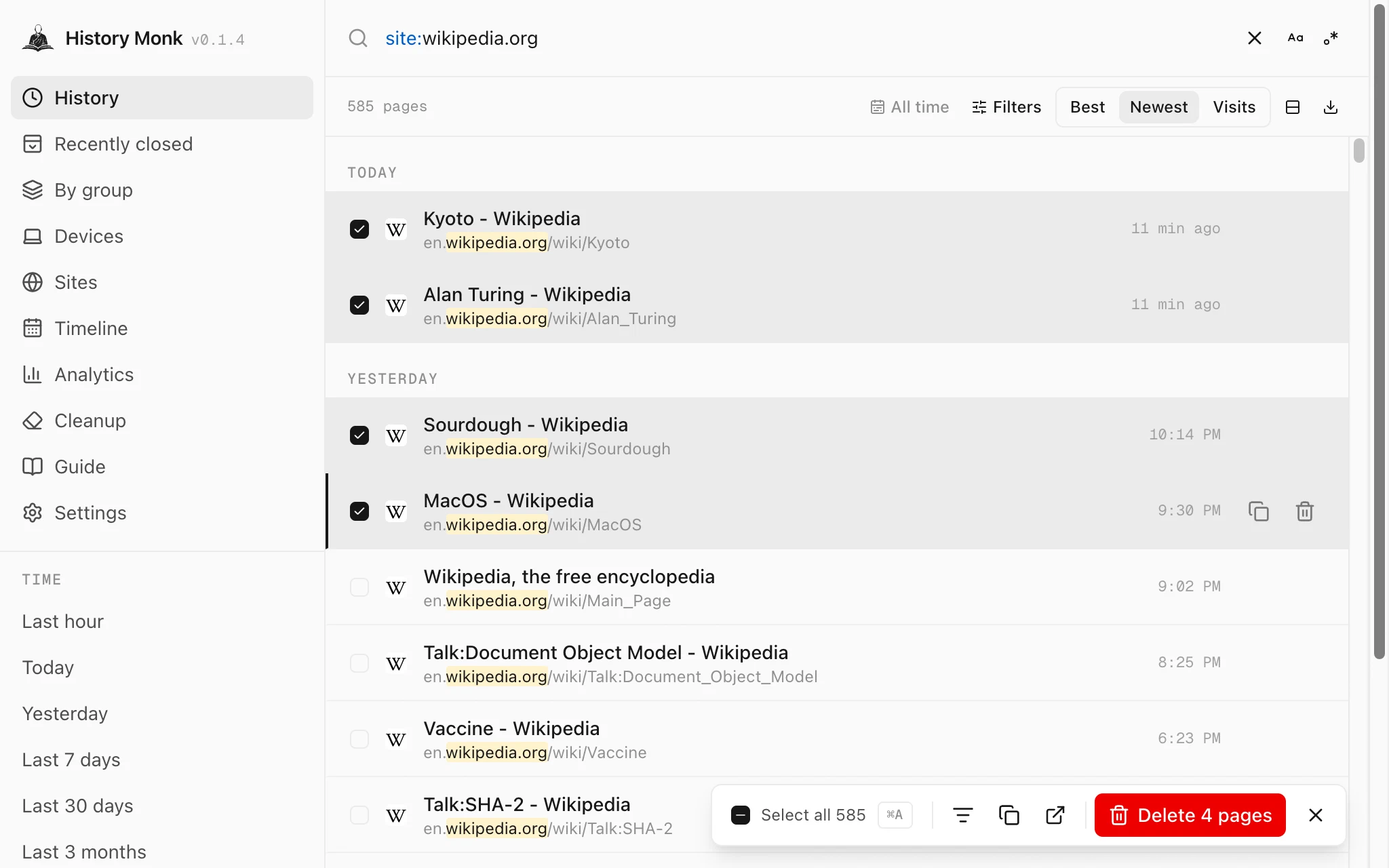
History Monk with four Wikipedia pages ticked and a bar at the bottom right with Select all 585, filter, copy, open and Delete 4 pages
Four pages ticked, with the bar at the bottom right.

Step 3: Right-click and choose how to copy

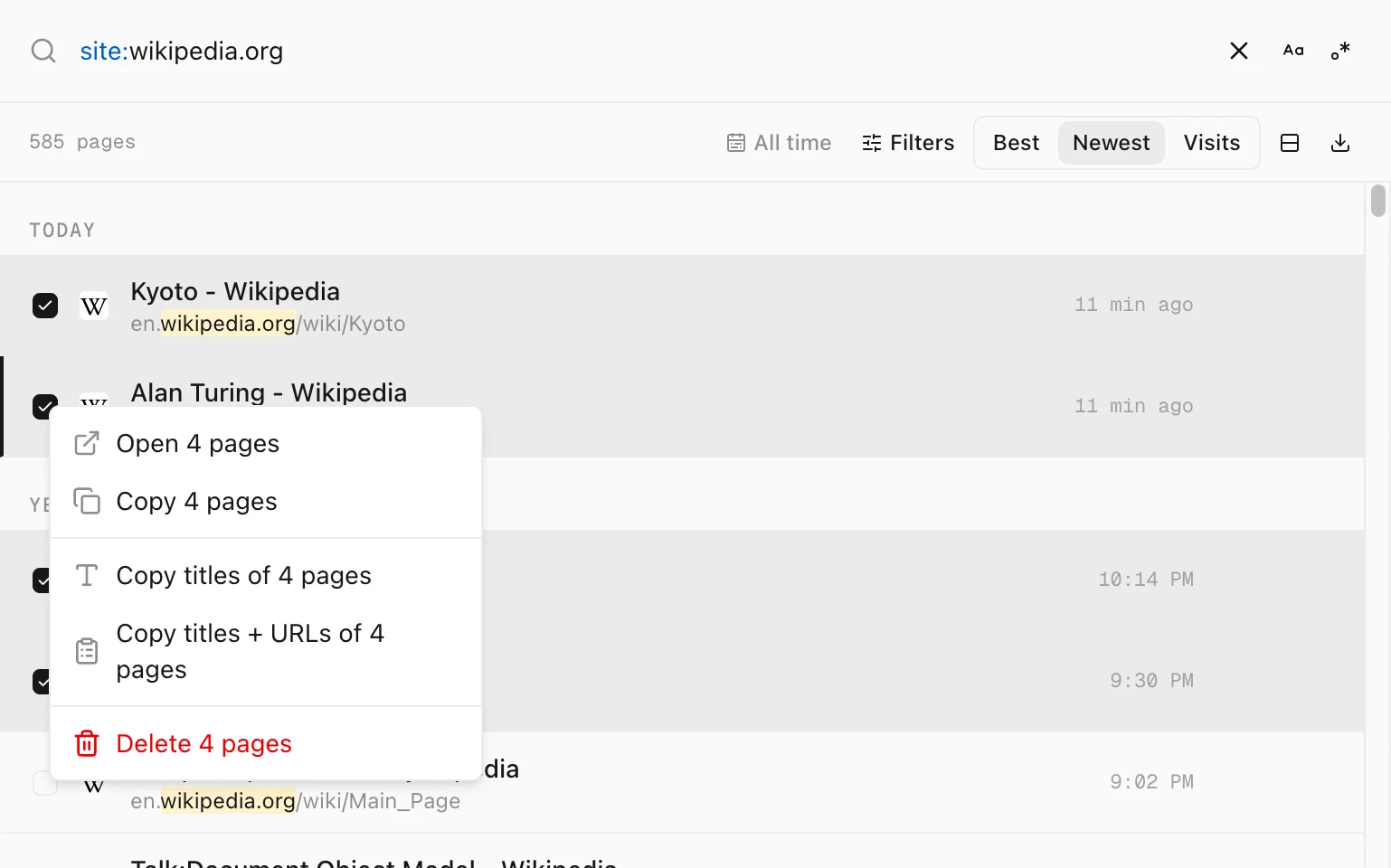
Right-click any ticked row. Every item in the menu works on all the ticked pages:

ChooseWhat you get
CopyThe addresses, one per line
Copy titlesThe page titles, one per line
Copy titles + URLsEach title with its address on the next line, and a blank line between pages
OpenEvery page in a background tab
History Monk right-click menu with Open 4 pages, Copy 4 pages, Copy titles of 4 pages, Copy titles + URLs of 4 pages and Delete 4 pages
The menu counts the ticked pages.

Paste with ⌘V wherever you need the links.

The bar at the bottom

History Monk selection bar with Select all 585, a filter button, a copy button, an open button, Delete 4 pages and a close button
Select all, show only ticked rows, copy, open, delete and clear.

From left to right: Select all ticks every result, the filter button shows only the ticked rows, the copy button copies their addresses, and the open button opens them in background tabs. × clears the ticks.

Tips

  • Show only what you ticked. Type selected: in the search box, or selected:false for the rest.
  • Right-click a single row without ticking anything to copy just that page.
  • Save to a file instead. See how to export your browsing history to CSV.

FAQ

Questions about copying links

How do I copy several links from my history at once?

In History Monk, tick the pages, right-click one of them and choose Copy. The addresses are copied one per line.

Can I copy the page titles too?

Yes. Copy titles copies only the titles. Copy titles + URLs copies each title with its address on the next line, with a blank line between pages.

Can I open all the ticked pages?

Yes. Choose Open from the right-click menu, or click the open button in the bar at the bottom. They open in background tabs, so you stay in History Monk.

Can I save them to a file instead?

Yes. The export button above your results saves the ticked pages, or every result, as CSV, HTML or JSON.

The wise search once. History Monk remembers the rest.