Before you start: add History Monk from the Chrome Web Store or Firefox Add-ons. The Chrome Web Store version also installs in Edge.
Step 1: Open Sites
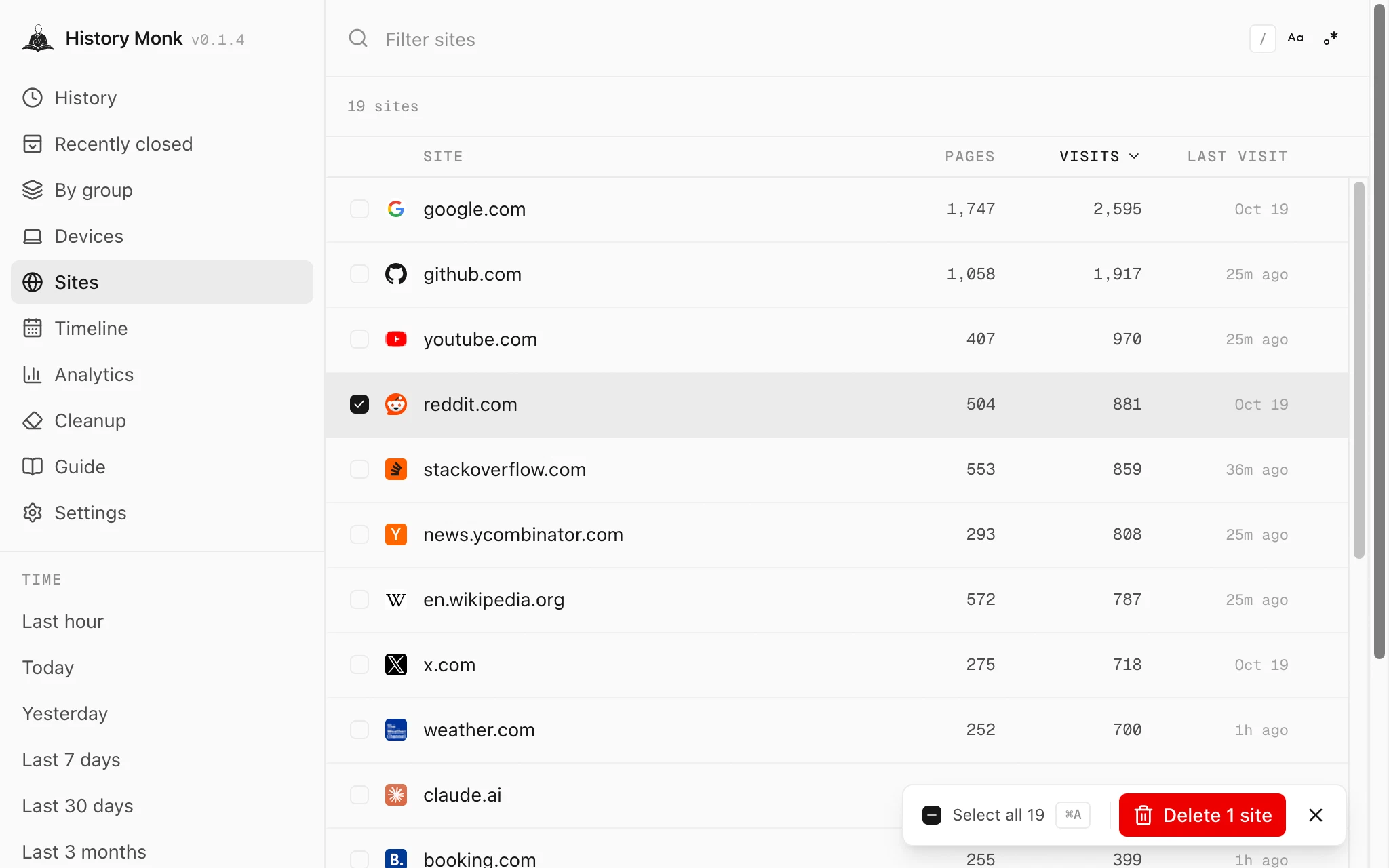
Click Sites in the sidebar. Every website in your history has one row, with how many pages and visits it has. To find a site quickly, type part of its name in Filter sites at the top.
Step 2: Tick the site
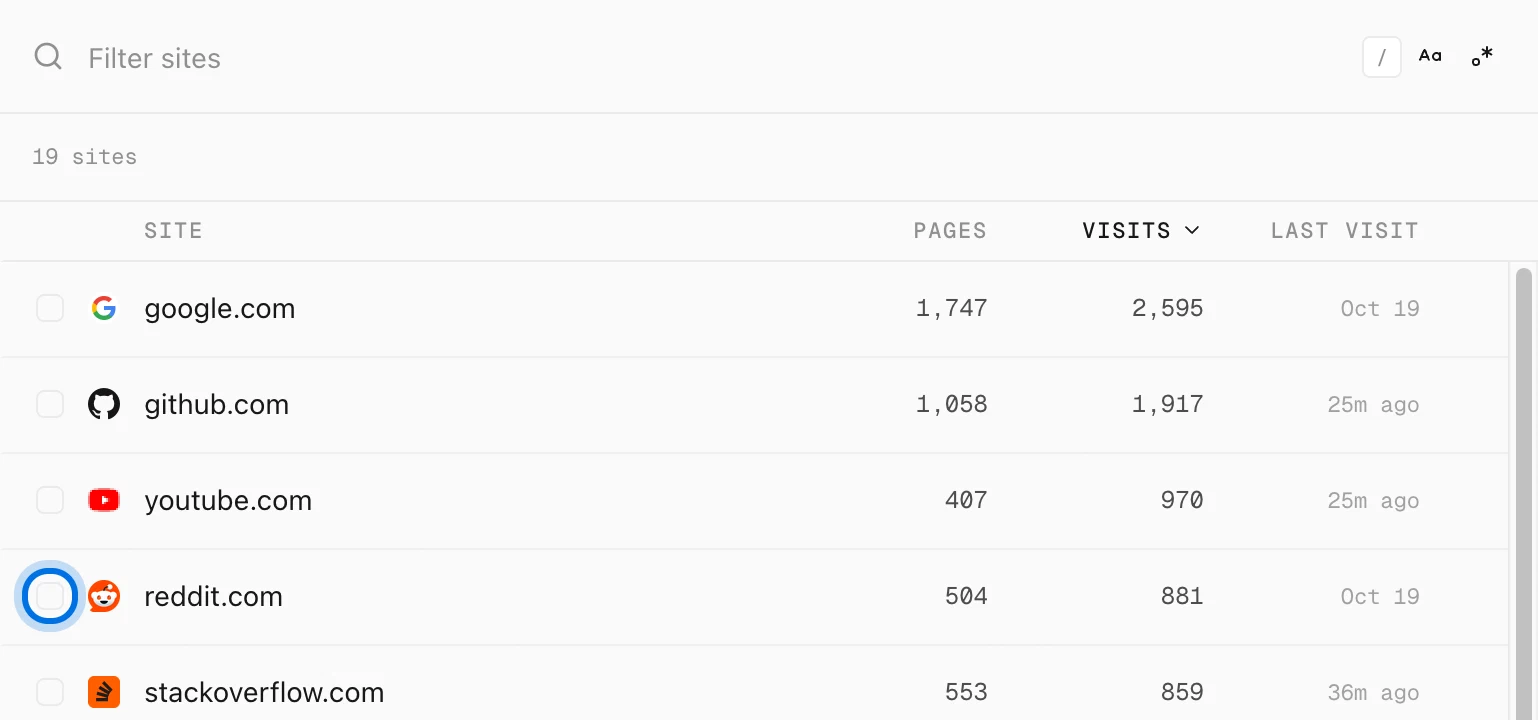
Click the box at the start of the site’s row. Don’t click the name itself: that opens the site’s pages in History instead.
A bar appears at the bottom right with Delete 1 site. Tick more rows to delete several sites at once, or hold ⇧ and click to tick a range.
Step 3: Click Delete, then Confirm
Click Delete 1 site. Nothing is deleted yet: the button changes to Confirm - permanently delete 1 site. Click it to delete. Click × to back out.

History Monk removes every page from that site, including pages older than the range you have loaded. A count shows the progress while it works.
Before you delete
- Keep a copy first. Click the site’s name to open its pages in History, then export them. See how to export your history to CSV.
- Subdomains are separate rows. Deleting google.com leaves mail.google.com. Type
googlein Filter sites to see them all. - Protected sites are never deleted. Add the sites you never want to lose in Settings. See how to protect a site from deletion.
Other ways to delete a site
- From the page you are on. Right-click and choose History Monk > Delete all history of this site. See how to delete a site’s history from the page you are on.
- Only some of its pages. Search with
site:and a word, then delete the results. See how to delete search results from your history.