How-to guide

How to delete every page a search finds

Search for the pages, open Filters and click Delete, then confirm. Every page in the result leaves your history.

Tested in Chrome 155 and History Monk 0.1.4 Free for 7 days No account

Quick steps

Delete a search in three steps

  1. Search

    A word, a site:, a date range or any mix of filters.

  2. Click Delete

    In the Filters panel, or tick everything and use the bar.

  3. Confirm

    The second click deletes. There is no undo.

Before you start: add History Monk from the Chrome Web Store or Firefox Add-ons. The Chrome Web Store version also installs in Edge.

Step 1: Search for the pages

Type what the pages have in common. A word like lisbon finds every page about it, on every site. Add filters to narrow it down:

  • site:booking.com lisbon for one site
  • lisbon after:2026-10-01 for a date range
  • lisbon -site:wikipedia.org to keep one site out

Look through the list before you go on. Everything in it will be deleted.

Step 2: Open Filters and click Delete

Click Filters above your results. Once your search has narrowed the list, the panel shows a red Delete button with the number of pages, like Delete 31 pages.
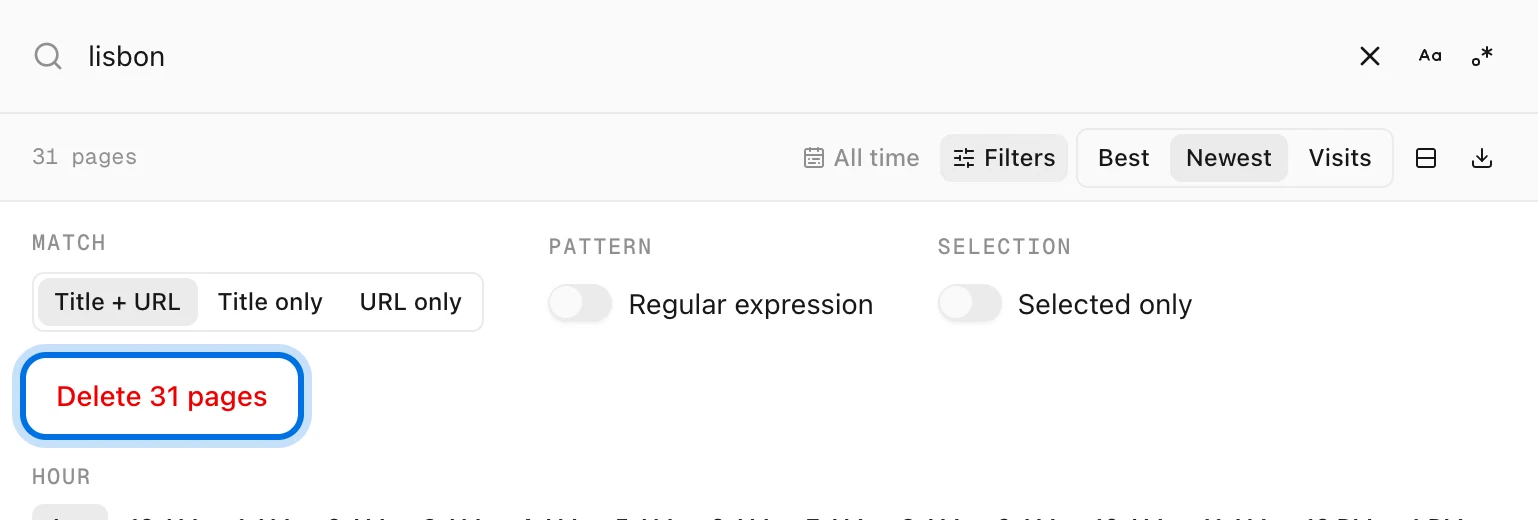
History Monk Filters panel for the search lisbon with a red Delete 31 pages button highlighted
The button counts every page in the result.

Step 3: Confirm

The button changes to Confirm - permanently delete 31 pages. Click it to delete, or Cancel to stop.
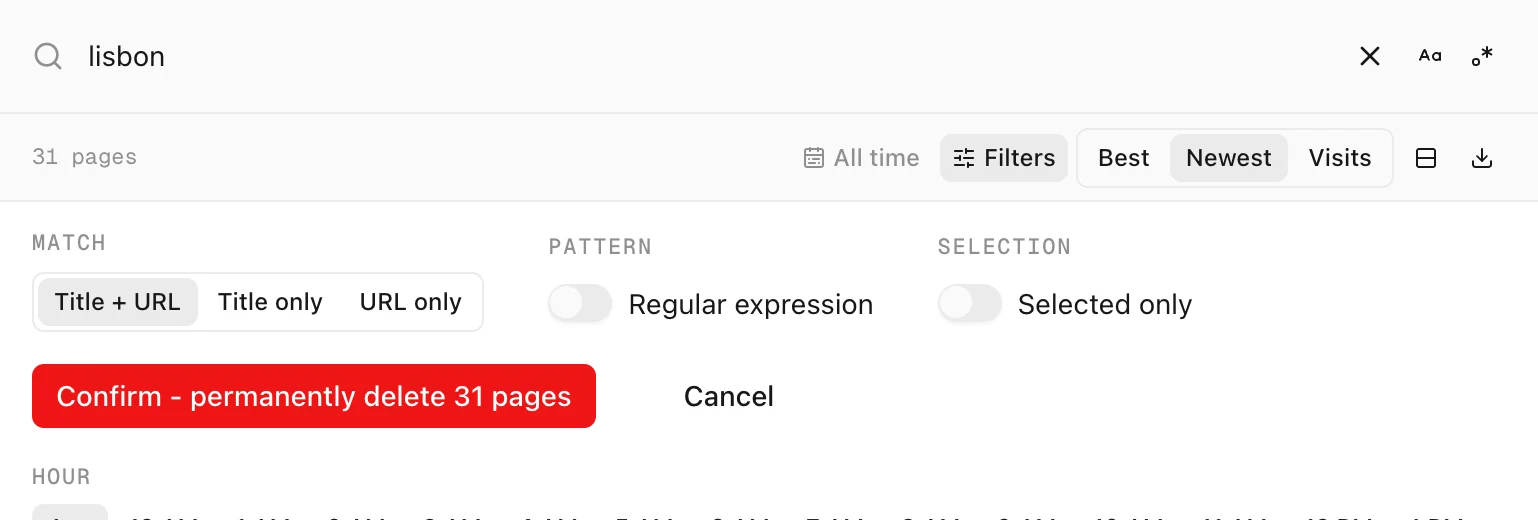
History Monk Filters panel with a Confirm - permanently delete 31 pages button and a Cancel button
Nothing is deleted until you confirm.

Or keep a few pages: use Select all

To delete most of the result but not all of it:

  1. Tick any row, then click Select all in the bar at the bottom. Every result is ticked.
  2. Untick the pages you want to keep.
  3. Click Delete in the bar, then Confirm.
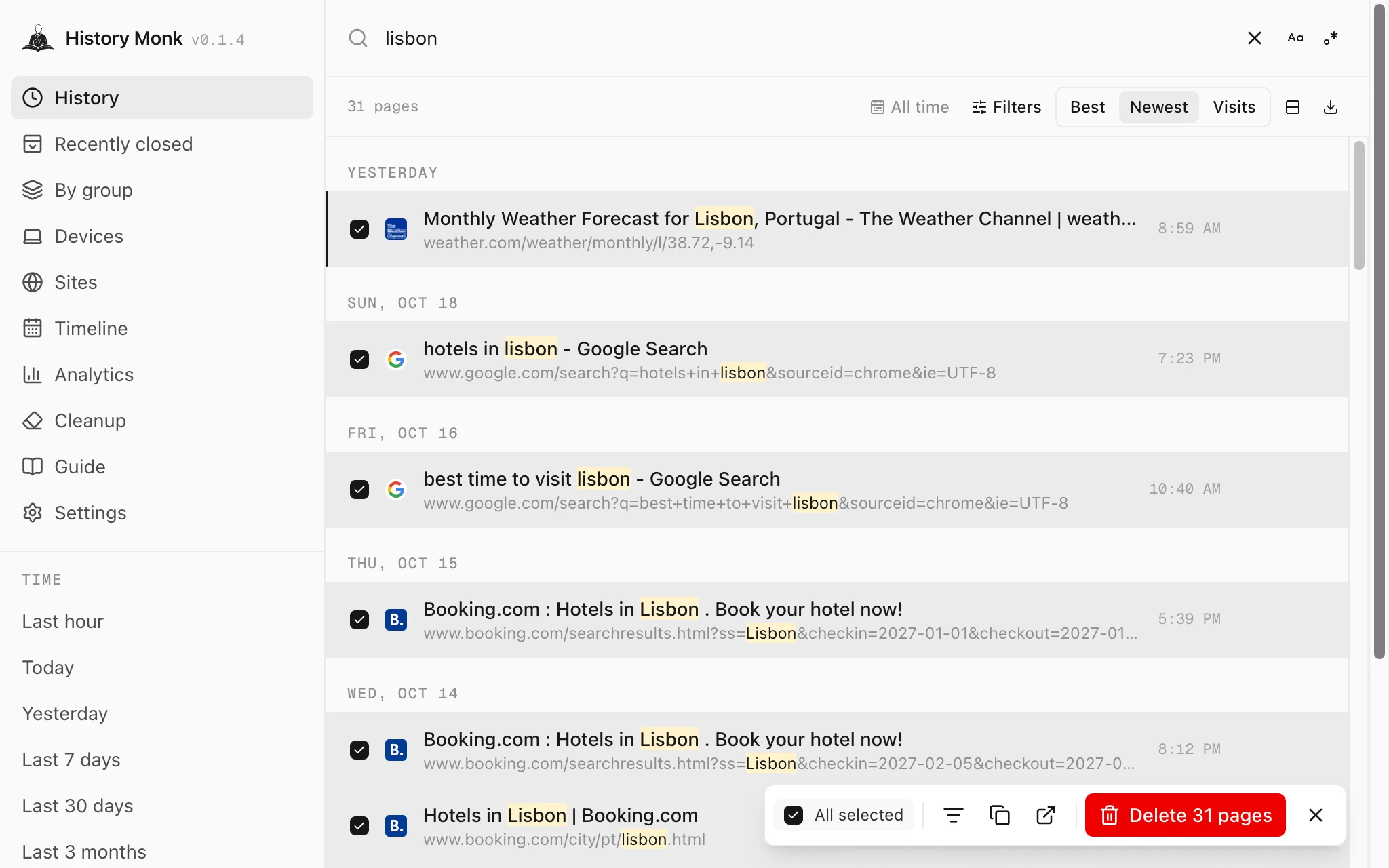
History Monk search for lisbon with every result ticked and a bar reading All selected and Delete 31 pages
All selected, ready to delete.
History Monk selection bar with a Confirm - permanently delete 31 pages button
The bar asks for a second click too.

Tips

FAQ

Questions about deleting search results

How do I delete all history about one topic?

Search for the word in History Monk, open Filters, click Delete N pages and confirm. Every page in the result is removed, from every site.

Can I delete history between two dates?

Yes. Pick the days with the date button above your results, then delete from the Filters panel. Only pages from those days are in the result.

Can I keep a few pages?

Yes. Tick every result with Select all, untick the ones you want to keep, then delete from the bar at the bottom.

Does it touch protected sites?

No. Pages from sites on your protected list are skipped by every delete in History Monk, even when they are in the result.

The wise search once. History Monk remembers the rest.
