Before you start: add History Monk from the Chrome Web Store or Firefox Add-ons. The Chrome Web Store version also installs in Edge.
Step 1: Open Cleanup
Click Cleanup in the sidebar. History Monk checks your history and shows the groups that have pages in them. The first three cover time:
- Last hour
- Last 24 hours
- Last 7 days
Each one covers the pages in the range you have loaded, so pick All time under Time in the sidebar if you want everything.
Step 2: Check the pages in the card
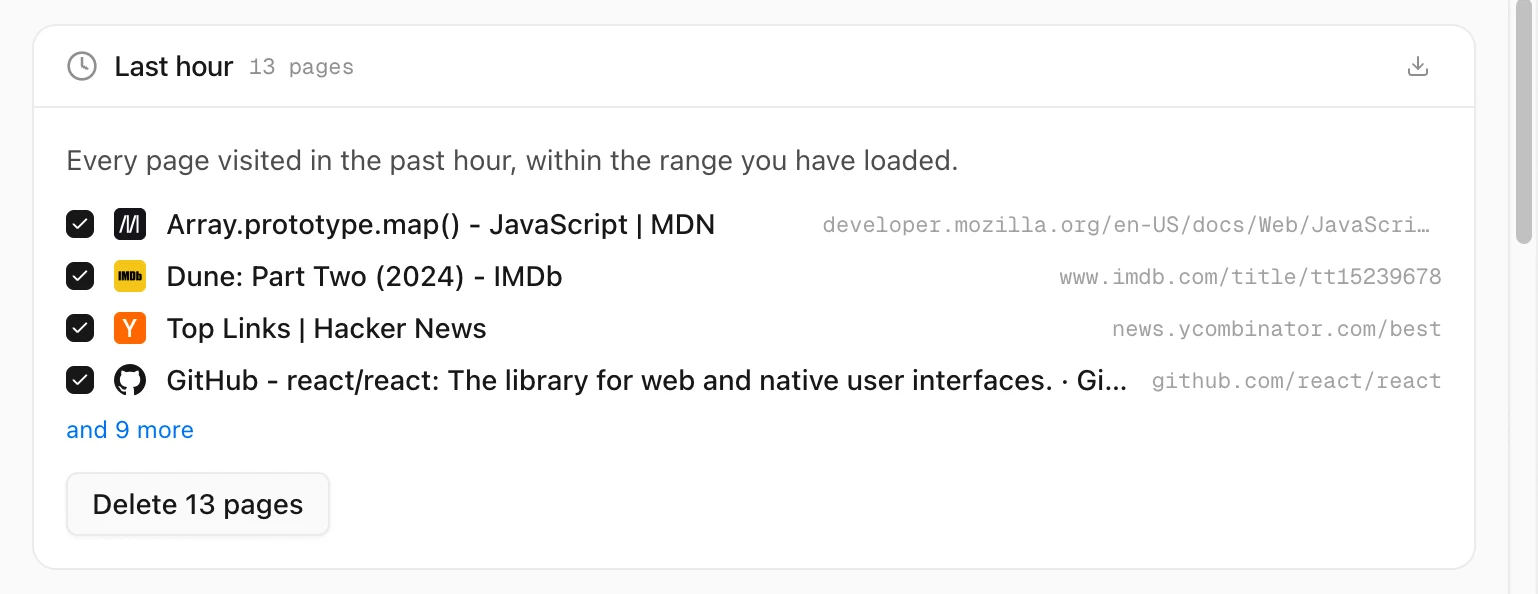
The Last hour card shows its first pages, each with a tick. Click and 9 more to see the rest, 50 at a time.
Untick any page you want to keep. It is struck through, and the Delete button counts one fewer.
Step 3: Click Delete, then Confirm
Click Delete 13 pages. The button changes to Confirm - permanently delete 13 pages. Click it to delete, or Cancel to stop.
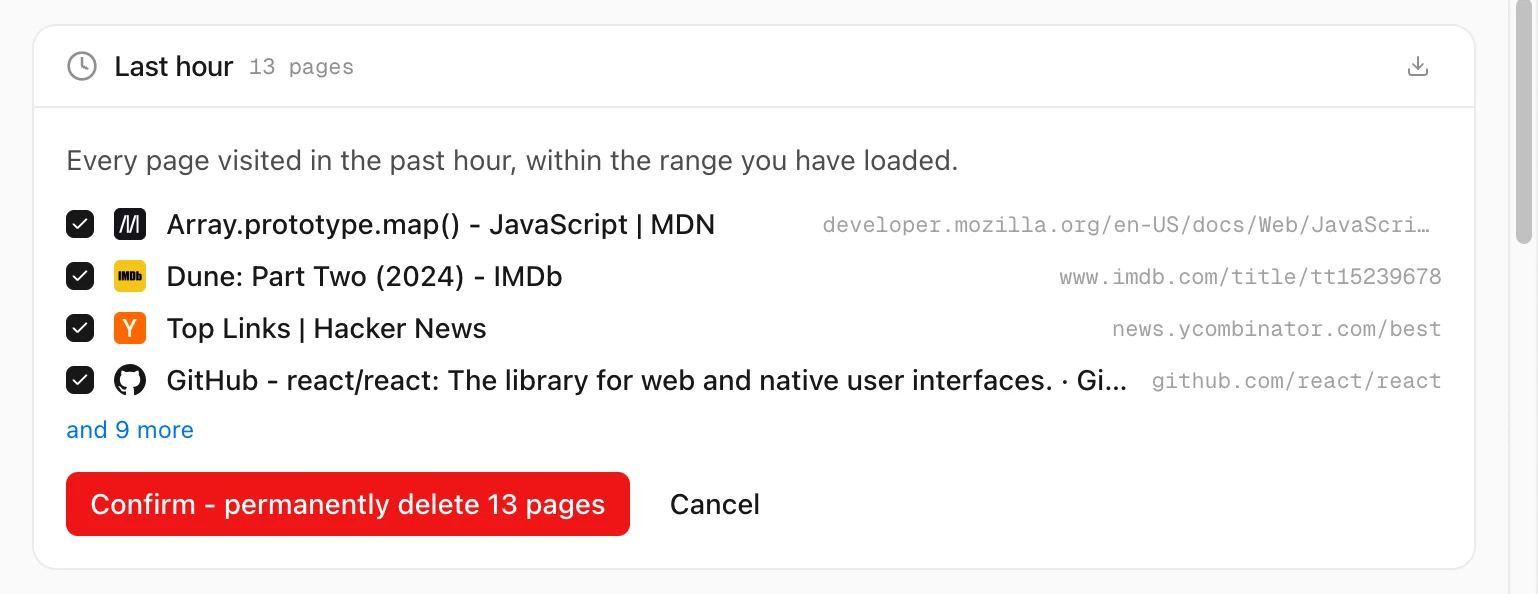
Deleting from Cleanup needs a license. Without one, the button is locked and links to where you can get one.
Tips
- Keep a copy first. Each card has its own export button at the top right, so you can save its pages as CSV, HTML or JSON before deleting.
- Without Cleanup: click Last hour under Time in the sidebar, open Filters and click Delete. See how to delete search results from your history.
- Protected sites are never in a card. See how to protect a site from deletion.
- There is no undo. The browser can’t put a deleted entry back.