Before you start: add History Monk from the Chrome Web Store or Firefox Add-ons. The Chrome Web Store version also installs in Edge.
Step 1: Pick the pages to export
Export saves the pages in your current list. Leave the search box empty and pick All time to export everything, or narrow it first:
- a word or a filter, like
site:booking.com kyoto - a date range, from the date button above your results
- a range from the sidebar, like Last 30 days
Step 2: Click the export button
The export button is the arrow at the far right of the toolbar above your results.

The menu shows how many pages go into the file under All results.
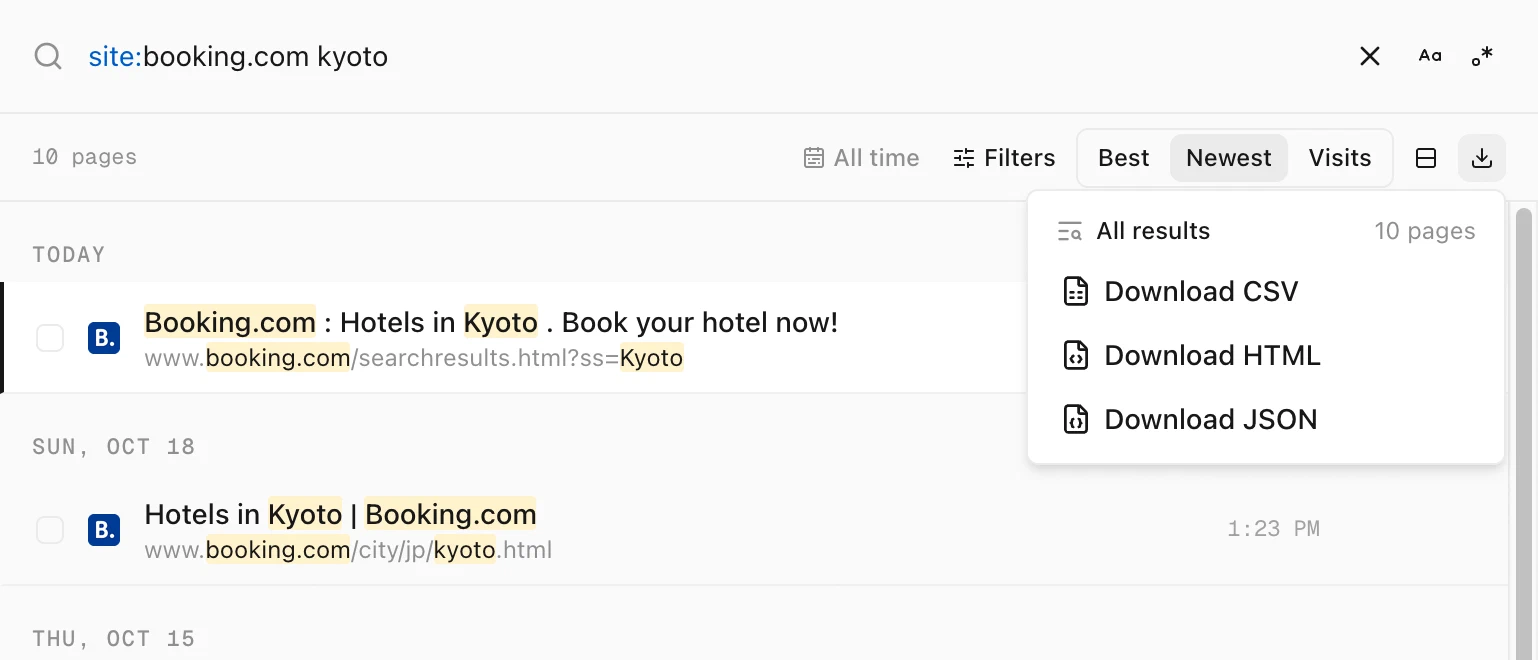
site:booking.com kyoto.Step 3: Choose a format
| Choose | Best for |
|---|---|
| Download CSV | Excel, Numbers and Google Sheets |
| Download HTML | Reading offline. It’s one page with its own search box, sorting and pages of 10, 25, 50 or 100 entries. |
| Download JSON | Scripts, jq or a database |
The file goes to your Downloads folder, named with today’s date, like history-monk-history-2026-10-20.csv.
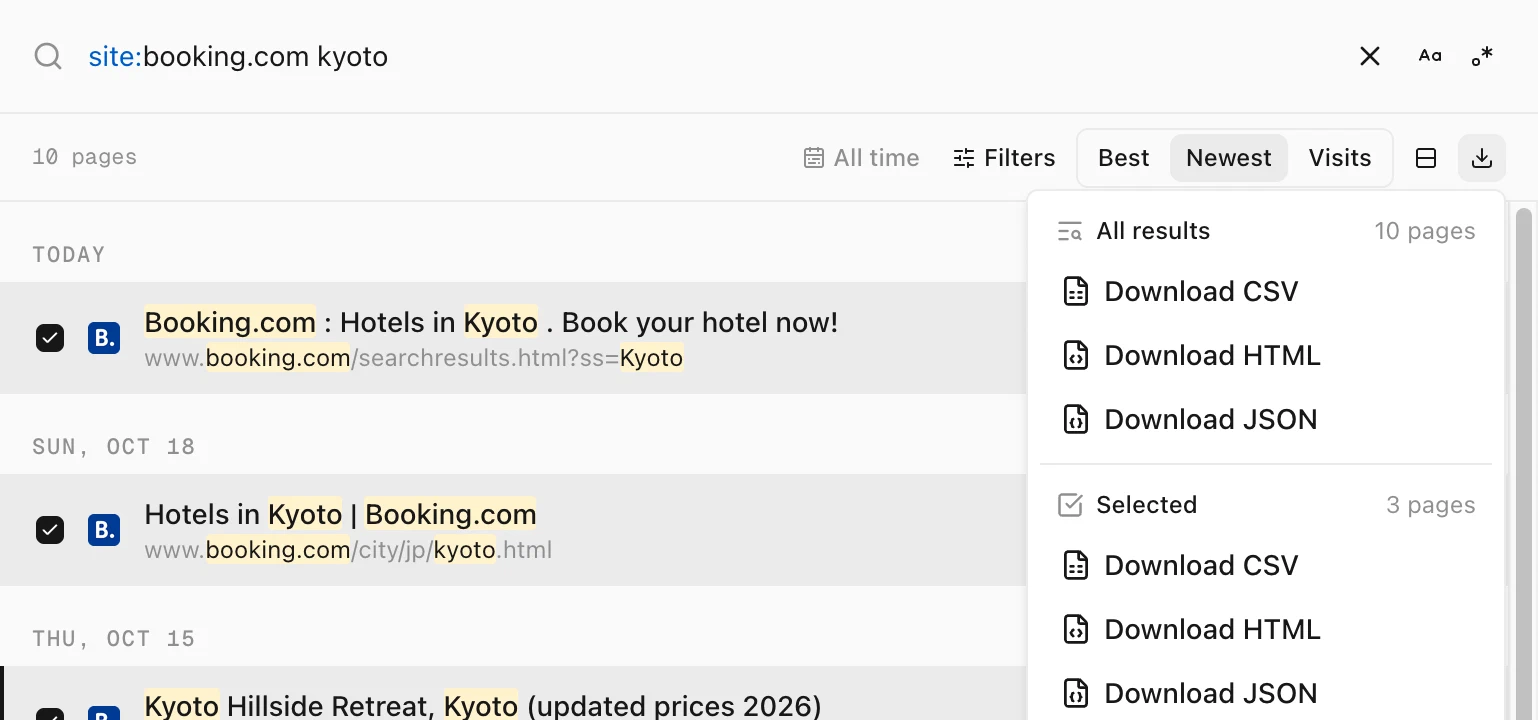
Export only the pages you ticked
Tick the rows you want first. The menu then has a second section, Selected, with its own three formats.
What’s in the file
Every format has the same five details for each page: Title, URL, Site, Last visited and Visits.
- CSV: a header row, then one line per page. It’s saved as UTF-8 so accents open correctly in Excel. Dates are in ISO 8601 format, in UTC.
- JSON: an array with
title,url,site,visitedAtandvisitsfor every page. - HTML: a single page that opens in any browser, with every address as a link.
Tips
- Each Cleanup group has its own export, so you can keep a copy before deleting. See how to clear search pages from your history.
- Only need the links? Copying is quicker. See how to copy links from your history.