Before you start: add History Monk from the Chrome Web Store or Firefox Add-ons. The Chrome Web Store version also installs in Edge.
Step 1: Open History Monk
In Chrome and Edge, History Monk takes the place of the History page, so CtrlH, or ⌘Y on a Mac, opens it. ⌥⇧H opens it from any tab in every browser, and so does the History Monk button in your toolbar.
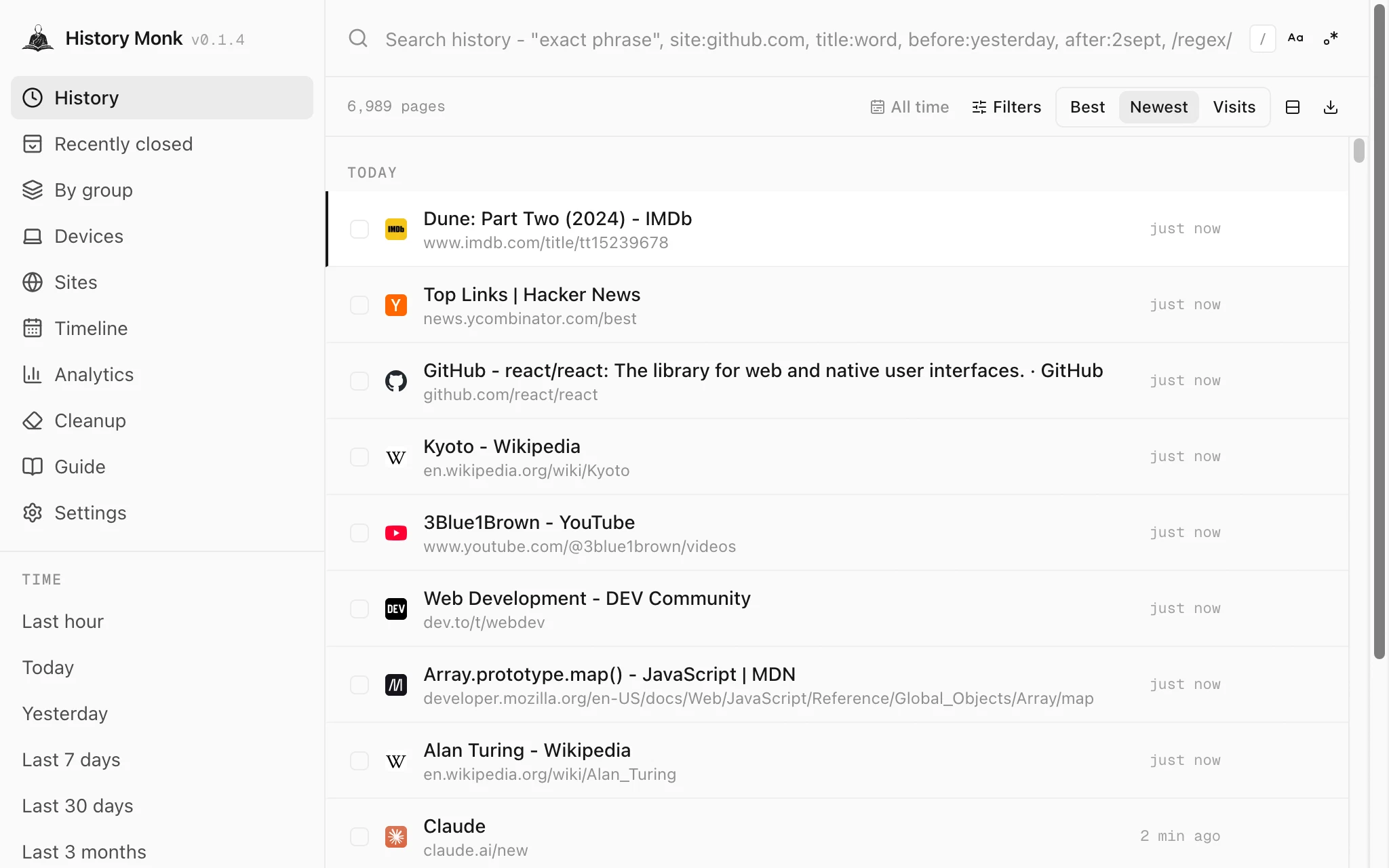
Your history is listed newest first, under Today, Yesterday and each date before that.
Step 2: Type a word you remember
Think of one thing the page was about: a place, a product, a person, or part of the site’s name. Type it into the search box. The list updates with every key you press, so there’s nothing to submit.
- Every word must appear, in the page title or its address, in any order.
- Part of a word counts.
hotelalso matches Hotels. - Capitals and accents don’t matter.
zurichfinds Zürich.
Matches are highlighted in each title and address, so you can see why a page is in the list.
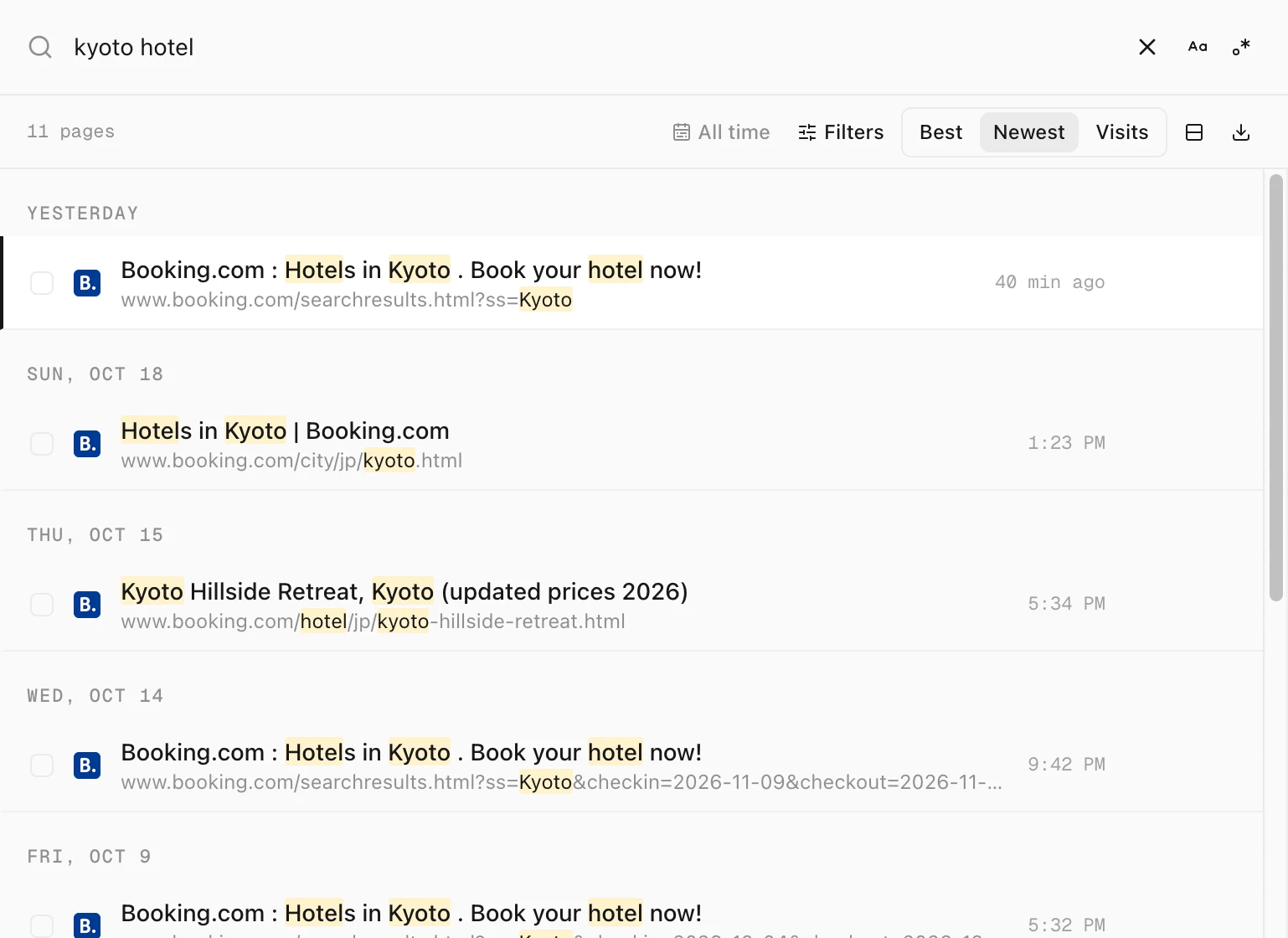
kyoto hotel finds 11 pages. hotel matches the word Hotels and the /hotel/ part of each address.Step 3: Spelled it wrong? Keep going
When your search finds fewer than 200 pages, History Monk looks for the closest real word in your own page titles and site names. It adds those pages below the exact matches and shows a note with the words it searched for.
- Words of 6 letters or fewer can be one letter off. Longer words can be two.
- Two swapped letters count as one mistake, so
reatcfinds React. - Words under 4 letters are searched exactly as you typed them.
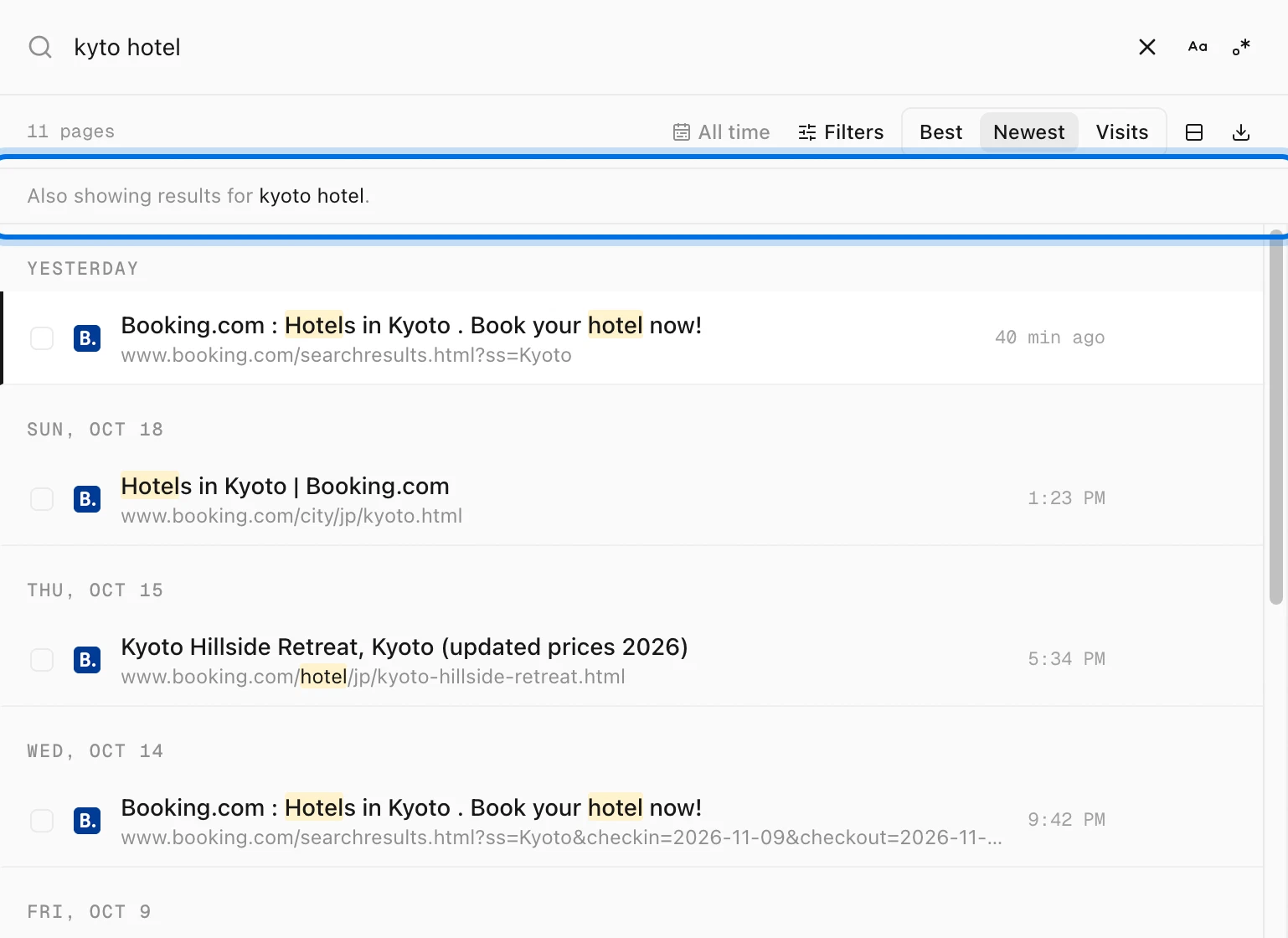
kyto hotel still finds all 11 pages, with the note Also showing results for kyoto hotel.Step 4: Open the page
The first result is already selected. Press ↵ to open it in this tab, or use ↑ and ↓ to pick another one first. ⌘↵ opens it in a background tab, so you can keep searching. You can also click any result.
If you still can’t find it
- Try another word. Search for the site’s name or a word from its address instead of the title. One word you’re sure of works better than a long phrase.
- Sort by Best. Results are sorted by Newest at first. Best puts pages with your words in the title above pages that only have them in the address. See how quick search ranks results.
- Search all of your history. If History Monk opens on a short range, like Last 7 days, and fewer than 20 pages match, it searches a wider range for you and says so. To pick the range yourself, choose All time in the sidebar.
- Remember when, not what? Narrow the search to a site or a day with search filters such as
site:andafter:, or scroll through that day in the Timeline. - Check how far back your history goes. Chrome and Edge keep about 90 days of history. Pages from before that, and pages you opened in an Incognito or private window, aren’t in your history, so no search can find them.