Before you start: add History Monk from the Chrome Web Store or Firefox Add-ons. The Chrome Web Store version also installs in Edge.
Hide a site when you don’t want it in your results or your stats, but don’t want to delete it either. A site you open all day for work, for example, or your webmail.
Step 1: Open Settings
Click Settings at the bottom of the sidebar menu and scroll down to Hidden sites.
Step 2: Type the site
Type the site’s address in the box, one site per line. Leave out https:// and www.. Subdomains are hidden too.
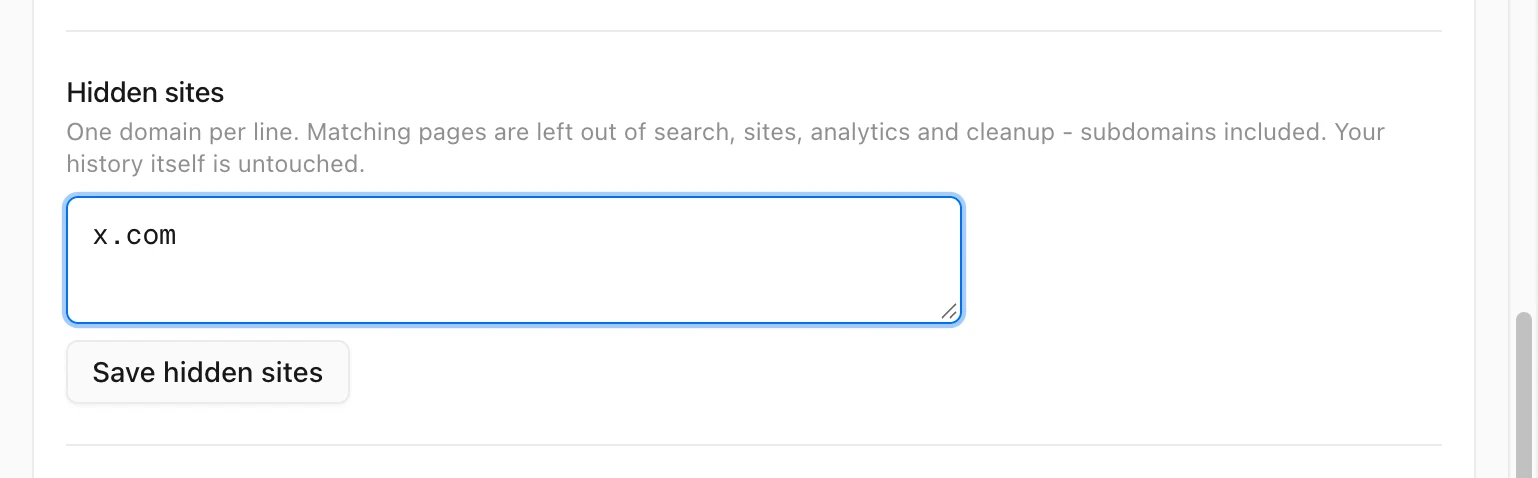
Step 3: Click Save hidden sites
The site leaves every view straight away. In the history used for this guide, Sites went from 19 sites to 18, and site:x.com found 0 pages.
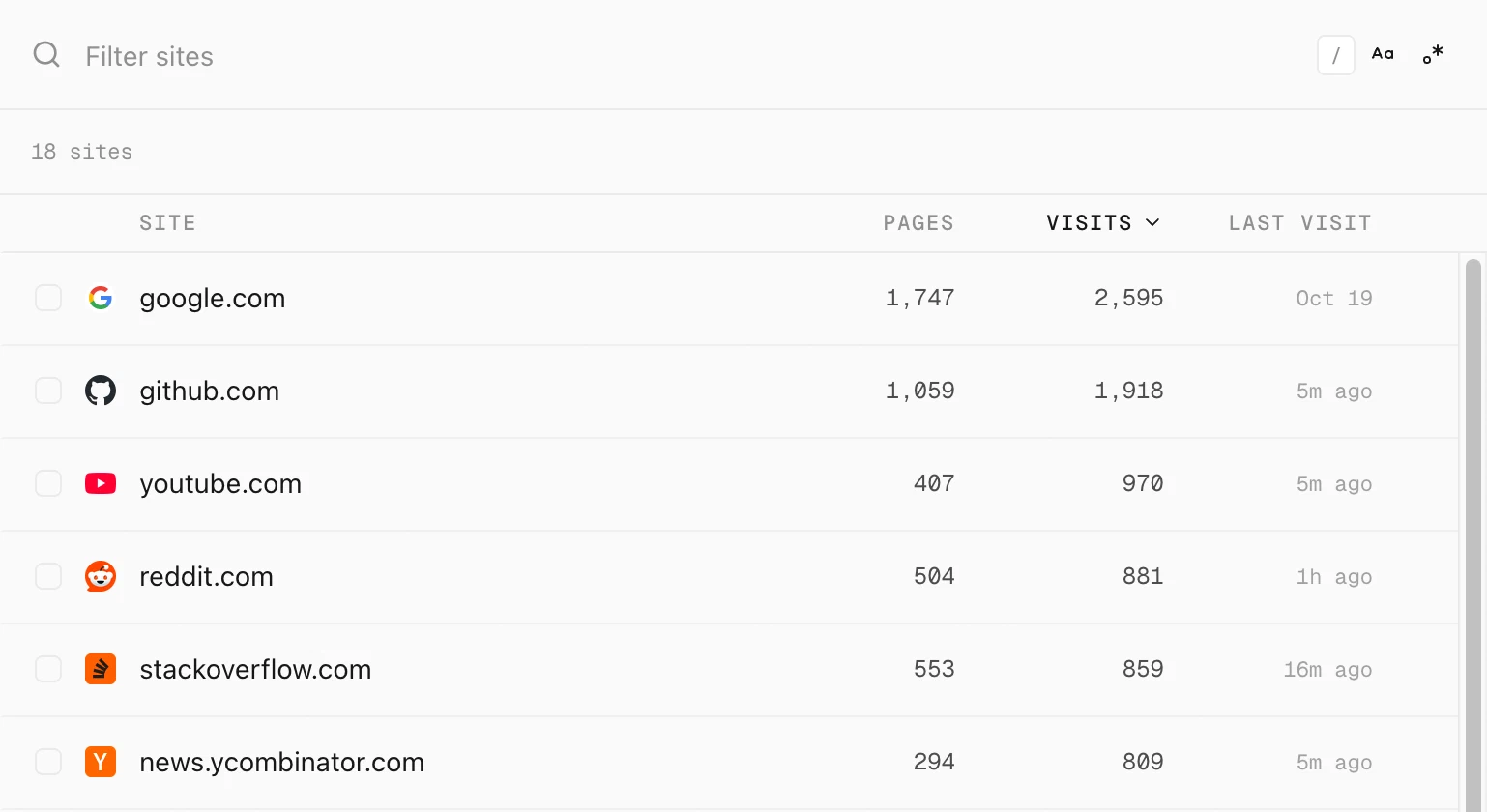
Where a hidden site is left out
- search results in History
- the Sites list
- Analytics and the weekly digest
- the Cleanup groups
Your browser’s history is untouched. Remove the site from the list and click Save hidden sites to bring everything back.
Tips
- Only for one search? Add
-site:x.comto the search instead. See how to exclude a site from your search. - Never delete it by accident. See how to protect a site from deletion.
- Hidden sites stay off the weekly digest, so you can share your week without them. See how to share your week in browsing.