How-to guide

How to protect a site from being deleted

Open Settings, type the site under Protected sites and click Save. History Monk will never delete its pages.

Tested in Chrome 155 and History Monk 0.1.4 Free for 7 days No account

Quick steps

Protect a site in three steps

  1. Open Settings

    Scroll down to Protected sites.

  2. Type the site

    One per line, like wikipedia.org. Subdomains are included.

  3. Save

    Click Save protected sites. It works right away.

Before you start: add History Monk from the Chrome Web Store or Firefox Add-ons. The Chrome Web Store version also installs in Edge.

Protect the sites you would never want to lose by accident, like your work documents, your notes or a project you’re researching.

Step 1: Open Settings

Click Settings at the bottom of the sidebar menu and scroll down to Protected sites.

Step 2: Type the site

Type the site’s address in the box, one site per line. Leave out https:// and www.. Subdomains are covered, so wikipedia.org protects every Wikipedia language.
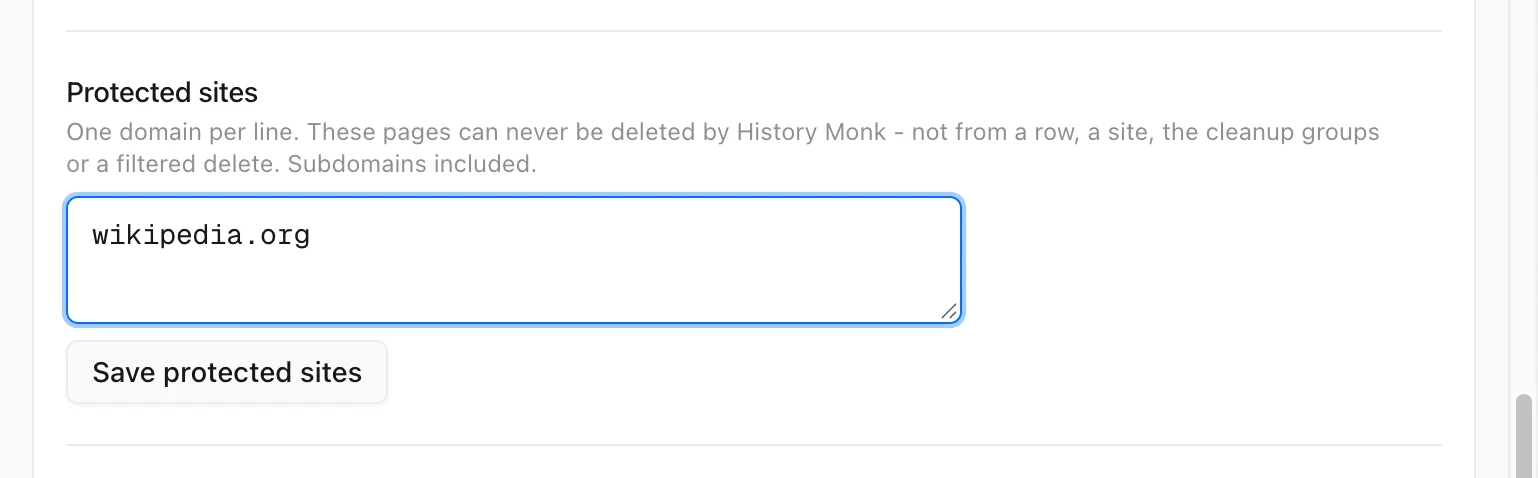
History Monk Settings with wikipedia.org typed in the Protected sites box and a Save protected sites button
One site per line. Subdomains are included.

Step 3: Click Save protected sites

The list is saved in this browser and works right away. It’s also saved when you click outside the box.

What changes

In History, a protected page shows a shield where the delete button would be when you point at its row.
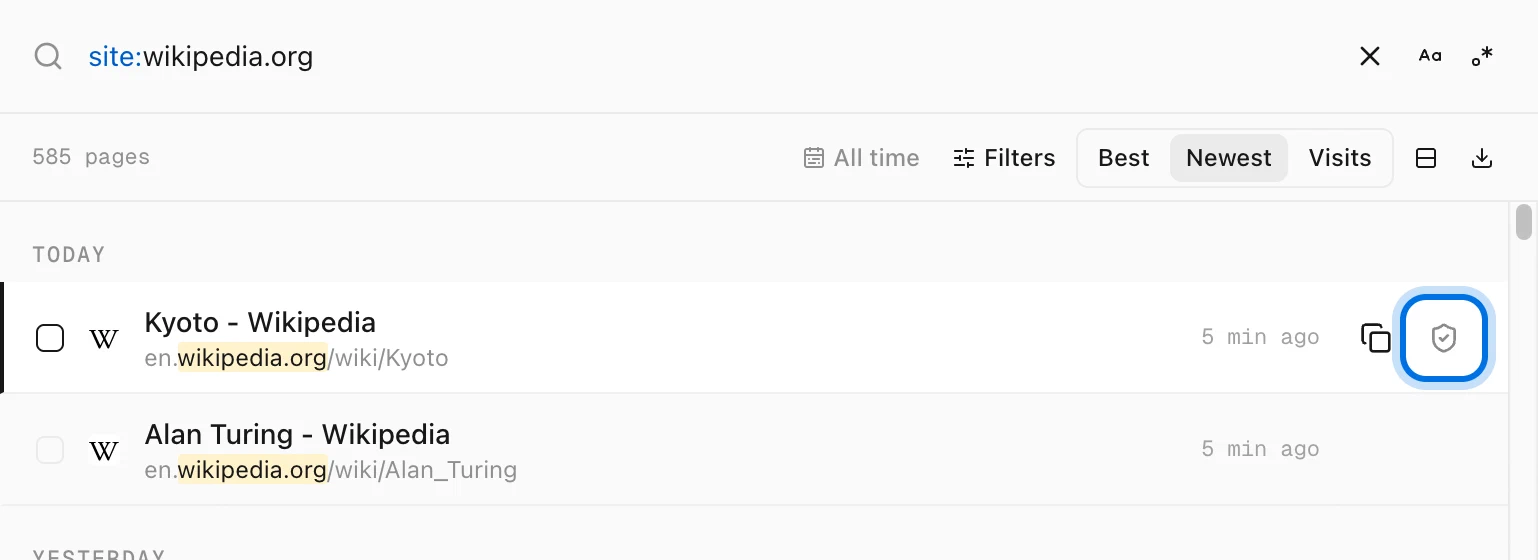
History Monk History view for site:wikipedia.org with a shield icon highlighted on the Kyoto - Wikipedia row
A shield instead of the delete button.

Every delete in History Monk skips protected pages:

  • deleting one row or a selection in History
  • deleting a whole site from Sites or from the right-click menu
  • deleting a Cleanup group or a search group
  • deleting from the Filters panel

Protected pages are also left out of the Cleanup groups. A selection’s Delete button can still count them, but they stay in your history when the delete runs.

Tips

  • To stop protecting a site, delete its line and click Save protected sites again.
  • Out of sight instead? Hidden sites keeps a site out of every view without deleting anything. See how to hide a site from your history.
  • Your browser can still delete it. Protection only applies to History Monk, not to your browser’s own Delete browsing data.

FAQ

Questions about protected sites

What does a protected site do?

Pages from a protected site can never be deleted by History Monk: not from a row, a whole site, a Cleanup group, a search group or a filtered delete.

Does it protect subdomains?

Yes. Protecting wikipedia.org covers en.wikipedia.org, es.wikipedia.org and every other subdomain.

Does it stop my browser from deleting the pages?

No. It only applies to History Monk. Your browser's own Delete browsing data still clears everything.

What is the difference between protected and hidden sites?

Protected sites stay in every view but can't be deleted. Hidden sites are kept out of search, Sites, Analytics and Cleanup, and nothing is deleted either way.

The wise search once. History Monk remembers the rest.