Before you start: add History Monk from the Chrome Web Store or Firefox Add-ons. The Chrome Web Store version also installs in Edge.
The same page often ends up in your history more than once. A link from a newsletter adds ?utm_source=newsletter, a link to a section adds #readme, and some sites add a slash at the end. History Monk treats these as one page.
Step 1: Open Cleanup and find Duplicate pages
Click Cleanup in the sidebar and scroll to the Duplicate pages card. It only appears when your history has duplicates in the range you have loaded.
Step 2: Check the copies
The card lists the extra copies, not the one you keep. Look at the address on the right of each row to see what makes it a copy.
Untick any copy you want to keep. It is struck through and left out of the delete.
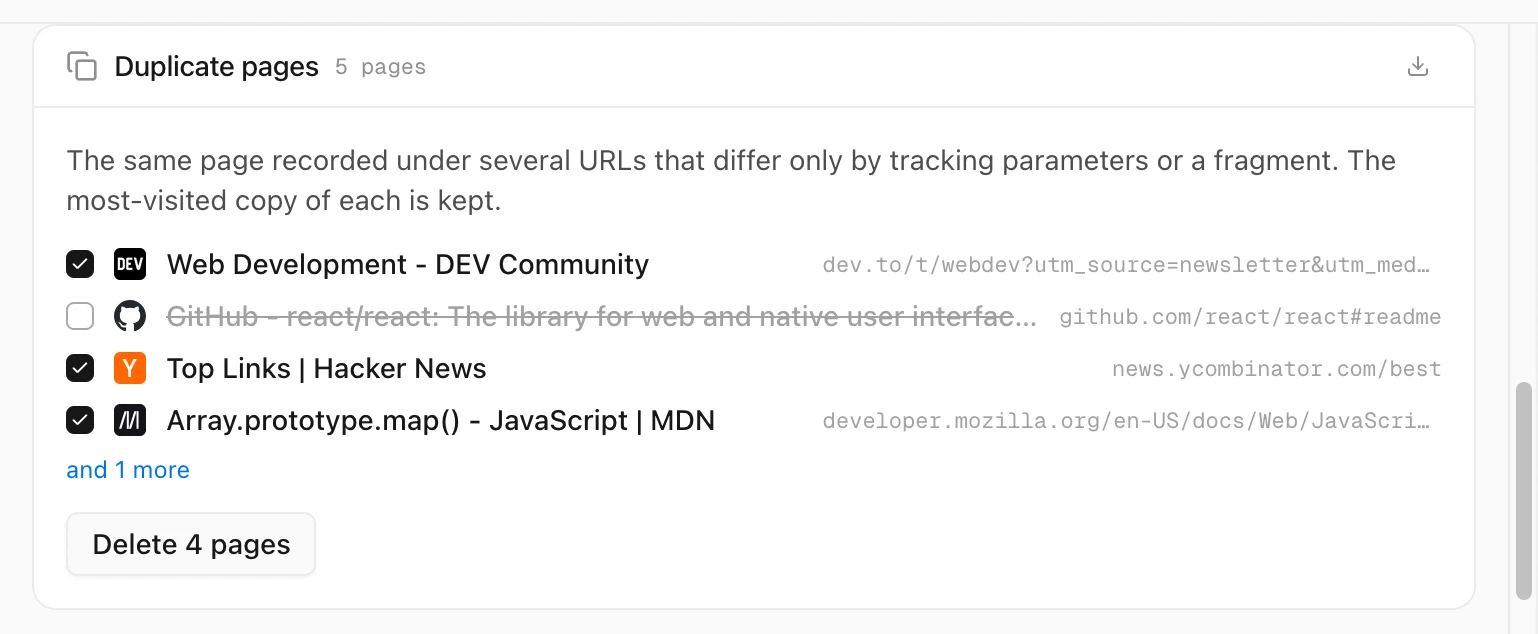
Step 3: Click Delete, then Confirm
Click Delete, then Confirm - permanently delete to remove the copies. The copy you visited most stays in your history.
How History Monk picks the copy to keep
- The copy you visited most.
- On a tie, the one you visited most recently.
- Then the one with the shortest address.
Tips
- Same page, different filters is a related card. It catches one page saved again for every sort or view you tried, like
?sort=new. - Export the card first with the button at its top right, if you want a record.
- Deleting from Cleanup needs a license. Without one, the button is locked.
- Protected sites are never in a card. See how to protect a site from deletion.