Before you start: add History Monk from the Chrome Web Store or Firefox Add-ons. The Chrome Web Store version also installs in Edge.
Step 1: Click the date button
Open History Monk. Above your results, next to Filters, is a button with a calendar icon. It reads All time until you pick a range.

A panel opens with quick ranges on the left, like Yesterday and Last 7 days, and two months of calendar on the right. Days in the future are greyed out.
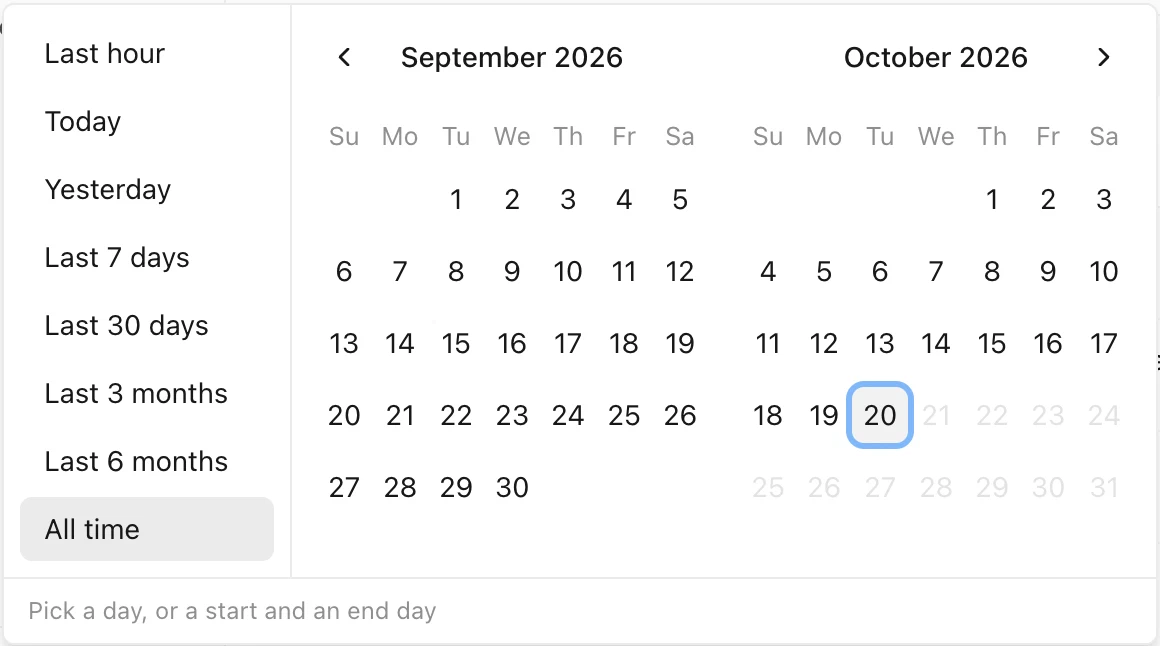
Step 2: Pick the first and the last day
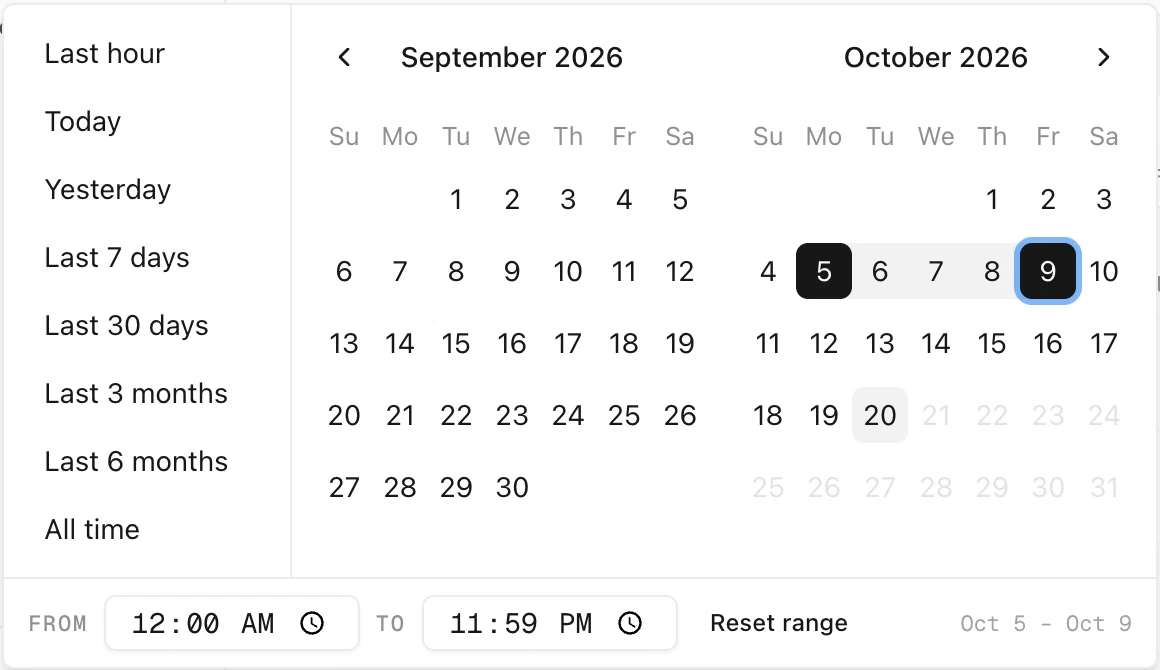
Click the first day, then the last day. Here, October 5 and October 9. To search a single day, click it once.
Two time fields, From and To, appear at the bottom. They start at 12:00 AM and 11:59 PM, so the whole of both days is included. Change them to start or end at a certain time.
Step 3: Click outside the panel
Click anywhere outside the panel to close it. Don’t press Esc: it clears the search box, and the date range goes with it.
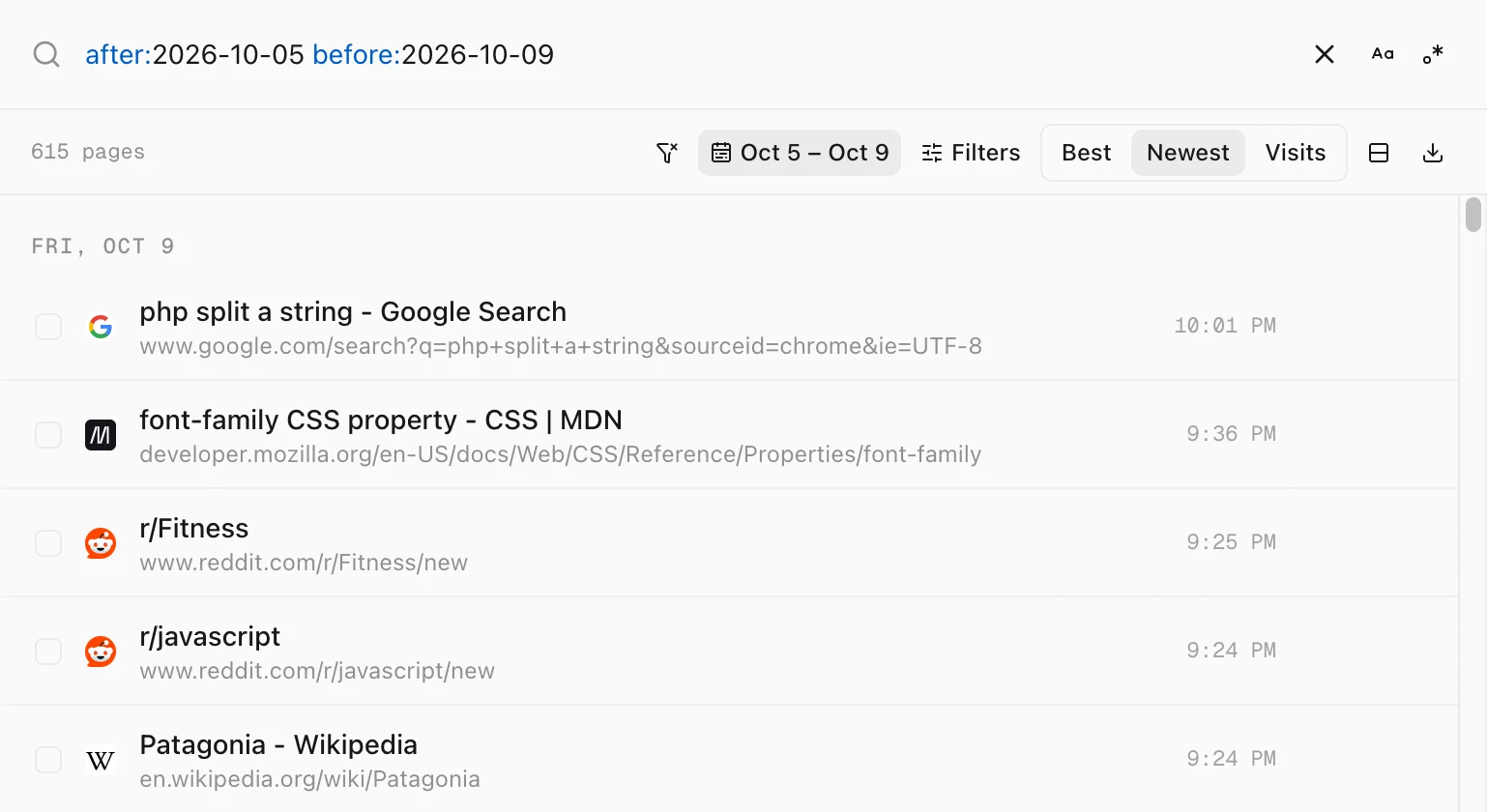
The search box now holds after:2026-10-05 before:2026-10-09, and the date button reads Oct 5 – Oct 9. Type any word you remember after it to search only those days.
Or type the dates yourself
after: means “from this day on” and before: means “up to the end of this day”. Type after: and a list of recent days opens, starting with Today and Yesterday.
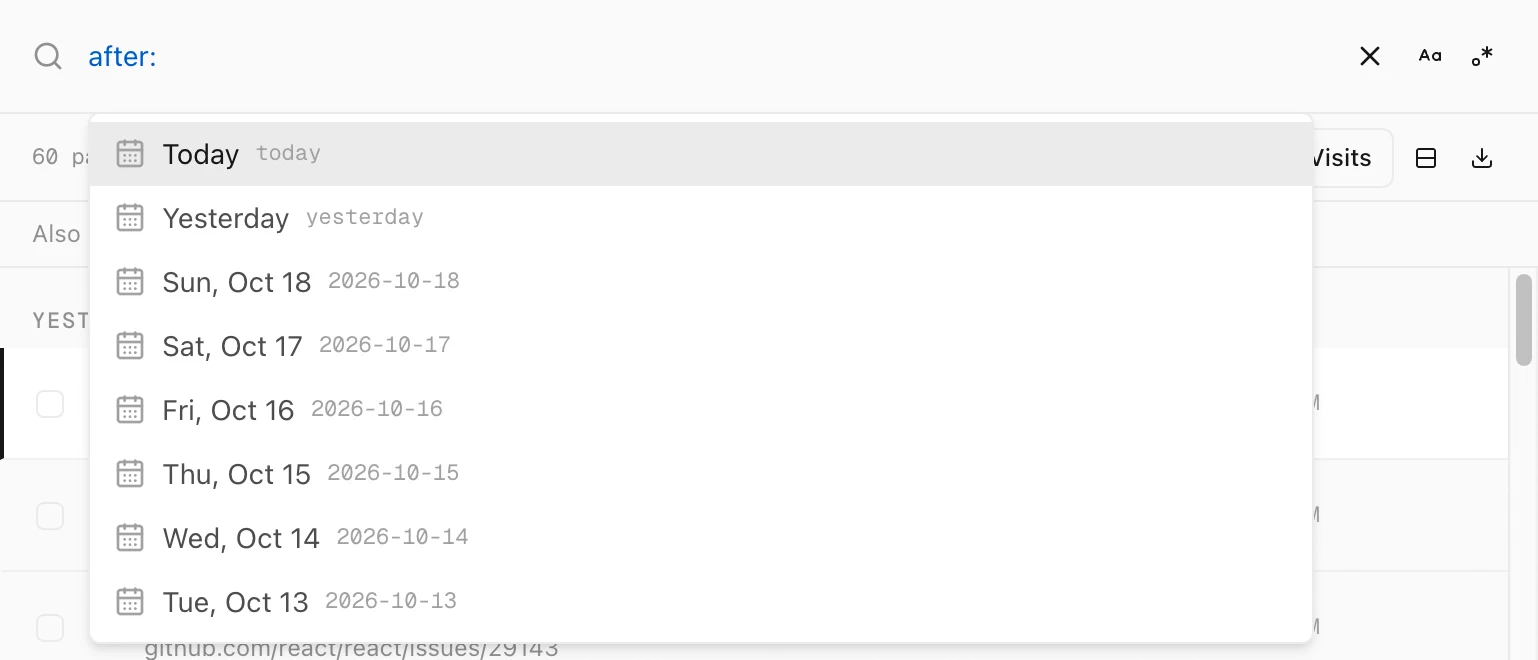
after: suggests recent days.| Type this | What it finds |
|---|---|
after:yesterday | Everything since the start of yesterday |
before:2026-10-01 | Everything up to the end of October 1 |
after:2026-10-05 before:2026-10-09 | October 5 to 9 |
lisbon after:2026-10-01 | Pages about Lisbon since October 1 |
Tips
- Quick ranges are in the sidebar too. Today, Last 7 days, Last 30 days and the rest sit under Time on the left.
- Need a time of day?
after:yesterday after:6pmstarts yesterday at 6 PM. See how to search your history by time of day. - Read one day from top to bottom. The Timeline shows a single day in browsing sessions. See how to see your history for one day.