Before you start: add History Monk from the Chrome Web Store or Firefox Add-ons. The Chrome Web Store version also installs in Edge.
Step 1: Type after: and a time
Click the search box and type after: and a time. As you type, History Monk suggests times and days. after:9 offers 9:00 AM and 9:00 PM.
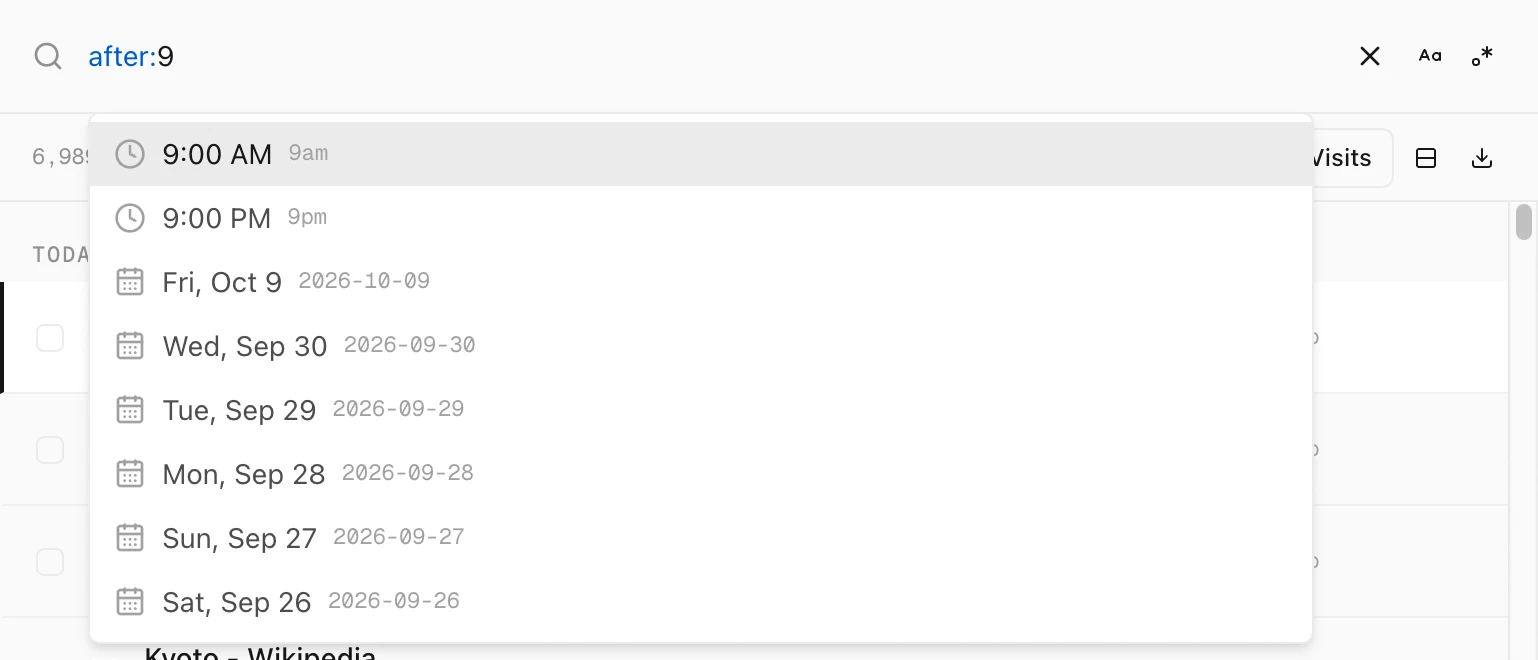
after:9 suggests both 9 AM and 9 PM.A time on its own means today. after:9am shows what you opened since 9 this morning, and after:9am before:5pm shows today’s working hours.
Times can be written as 9am, 9:30pm, 17:30 or 14:00. A bare number like after:9 is not a time, so it is ignored.
Step 2: Add the day
For any other day, put the day and the time side by side. They join up into one moment.
| Type this | What it finds |
|---|---|
after:yesterday after:9pm | Yesterday from 9 PM until now |
after:yesterday after:9am before:yesterday before:5pm | Yesterday from 9 AM to 5 PM |
after:2026-10-05 after:6pm before:2026-10-05 before:11pm | October 5, from 6 PM to 11 PM |
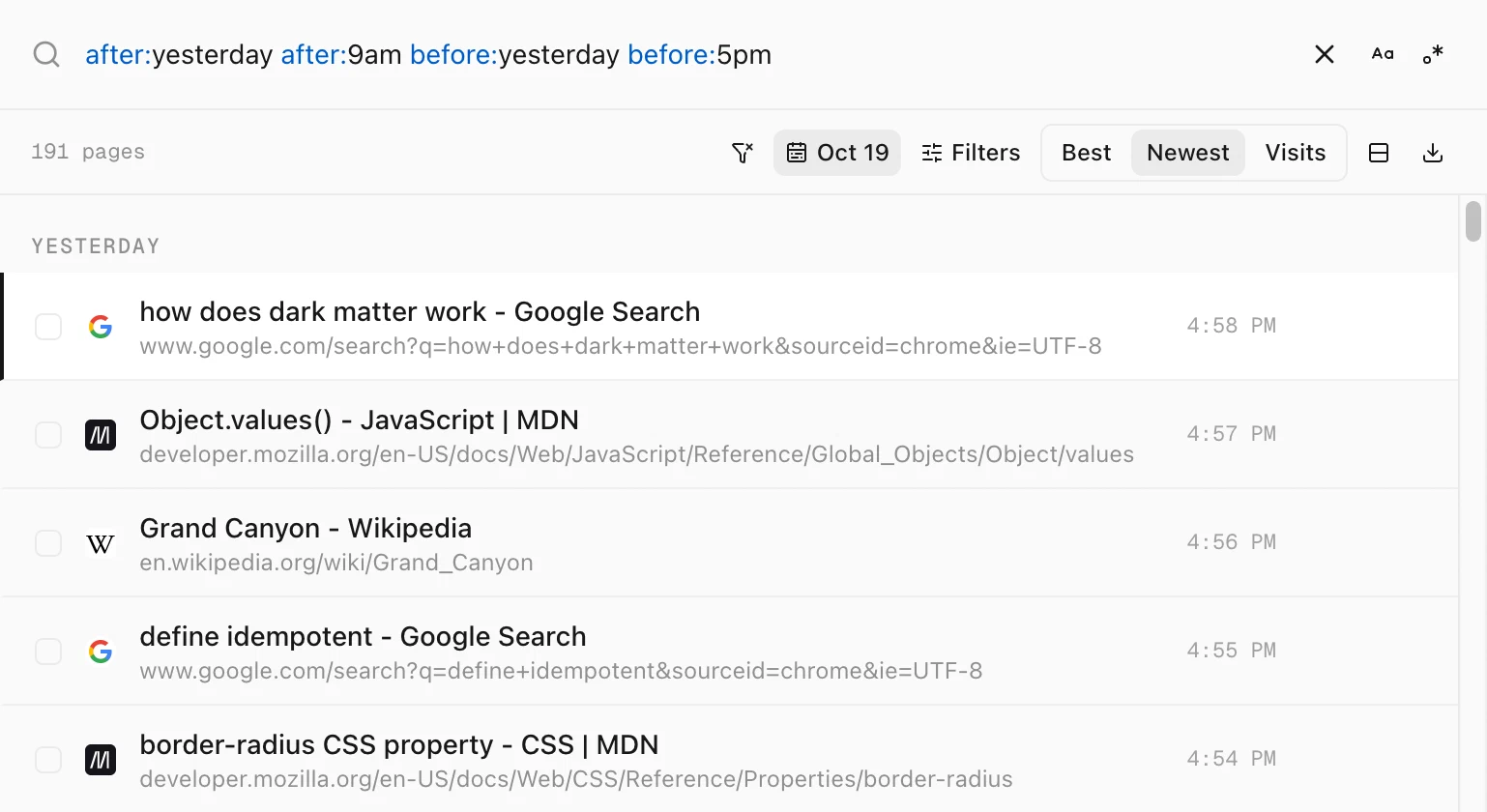
Add any word you remember, like after:yesterday after:9pm recipe, to search only that stretch of time.
Step 3: Or keep one hour on every day
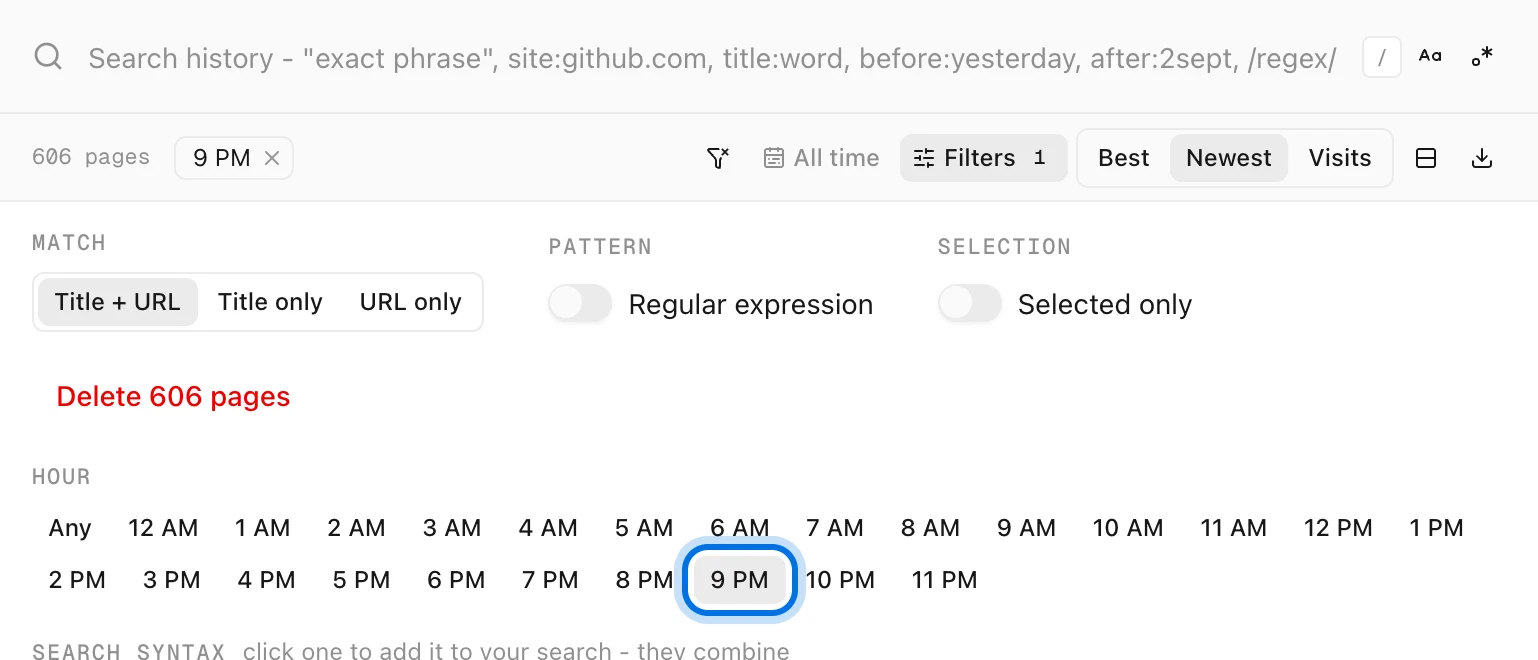
To find what you usually open at a certain hour, use the Hour filter:
- Click Filters above your results.
- Under Hour, click the hour, like 9 PM.
Only pages last visited in that hour stay in the list, from every date in your range. A 9 PM chip appears under the search box. Click its × or Any to turn it off.
Tips
- Pick days on a calendar instead. The date button above your results has a calendar with From and To time fields. See how to search your history by date.
- See your busiest hours. The heatmap in Analytics shows when you browse most. Click a cell to open that weekday and hour in History. See how to see when you browse the most.
- Times follow your clock. Pick a 12- or 24-hour clock in Settings. Typed times work either way.