Before you start: add History Monk from the Chrome Web Store or Firefox Add-ons. The Chrome Web Store version also installs in Edge.
A plain word in History Monk looks at both the page title and its address. When a word shows up everywhere, tell it where to look.
Step 1: Search titles only with title:
Click the search box and type title:. A list of words from your own page titles opens, with how many times each one appears. Pick one with ↑ ↓ and ↵, or type your own word, like title:invoice.
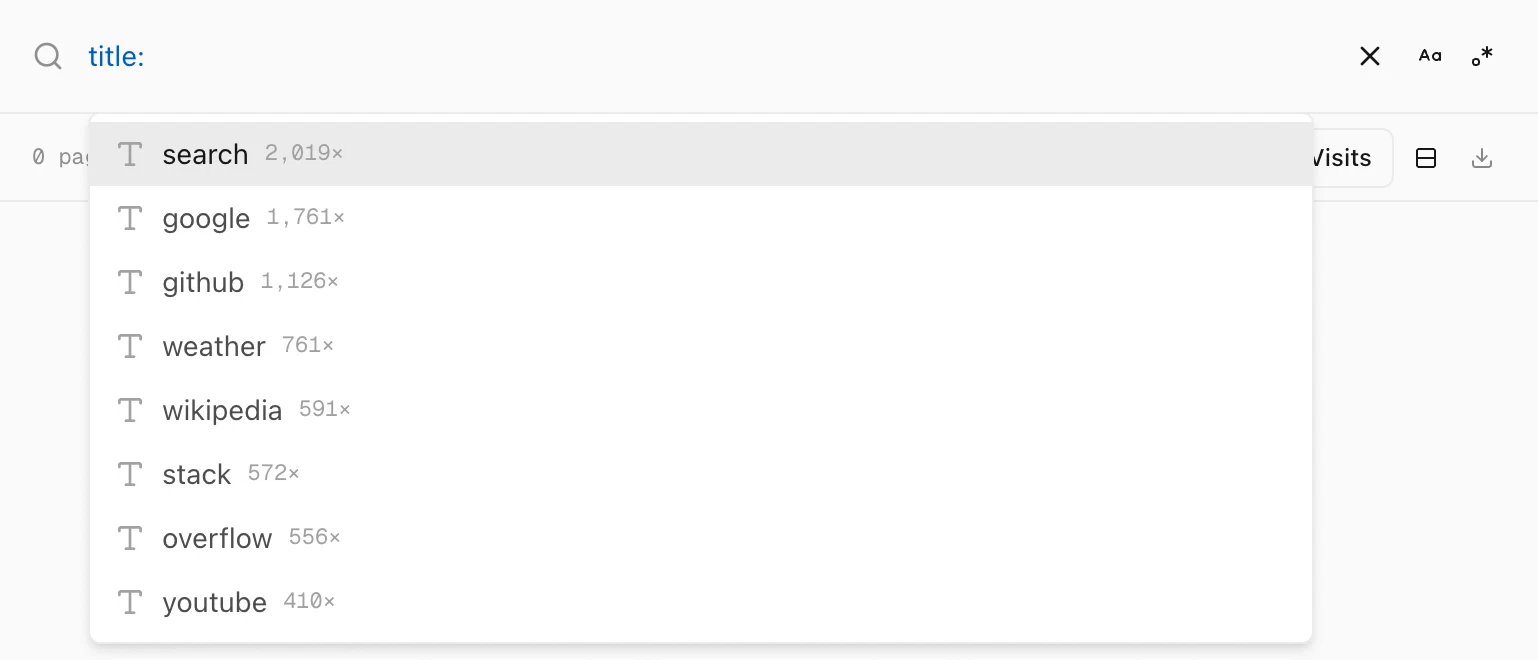
title: suggests words from your page titles.Add more than one and each must be in the title: title:design title:docs.
Step 2: Search addresses only with url:
Type url: and part of a web address. This is handy for pages that share a pattern, like GitHub pull requests:
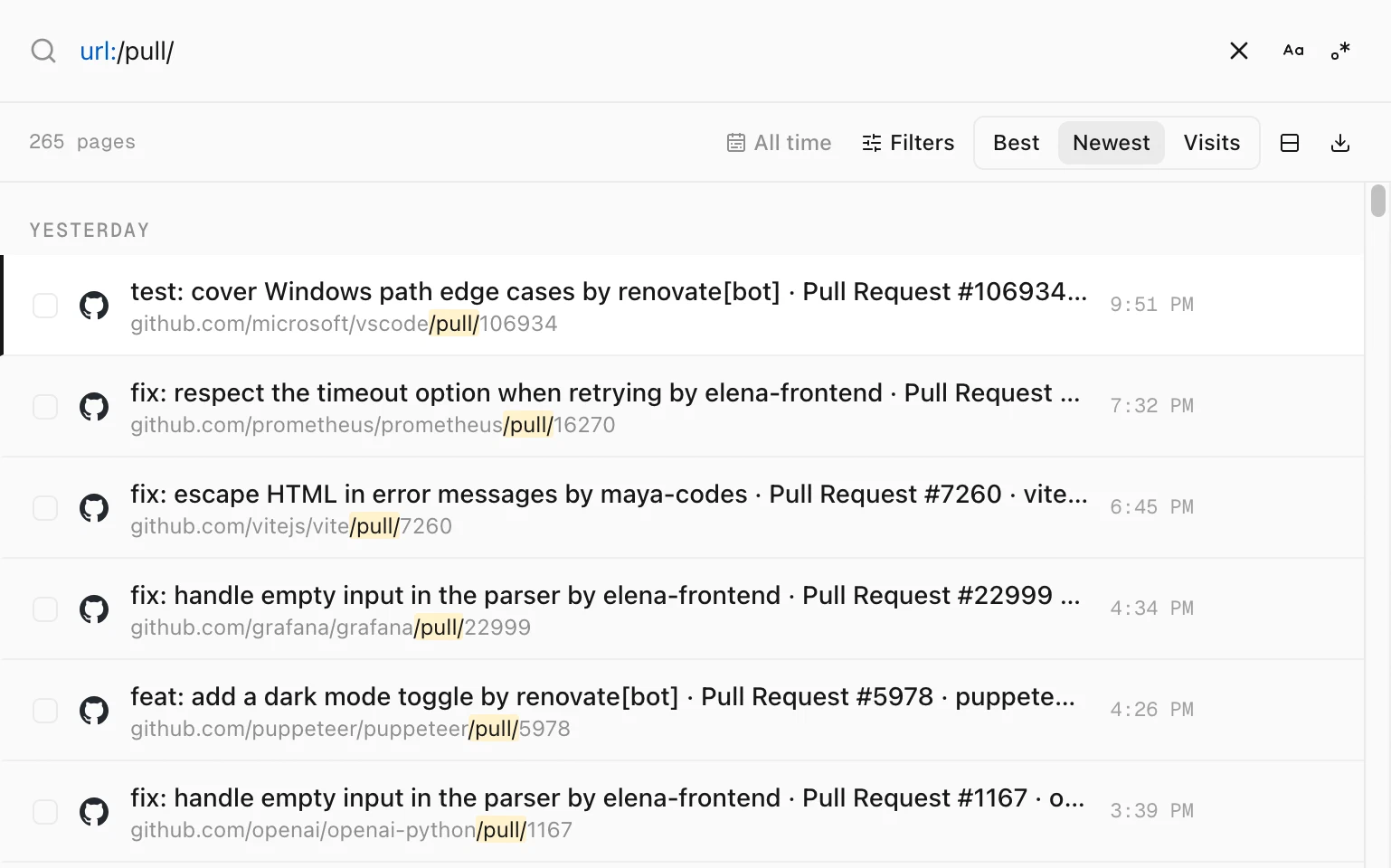
url:/pull/ finds 265 pull request pages. The match is highlighted in each address.A few more you can try:
| Type this | What it finds |
|---|---|
url:watch?v= | YouTube videos you watched |
url:/r/*/comments | Reddit threads from every subreddit. * stands for any text. |
url:/questions/ title:git | Stack Overflow questions about Git |
Step 3: Keep a phrase together with quotes
Put the words in quotes, like "pull request". They must appear side by side and in that order, in the title or the address. Without quotes, the words can appear anywhere.
Quotes don’t work inside title: or url:. To need two words in the title, type title:pull title:request.
Step 4: Or set it once in the Filters panel
If you want every word you type to look in one place, click Filters in the toolbar and set Match to Title only or URL only. A chip under the search box shows it is on. Click its × to turn it off.
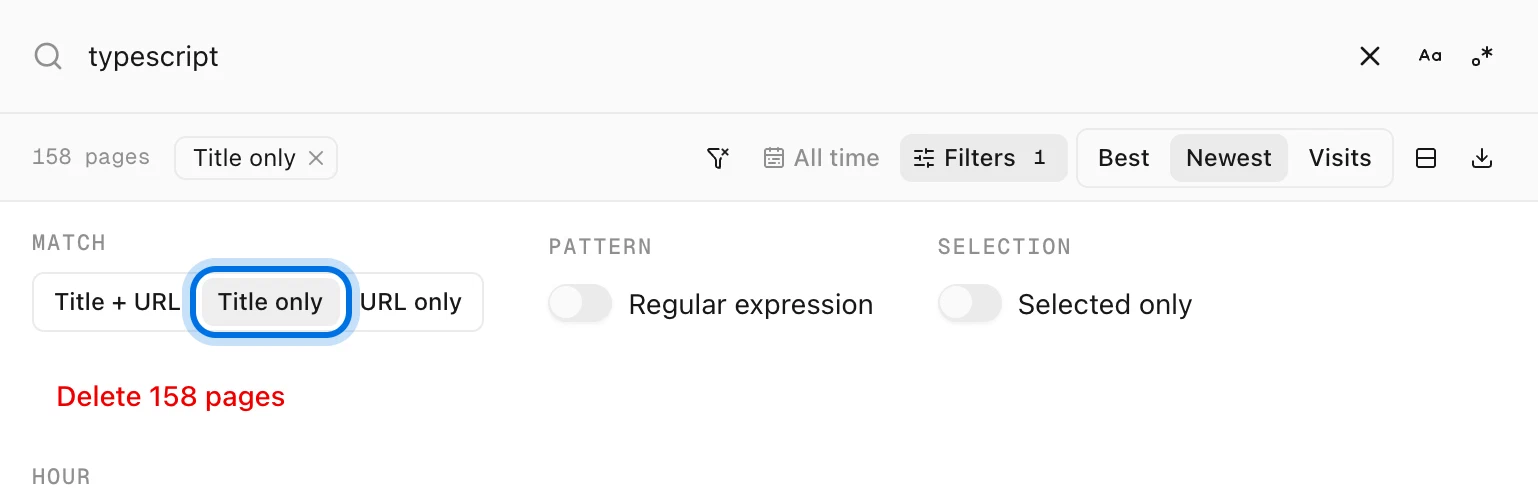
typescript matches 158 page titles.Tips
- Capitals don’t matter.
title:Pullandtitle:pullfind the same pages. Turn on Match case with the Aa button if they should. - Leave words out.
-title:draftand-url:/searchdrop pages instead. See how to exclude a site from your search. - Need more control? A regular expression can match any pattern. See how to search your history with regex.