Before you start: add History Monk from the Chrome Web Store or Firefox Add-ons. The Chrome Web Store version also installs in Edge.
Step 1: Type site: in the search box
Open History Monk and click the search box at the top, or press / to jump to it. Type site:.
A list opens with the sites in your history, most visited first. Each one shows how many pages and visits it has, and when you were last there.
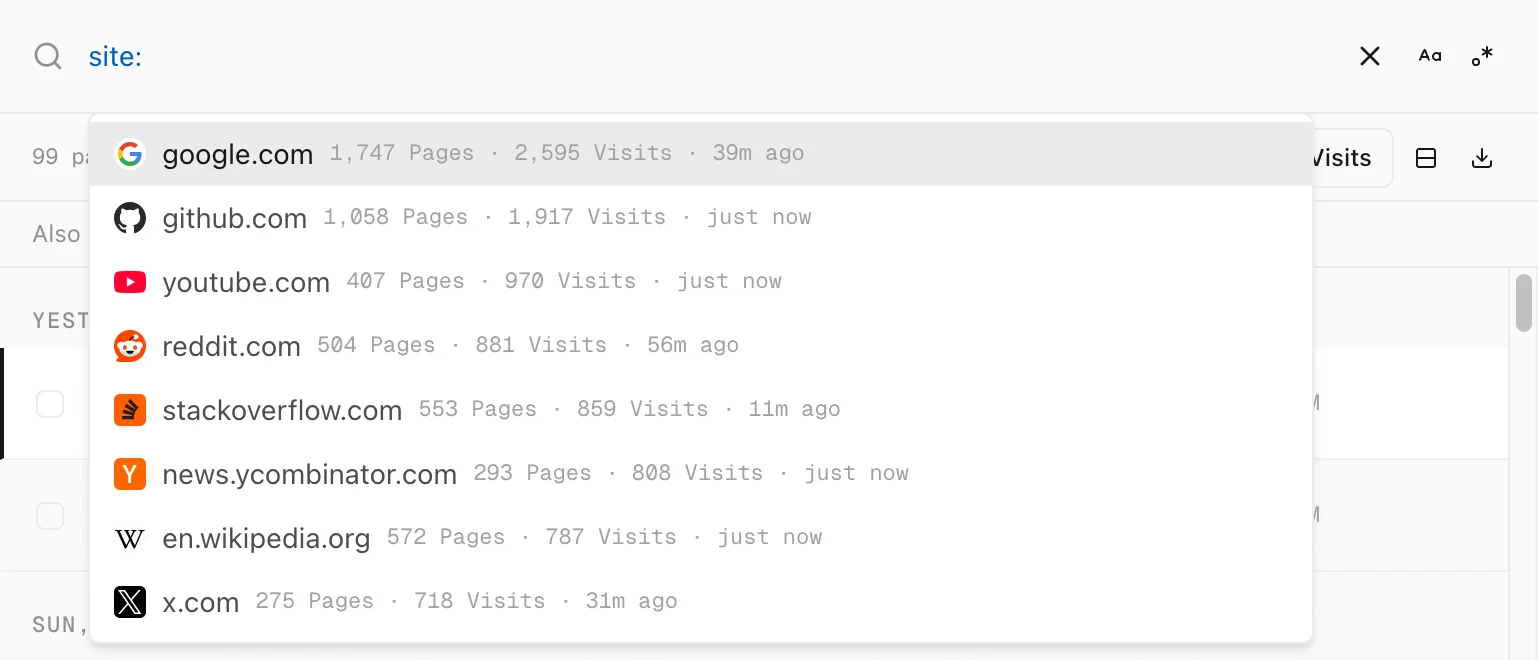
site: and the sites from your own history appear.Step 2: Pick the site
Keep typing to shorten the list. site:wiki leaves only the Wikipedia sites. Move with ↑ and ↓, then press ↵ or Tab to add the one you want.
You can also type the whole address yourself, like site:wikipedia.org. Leave out the www.: History Monk drops it from every address, so site:www.reddit.com finds nothing while site:reddit.com works.
Step 3: Add the word you remember
After the site, type a word from the page, like site:wikipedia.org barcelona. Only pages from that site are searched, and the list updates as you type.
Subdomains are included. site:wikipedia.org covers en.wikipedia.org, es.wikipedia.org and the rest.
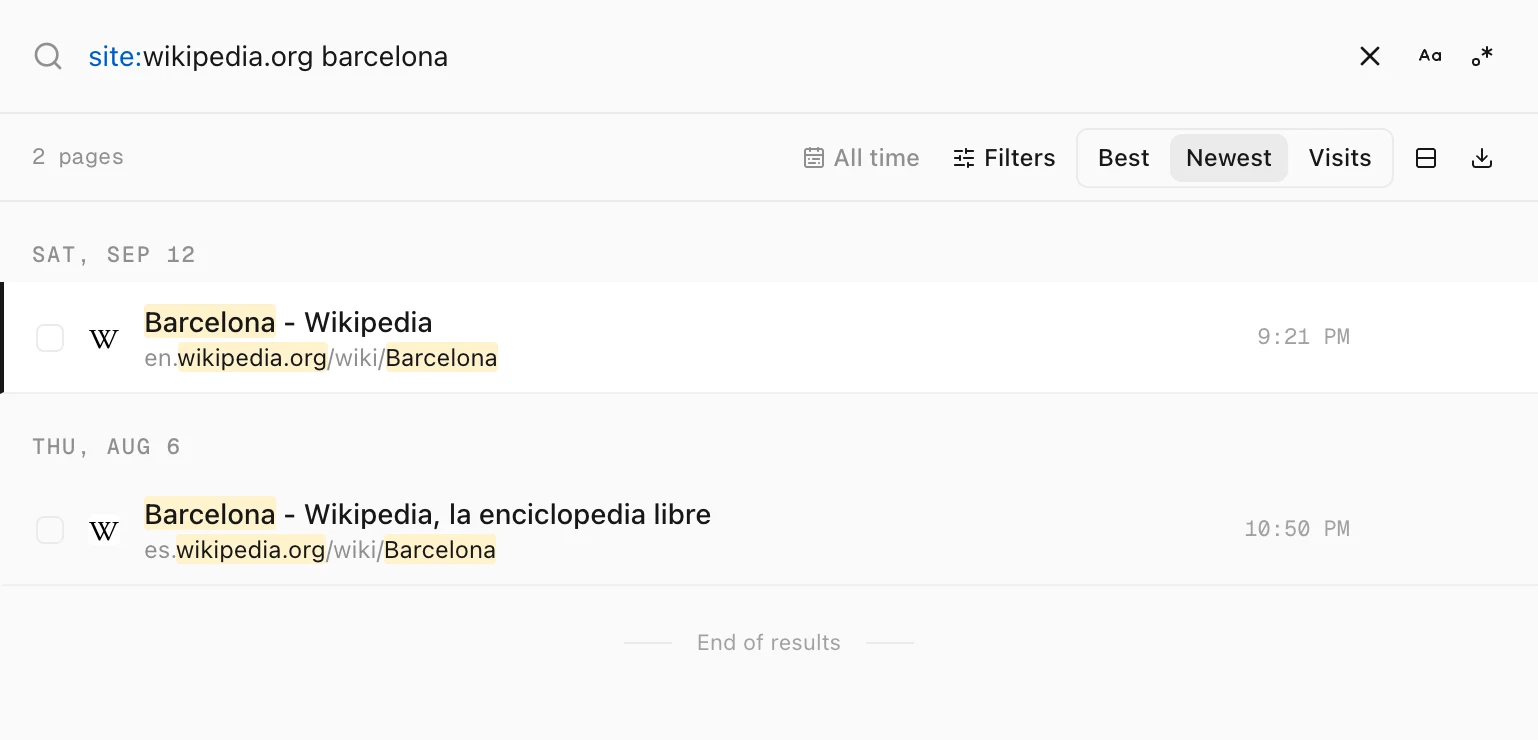
site:wikipedia.org barcelona finds the English and the Spanish Wikipedia pages.Step 4: Search two sites at once, if you need to
Add another site: for each extra site. A page from any of them stays in the list.
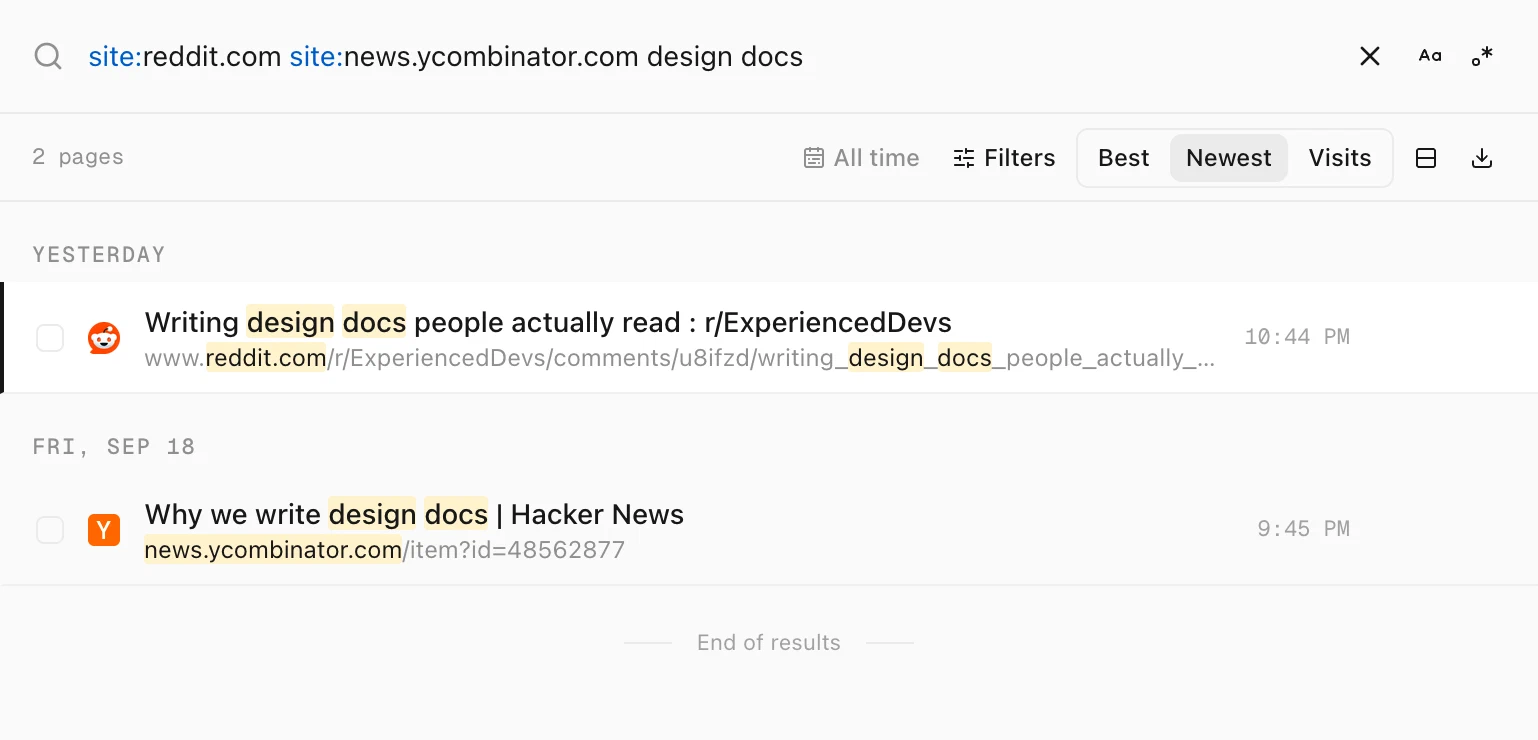
site:reddit.com site:news.ycombinator.com design docs finds a page on each site.Tips
- No word needed.
site:github.comon its own lists every GitHub page in your history, newest first. - Leave a site out instead. Put a minus in front:
-site:google.com. See how to exclude a site from your search. - Browse your sites. The Sites view lists every site with its page and visit counts. Click one to see only its pages. See how to see every website you visited.
- Add a date.
site:github.com after:yesterdayshows the GitHub pages you opened since the start of yesterday. See how to combine search filters.