Before you start: add History Monk from the Chrome Web Store or Firefox Add-ons. The Chrome Web Store version also installs in Edge.
A regular expression, or regex, is a search pattern. Use one when plain words can’t say what you want, like “hotel or hotels, in Lisbon or Kyoto”.
Step 1: Type the pattern between slashes
Click the search box and type the pattern with a / on each side. History Monk matches it against every page title and address, and highlights the match.
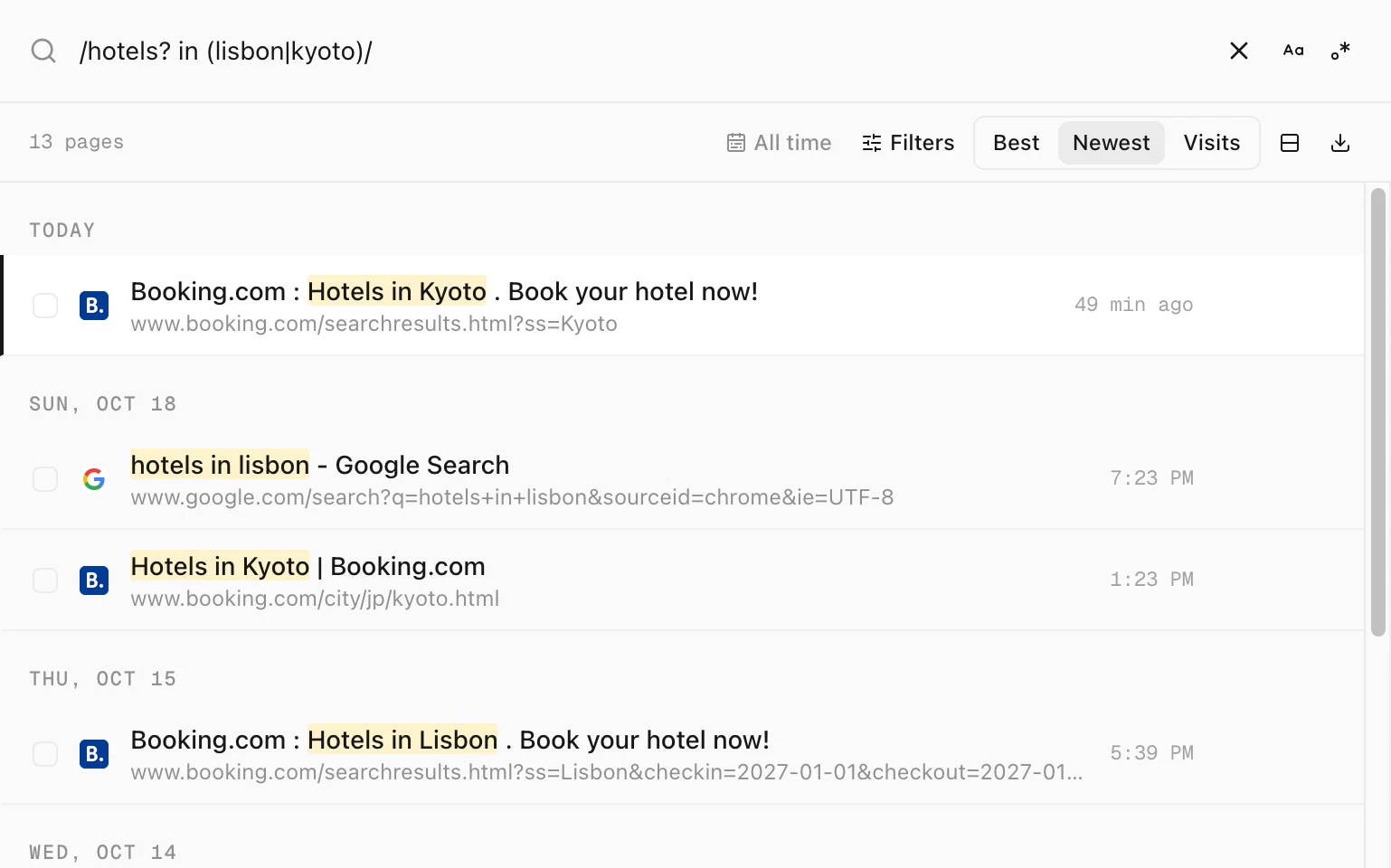
/hotels? in (lisbon|kyoto)/ finds 13 pages. s? makes the s optional and | means or.Patterns are a good fit for addresses that follow a format. This one finds hotel searches with a check-in date in November 2026:
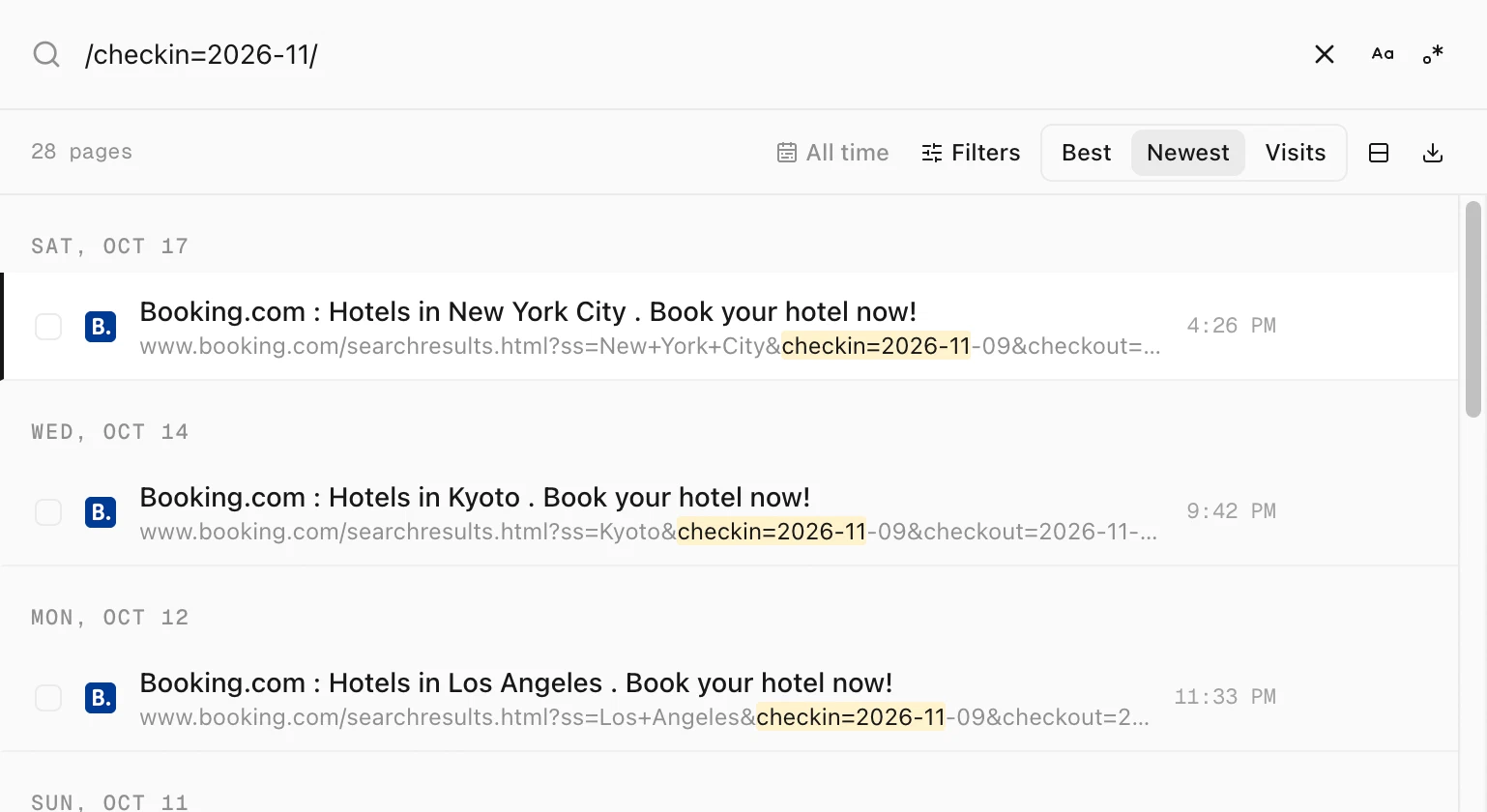
/checkin=2026-11/ finds 28 Booking.com searches.Step 2: Mix the pattern with other filters
Type filters before or after the pattern. They narrow the list together:
| Type this | What it finds |
|---|---|
site:github.com /issues\/\d+/ | GitHub issue pages. \d+ means one or more digits, and \/ is a slash inside the pattern. |
/pull\/\d+/ after:yesterday | Pull requests you opened since the start of yesterday |
/(lisbon|kyoto)/ -site:google.com | Pages about Lisbon or Kyoto, without Google searches |
Step 3: Or turn the whole box into a pattern
If you don’t want to type the slashes, click the .* button at the right of the search box. Everything you type is then read as a pattern, and a Regex chip appears under the box. Click the button again, or the chip’s ×, to turn it off.
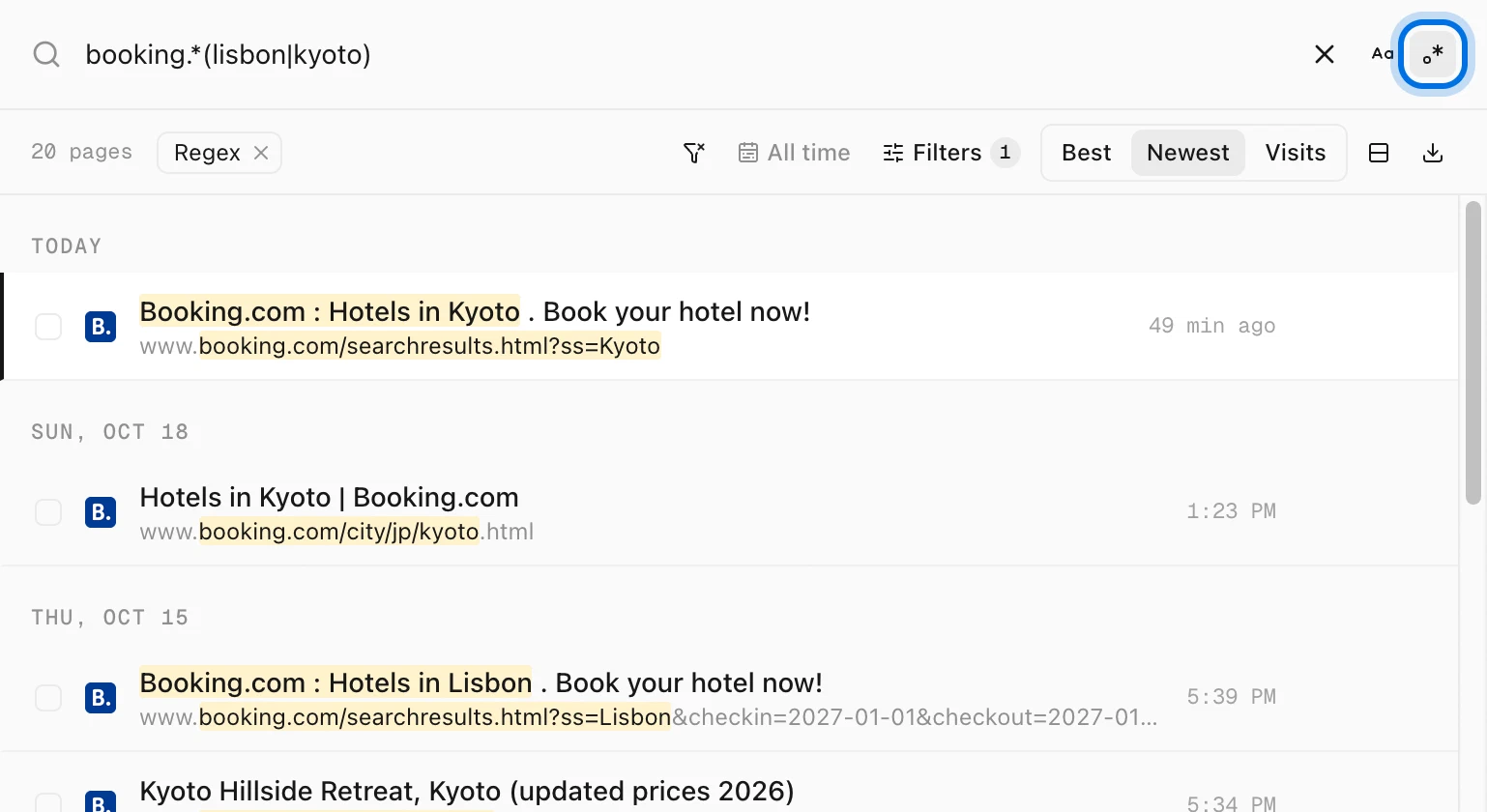
booking.*(lisbon|kyoto) finds 20 pages.Tips
- Capitals are ignored. Turn on Match case with the Aa button if they should count.
- A broken pattern finds nothing. If the list says No pages match, check for an unclosed
(or[. - Typos are not corrected. A pattern is searched exactly as you typed it.
- Search titles or addresses only. In Filters, set Match to Title only or URL only and the pattern looks only there. See how to search by title or address.