Before you start: add History Monk from the Chrome Web Store or Firefox Add-ons. The Chrome Web Store version also installs in Edge.
Step 1: Open Sites
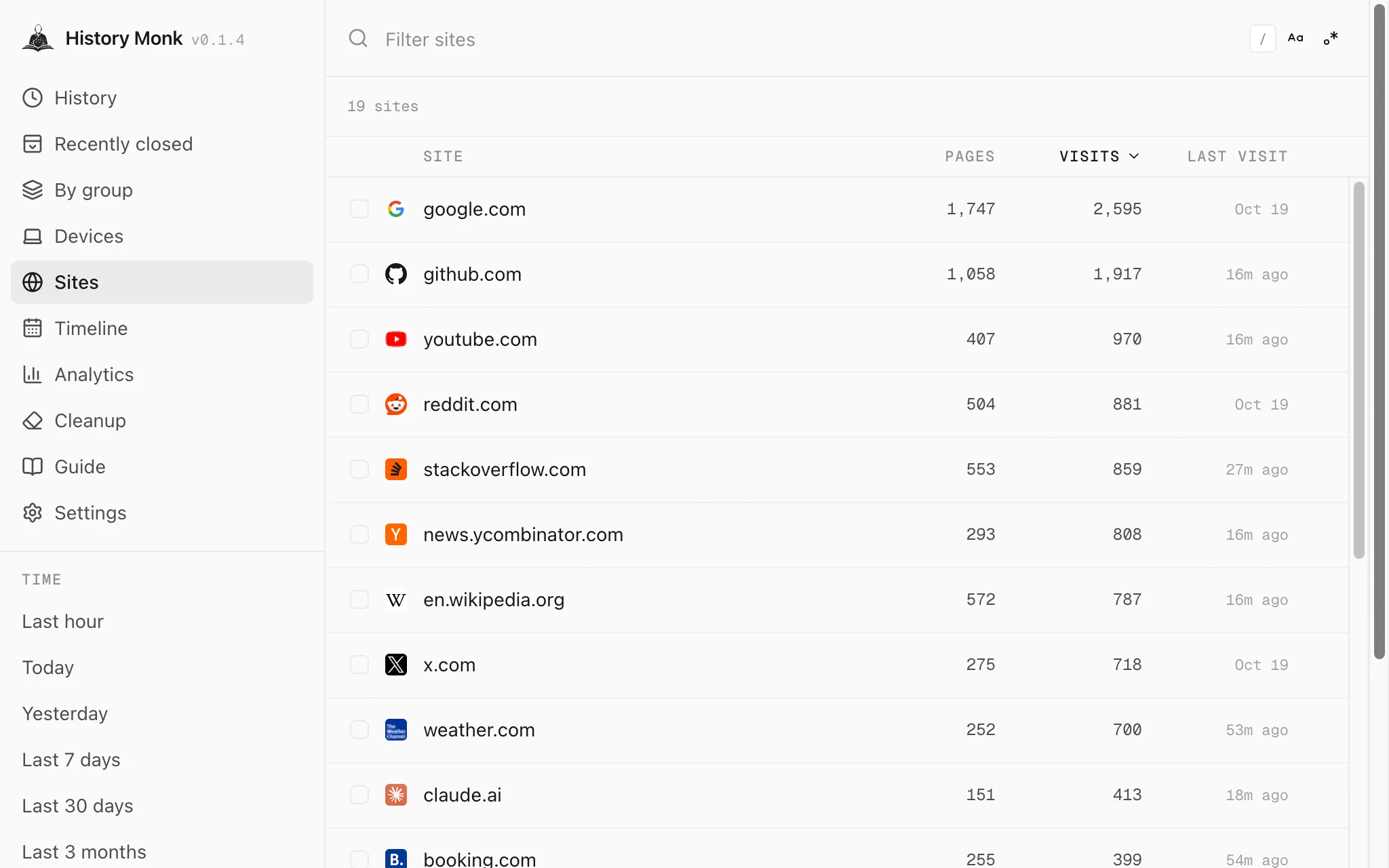
Click Sites in the sidebar. Every website in your history gets one row:
- Pages: how many different pages you opened on it
- Visits: how many times you opened them in total
- Last visit: when you were last there
The count above the list shows how many sites there are, like 19 sites. The list starts with the most visited site on top.
Step 2: Sort it or filter it
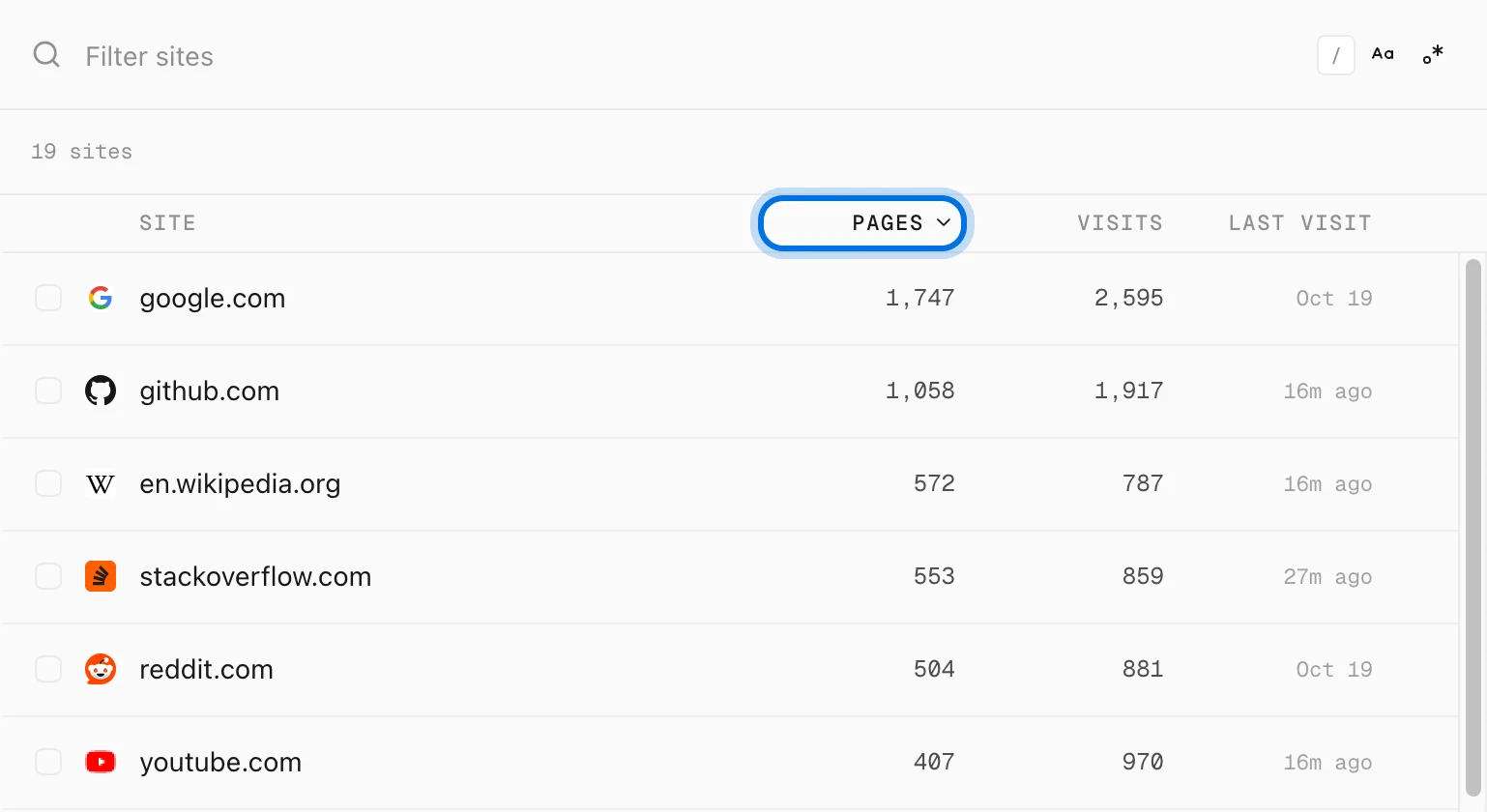
Click a column name to sort by it, like Pages. Click the same name again to reverse the order.
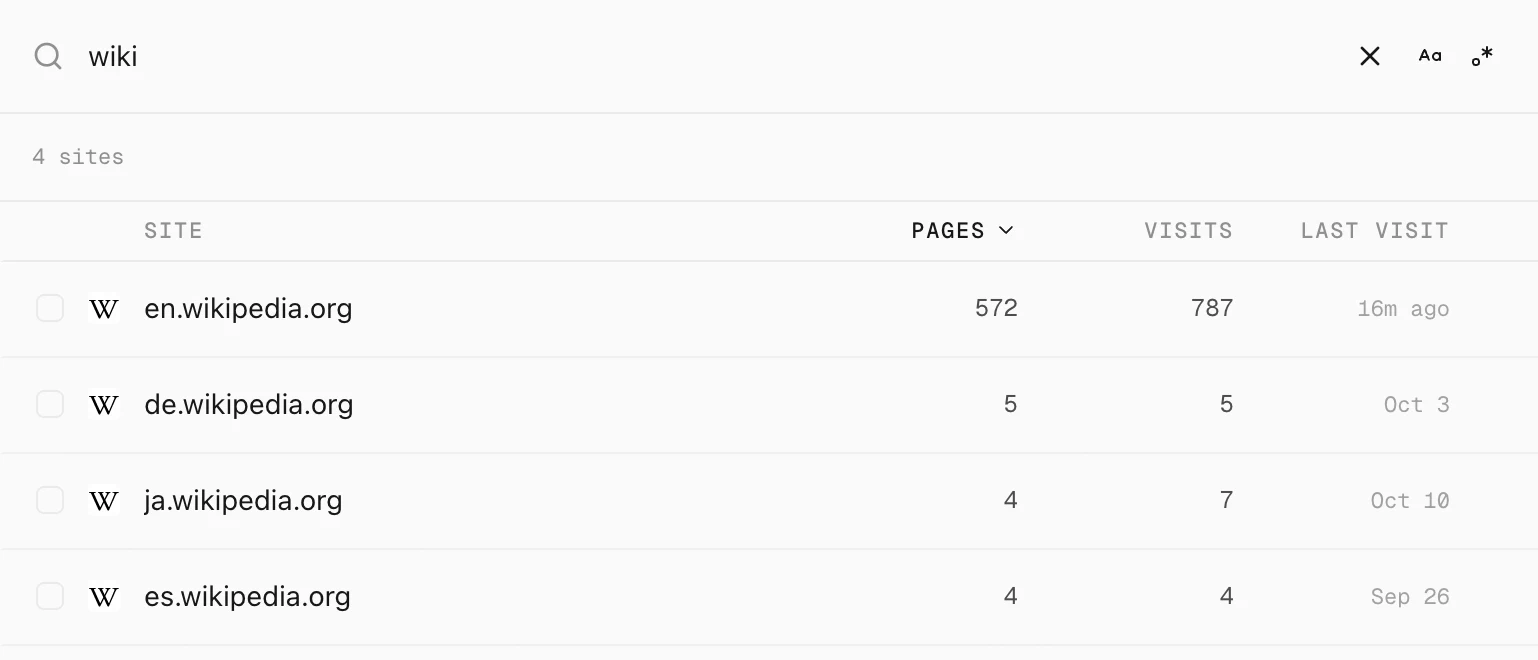
To find one site, type part of its name in the box at the top, which reads Filter sites. wiki leaves the four Wikipedia sites.
Step 3: Click a site to see its pages
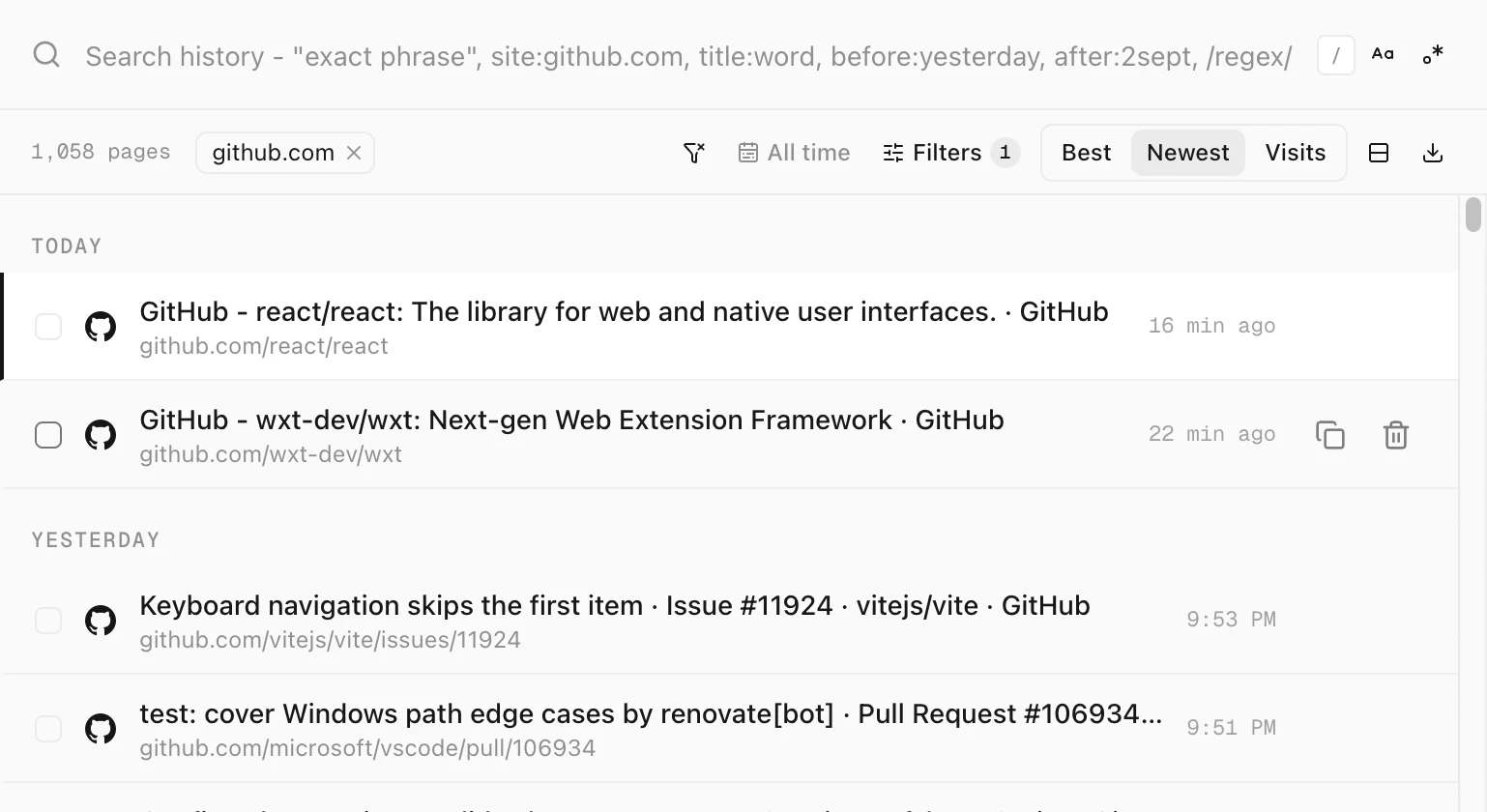
Click a site’s row. History opens with only that site’s pages, and a chip with the site’s name appears under the search box. Type a word to search inside that site, or click the chip’s × to see everything again.
Tips
- The list follows your time range. Pick Last 7 days under Time in the sidebar to see only the sites from this week.
- Delete a whole site. Tick the box at the start of a row, then delete. See how to delete all history from one site.
- Search across subdomains.
site:wikipedia.orgin History covers every Wikipedia language. See how to search your history on one website.