How-to guide

How to see your browsing history for one day

Open Timeline in the sidebar. It shows one day at a time, newest first, split into browsing sessions.

Tested in Chrome 155 and History Monk 0.1.4 Free for 7 days No account

Quick steps

Read a day in three steps

  1. Open Timeline

    It opens on the most recent day you browsed.

  2. Pick the day

    Use the arrows, or click the day’s name for a calendar.

  3. Open a page

    Click any entry, or Open in History to search the day.

Before you start: add History Monk from the Chrome Web Store or Firefox Add-ons. The Chrome Web Store version also installs in Edge.

Step 1: Open Timeline

Click Timeline in the sidebar. It opens on the most recent day you browsed. The newest page is on top, with the time on the left and the site on the right.

The line at the top sums up the day: how many pages, how many sites, and your first and last visit.
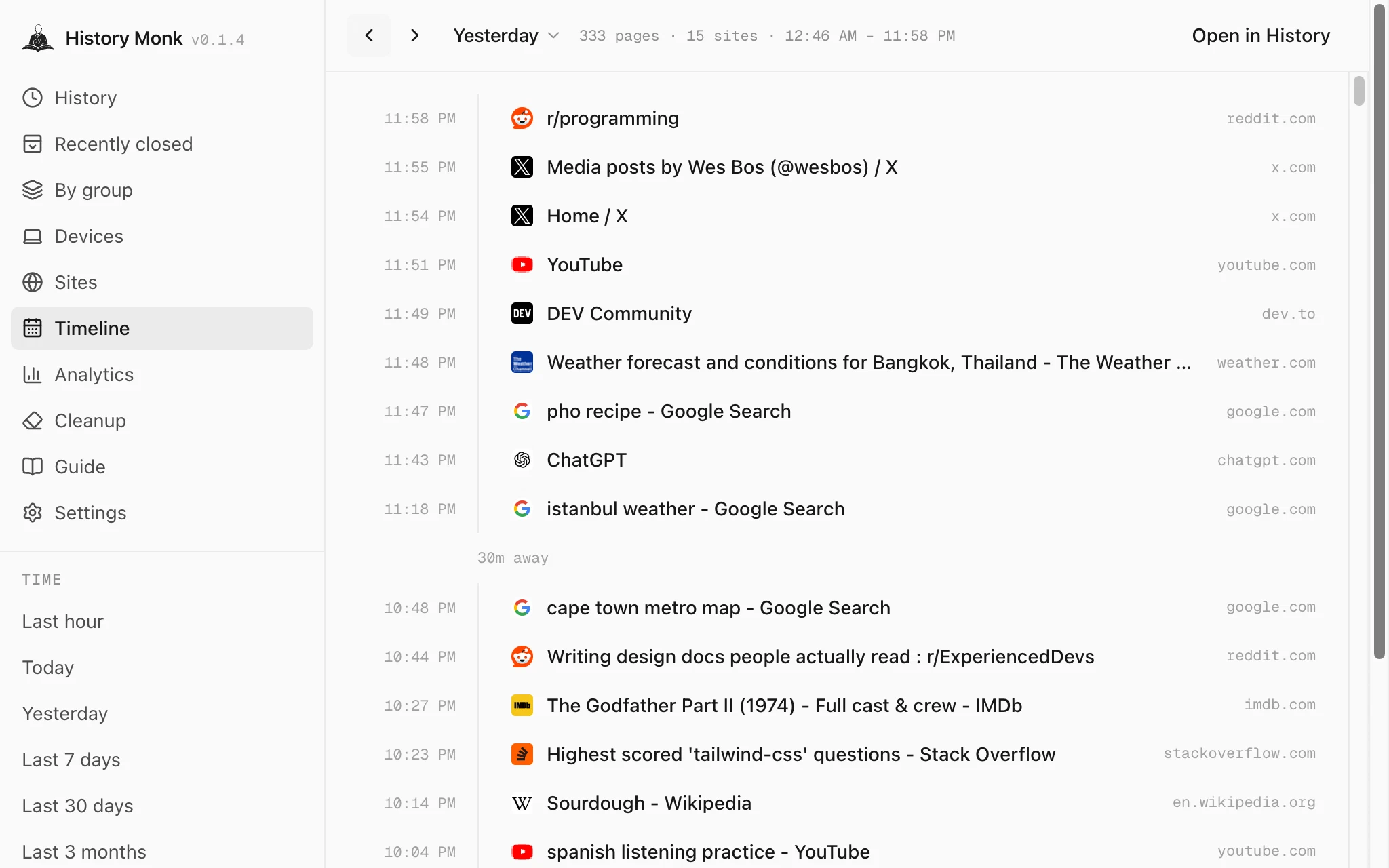
History Monk Timeline for Yesterday: 333 pages, 15 sites, 12:46 AM to 11:58 PM, starting with r/programming at 11:58 PM
Yesterday: 333 pages from 15 sites, between 12:46 AM and 11:58 PM.

Step 2: Pick the day

Use the ‹ and › arrows at the top to step one day back or forward. To jump further, click the day’s name, like Yesterday. A calendar opens on the month you’re looking at. Days without any history are greyed out, so you can’t land on an empty day.
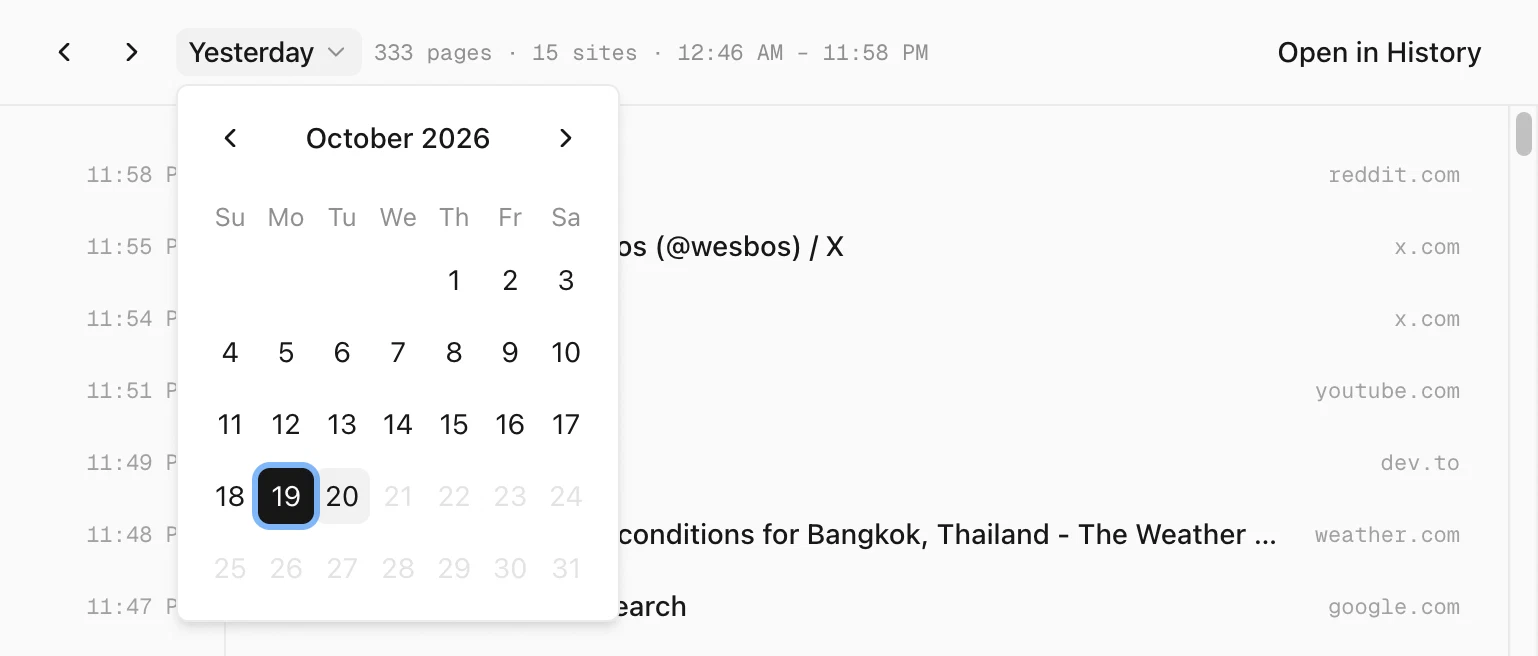
History Monk Timeline with the calendar open on October 2026, the 19th selected and days after the 20th greyed out
Click the day’s name to pick a date.

Step 3: Read it session by session

Pages less than 30 minutes apart stay together as one session. Where you stopped for longer, the Timeline shows how long you were away.
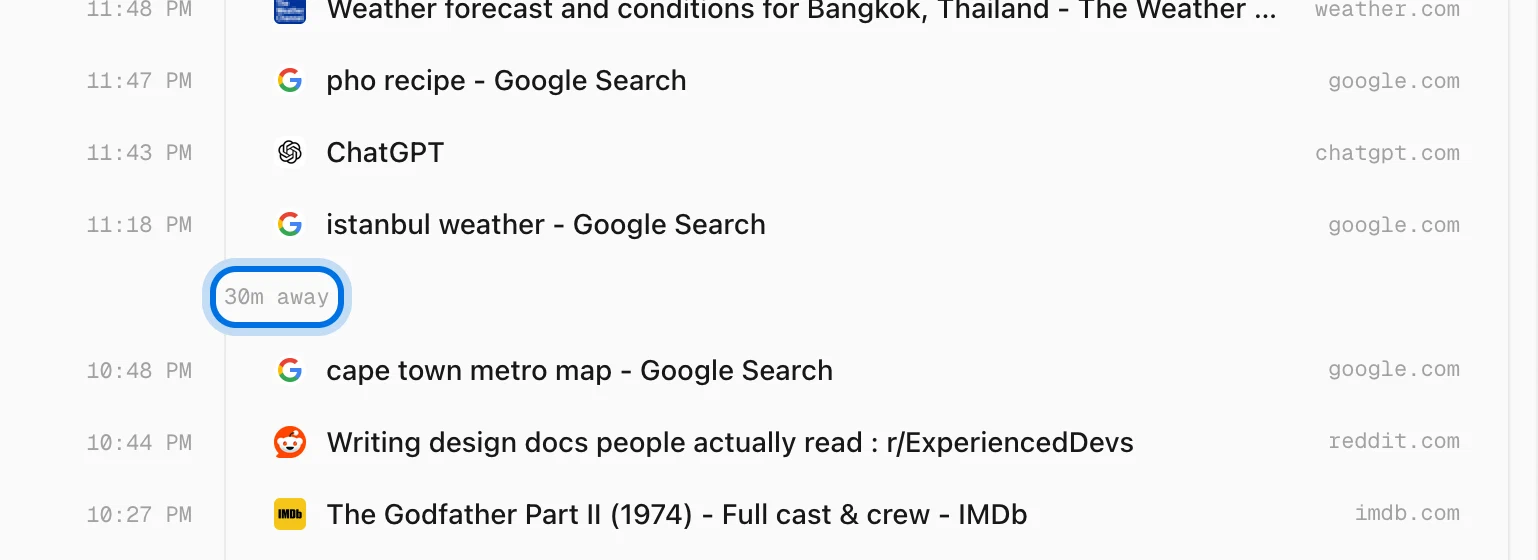
History Monk Timeline with a 30m away marker between a page at 11:18 PM and one at 10:48 PM
30m away marks a break between two sessions.

Click any entry to open that page.

Step 4: Search the day in History

Click Open in History at the top right. History Monk switches to History with after: and before: for that day already in the search box. Type a word after them to search only that day, or export or delete just those pages.
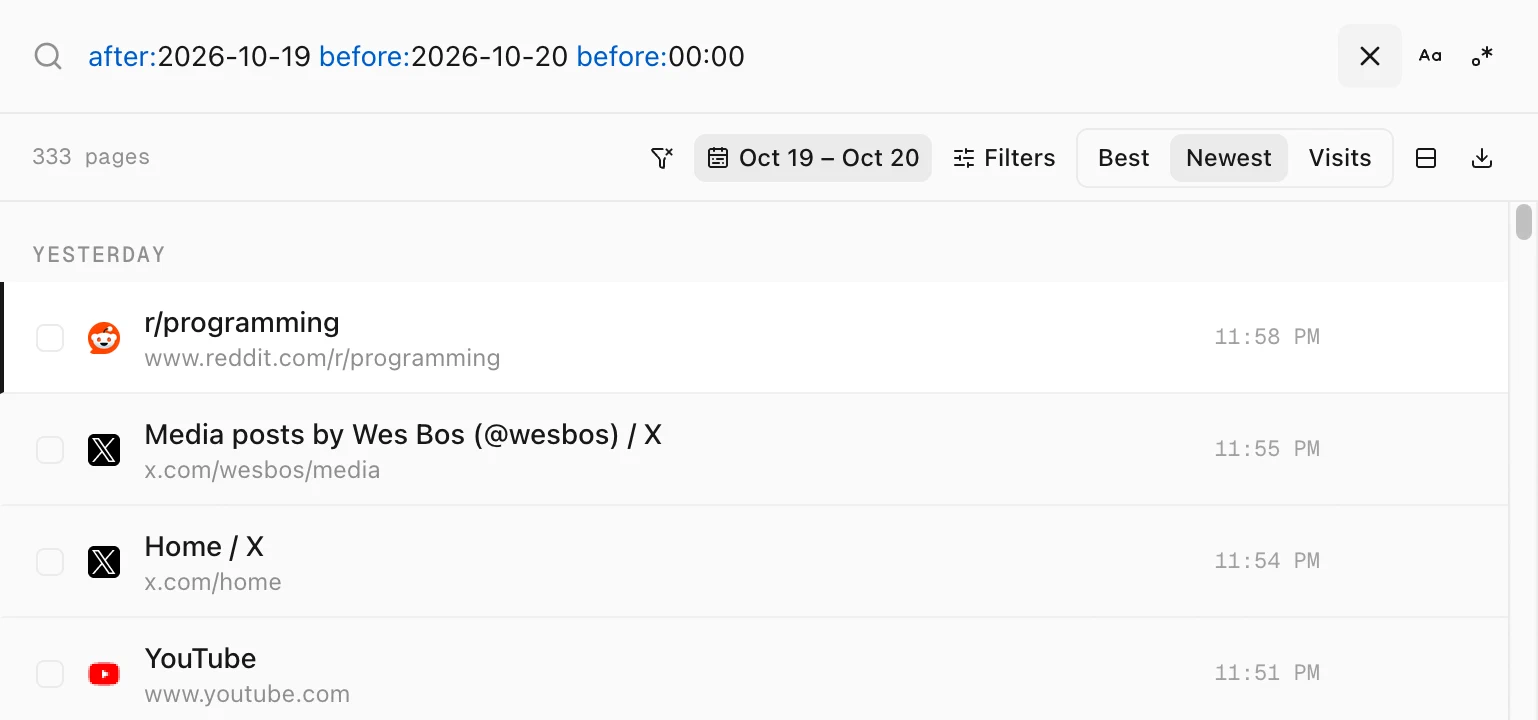
History Monk History view with after:2026-10-19 before:2026-10-20 before:00:00 in the search box and 333 pages from yesterday
Open in History fills in the dates for you.

Tips

  • A day in the sidebar range. Timeline only shows days inside the range picked under Time in the sidebar. Pick All time to reach every day.
  • Times follow your clock. Choose a 12- or 24-hour clock in Settings.
  • Search a few days at once. Use the date button in History. See how to search your history by date.

FAQ

Questions about the Timeline

How do I see what I browsed on a certain day?

Open Timeline in History Monk, then click the day's name at the top and pick the date on the calendar. Days without history can't be picked.

What does 30m away mean?

Pages less than 30 minutes apart belong to one session. A longer gap starts a new session, and the time between them is shown, like 30m away or 1h 52m away.

Why does a page I opened twice appear once?

Times come from each page's last visit, so a page you opened several times appears once, at its most recent visit.

The wise search once. History Monk remembers the rest.