How-to guide

How to see tabs from your other devices

Turn on Chrome sync on each device, then open Devices in History Monk. Each device has a card with its open tabs.

Tested in Chrome 155 and History Monk 0.1.4 Free for 7 days No account

Quick steps

See your other tabs in three steps

  1. Turn on sync

    Sign in to Chrome with sync on, on each device.

  2. Open Devices

    Each device gets a card with its open tabs.

  3. Click a tab

    It opens here. Type a word to search every device.

Before you start: add History Monk from the Chrome Web Store. The Chrome Web Store version also installs in Edge.

Step 1: Turn on Chrome sync on each device

History Monk shows what your browser’s sync already shares, so there’s nothing to set up in History Monk itself. On your phone and on each computer, sign in to Chrome and turn sync on. Keep some tabs open on the other device.

Step 2: Open Devices

Click Devices in the sidebar. Each device has a card with its name, the number of tabs and the tabs themselves. Each tab shows its title, its address and when it was last used.
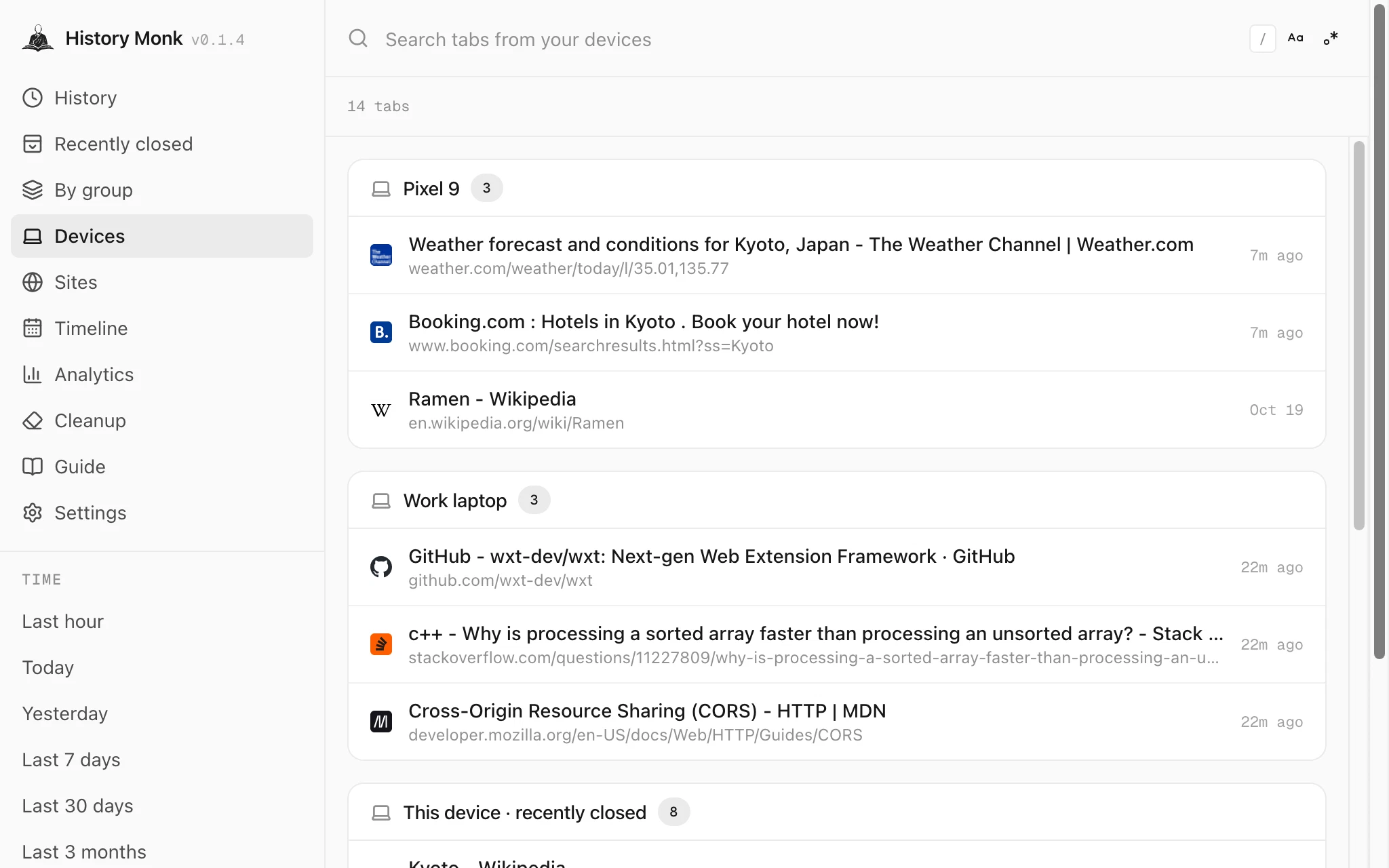
History Monk Devices view: a Pixel 9 card with 3 tabs including a Kyoto weather page, a Work laptop card with 3 tabs including a GitHub repository, and a This device card below
One card per device. The device names and tabs here are placeholders.

The last card, This device · recently closed, lists the tabs you recently closed on this computer.

Step 3: Search and open

Type a word to search the tabs on every device at once. Cards with no match are hidden while you search.
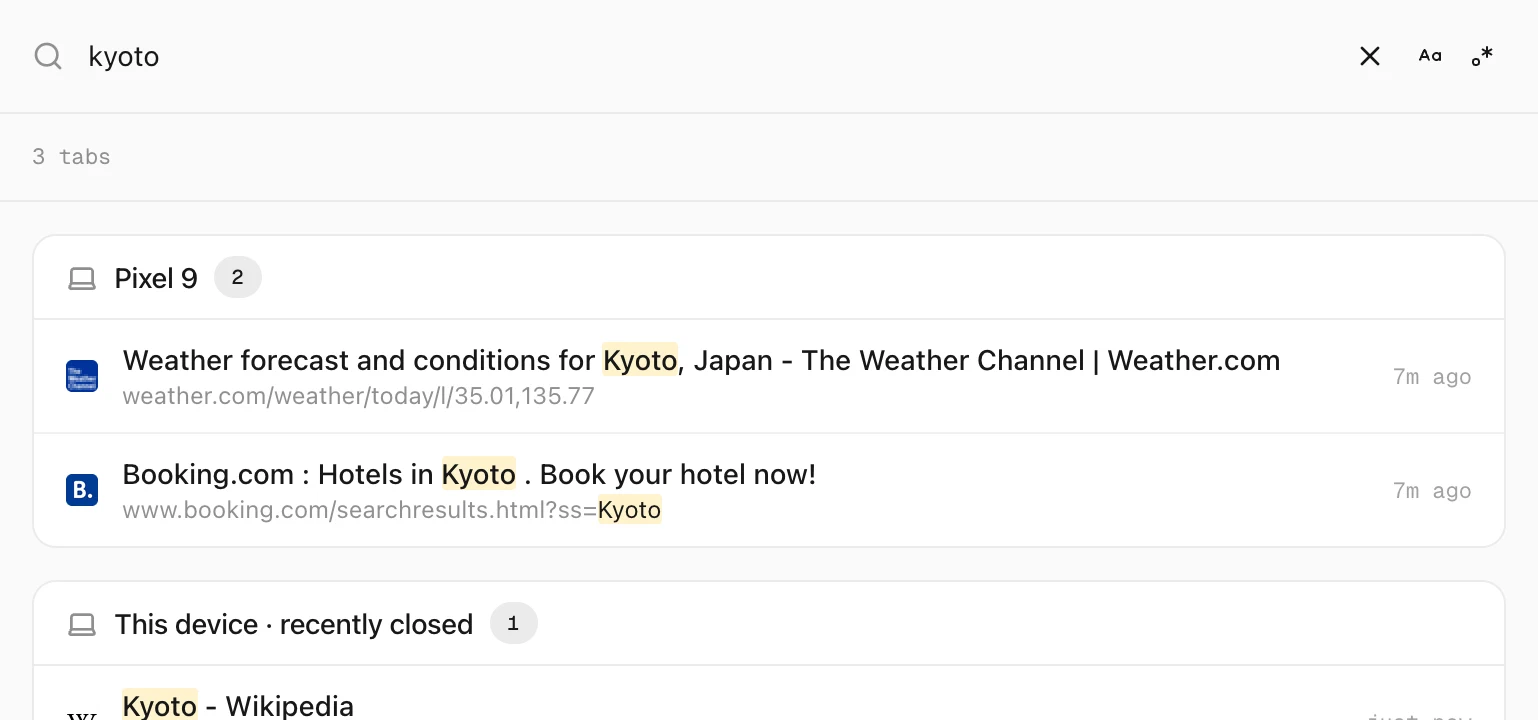
History Monk Devices view filtered by kyoto, showing two tabs from Pixel 9 and one from This device
kyoto finds tabs on the phone and on this computer.

Click a tab to open it here.

If Devices is empty

  • Check sync on each device: sign in to Chrome with sync turned on.
  • Keep tabs open on the other device. Devices with no open tabs are left out.
  • Firefox: it doesn’t share other devices’ tabs with extensions, so only this device shows.

FAQ

Questions about tabs from other devices

How do I see tabs from my phone on my computer?

Sign in to Chrome with sync turned on, on both devices. Then open Devices in History Monk on your computer. Your phone has its own card with its open tabs.

Why is Devices empty?

History Monk can only show what your browser's sync shares. Check that sync is on and that the other device has tabs open. Devices with no open tabs are left out.

Does it work in Firefox?

No. Firefox doesn't share other devices' tabs with extensions, so the Devices list only shows this device's recently closed tabs there.

Is anything uploaded?

No. History Monk reads the tabs your browser has already synced and shows them inside the extension. It has no account or sync of its own.

The wise search once. History Monk remembers the rest.