Before you start: add History Monk from the Chrome Web Store or Firefox Add-ons. The Chrome Web Store version also installs in Edge.
Step 1: Open Analytics and jump to Time
Click Analytics in the sidebar. At the top are four jump links: Overview, Trends, Searches and Time. Click Time.
Analytics covers the range picked under Time in the sidebar, like Last 30 days or All time.
Step 2: Read the heatmap
The When you browse card has a row for each weekday and a column for each hour, from 0 (midnight) to 23. The darker a cell, the more pages you opened then.
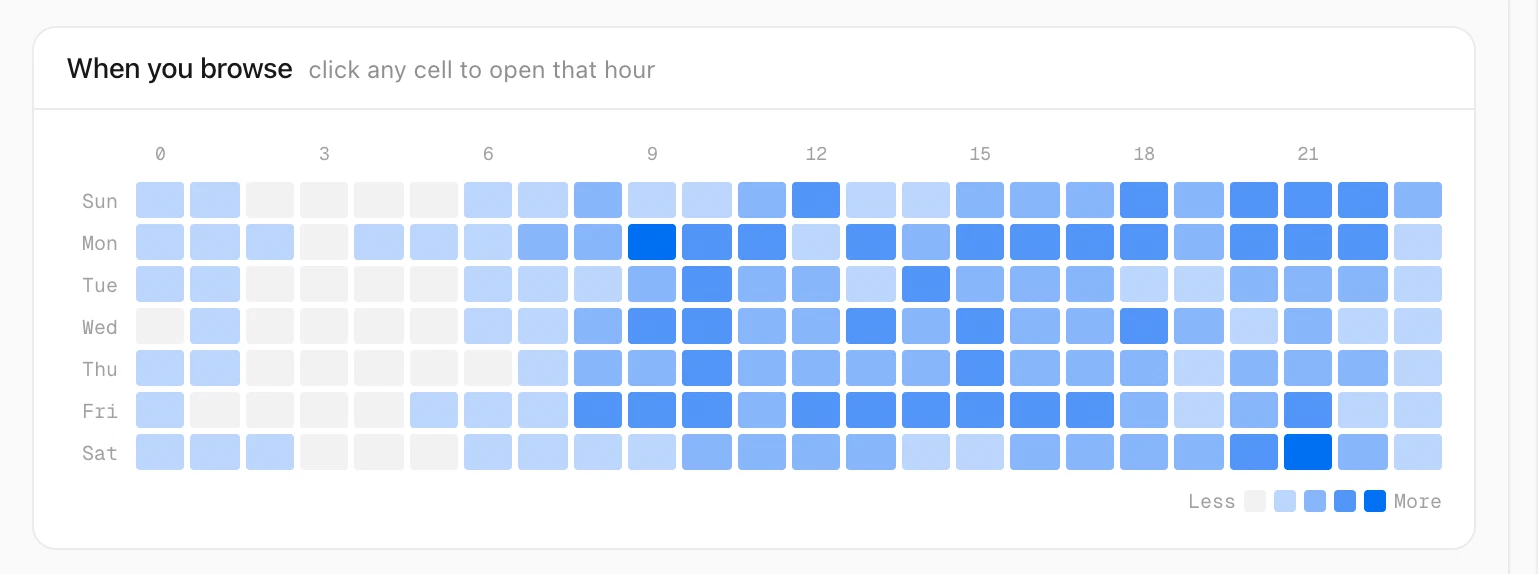
Point at a cell to see the weekday, the hour and the number of pages, like Mon 9 AM · 106 pages.
Step 3: Click a cell to see those pages
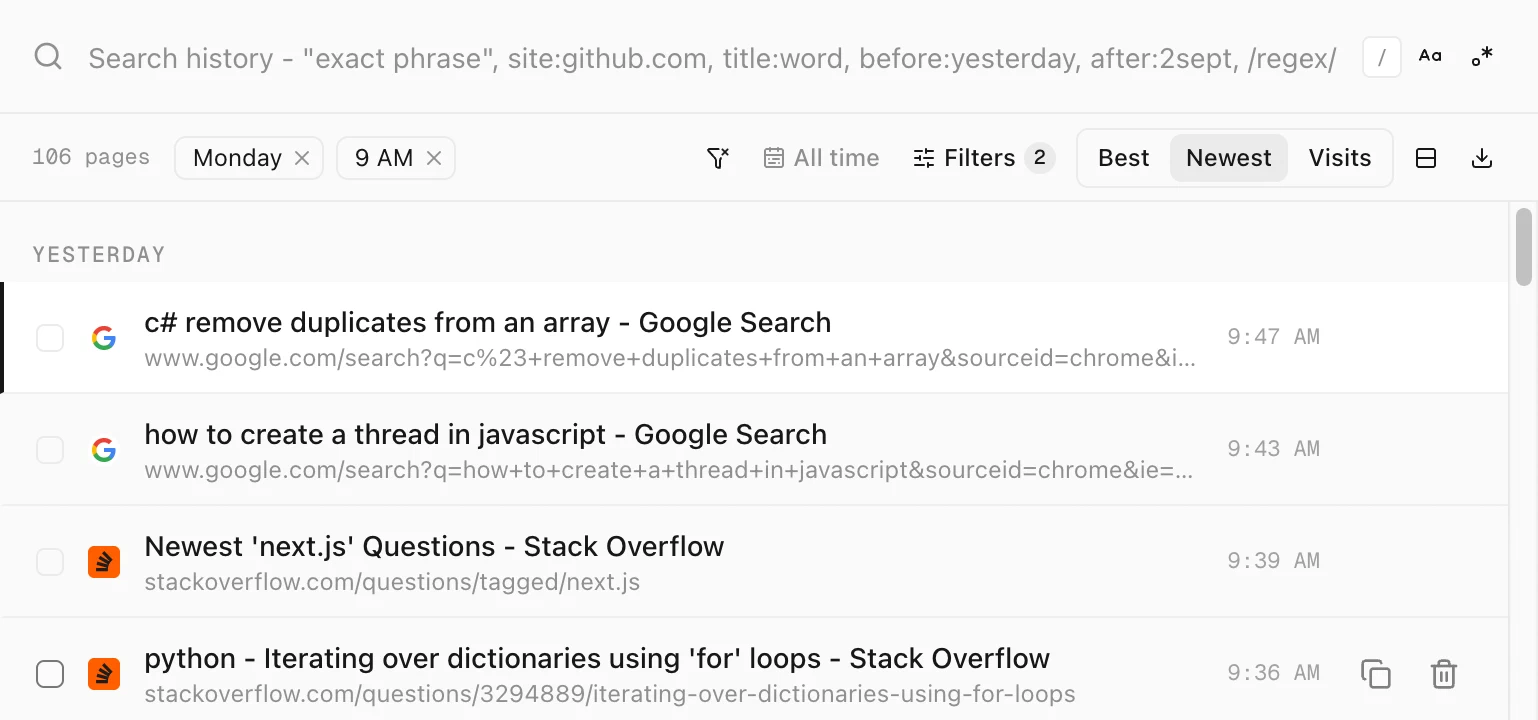
Click a cell and History opens with only the pages from that weekday and hour, on every date in your range. Two chips under the search box show the filter, like Monday and 9 AM. Click a chip’s × to remove it.
More in the Time section
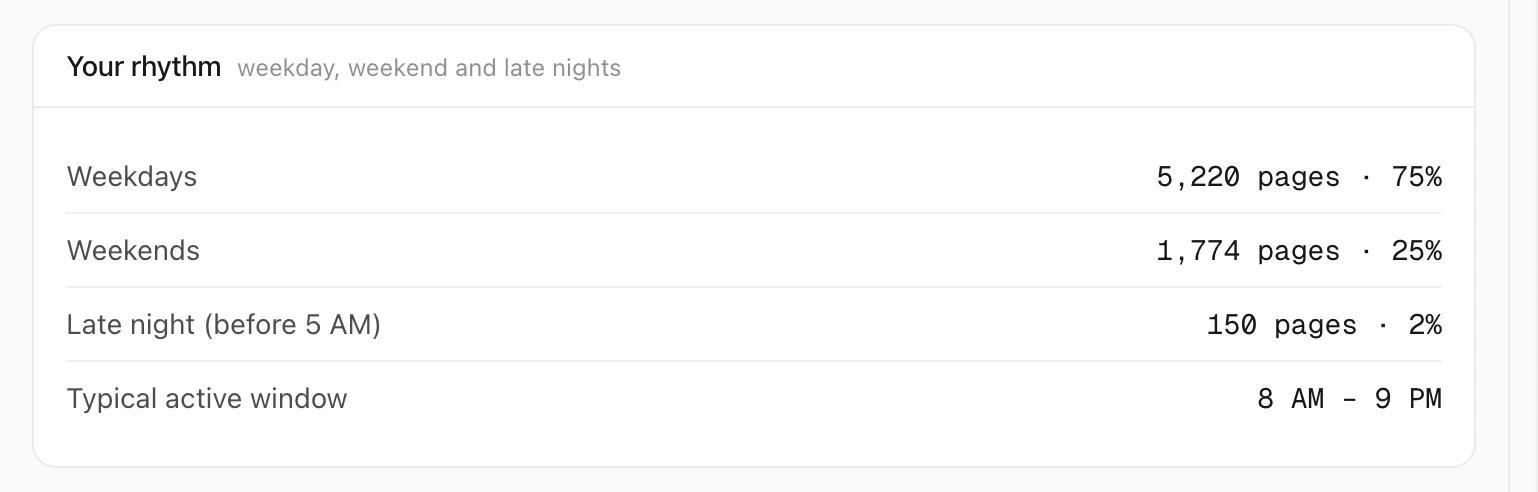
Below the heatmap, Time of day shows your pages by hour, and Your rhythm splits them into weekdays, weekends and late nights, with your typical active window.
Good to know
- Times come from each page’s last visit. Your browser shares only the most recent visit to each page, so a page you opened often counts once, at its latest time.
- Search one hour on every day without Analytics: open Filters and pick an hour under Hour. See how to search your history by time of day.
- Analytics is part of the trial. After the 7 days, it opens 3 times a day without a license.