Before you start: add History Monk from the Chrome Web Store or Firefox Add-ons. The Chrome Web Store version also installs in Edge.
Step 1: Pick a range
Under Time in the sidebar, click the range you want to look at. Last 7 days is a good start, because it compares with the 7 days before it.
Step 2: Open Analytics and read the overview
Click Analytics in the sidebar. The tiles at the top count your Pages, Visits, Sites and Searches, and show how each one changed from the period before, like +43% vs previous period. Busiest shows your busiest hour and weekday.
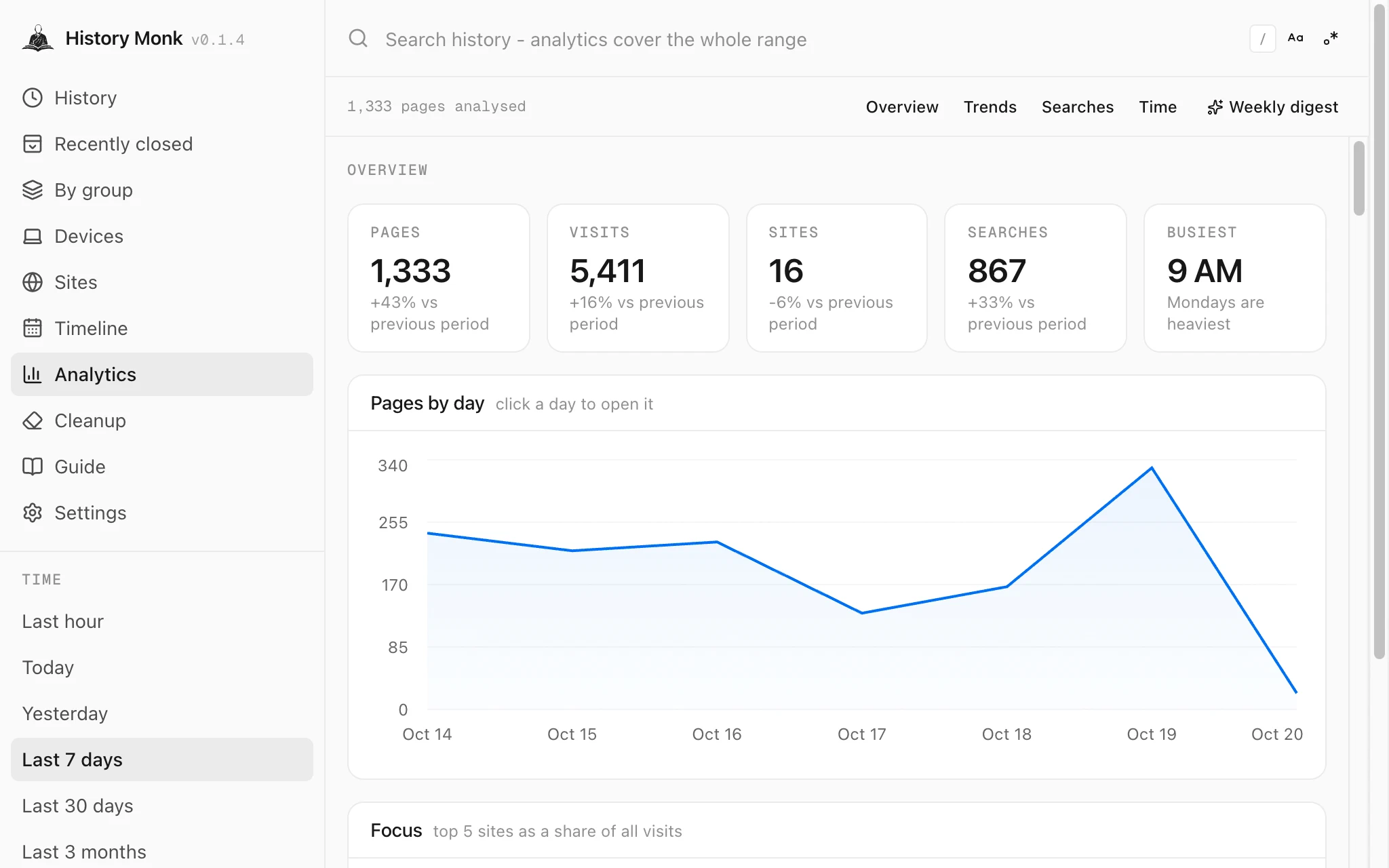
All time has no period before it, so the tiles show their usual notes instead of a change.
Step 3: Click Trends for your top sites
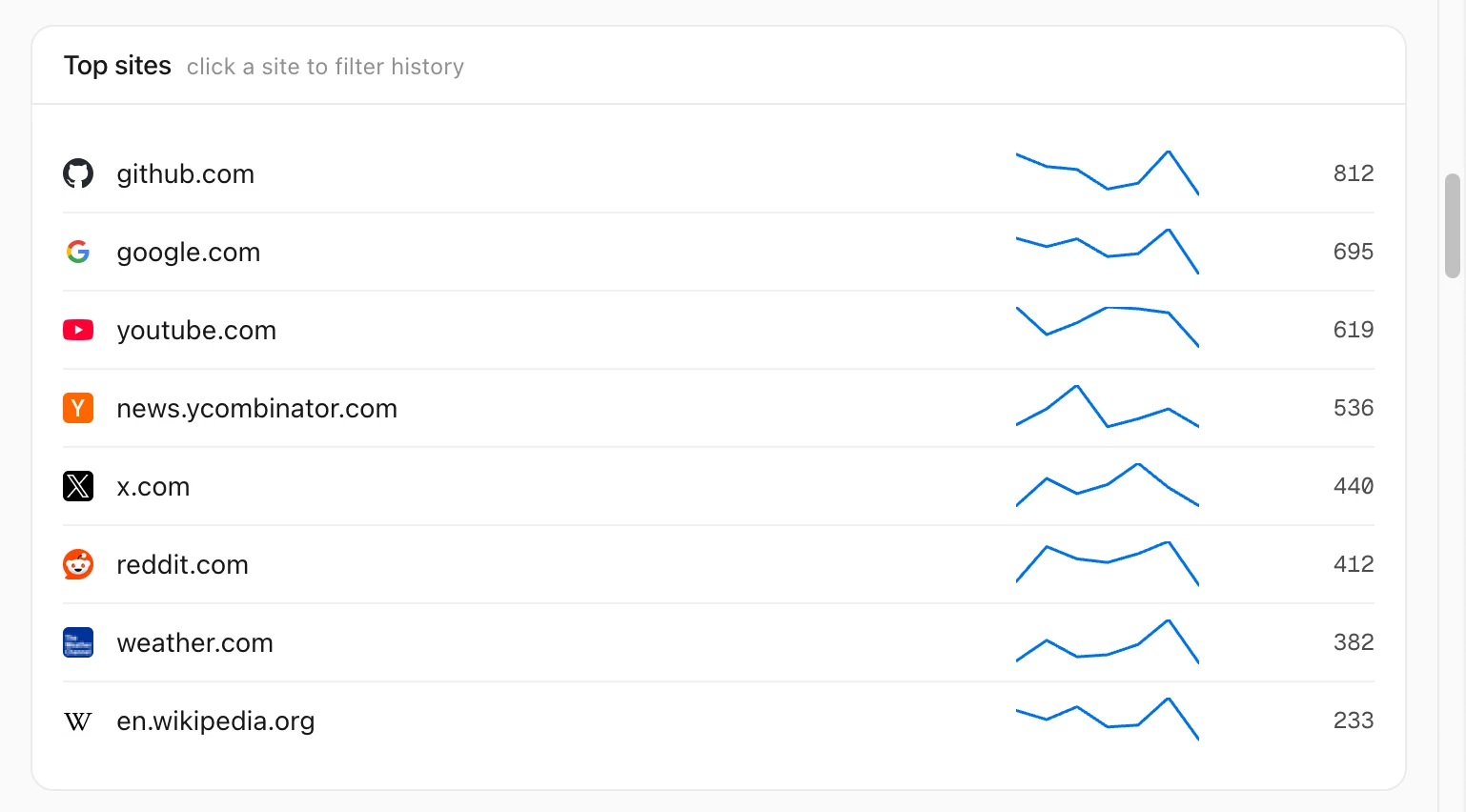
Click Trends at the top. Top sites lists your 8 busiest sites by visits, each with a small chart of pages per day. Click a site to see only its pages in History.
Step 4: See what’s rising and fading
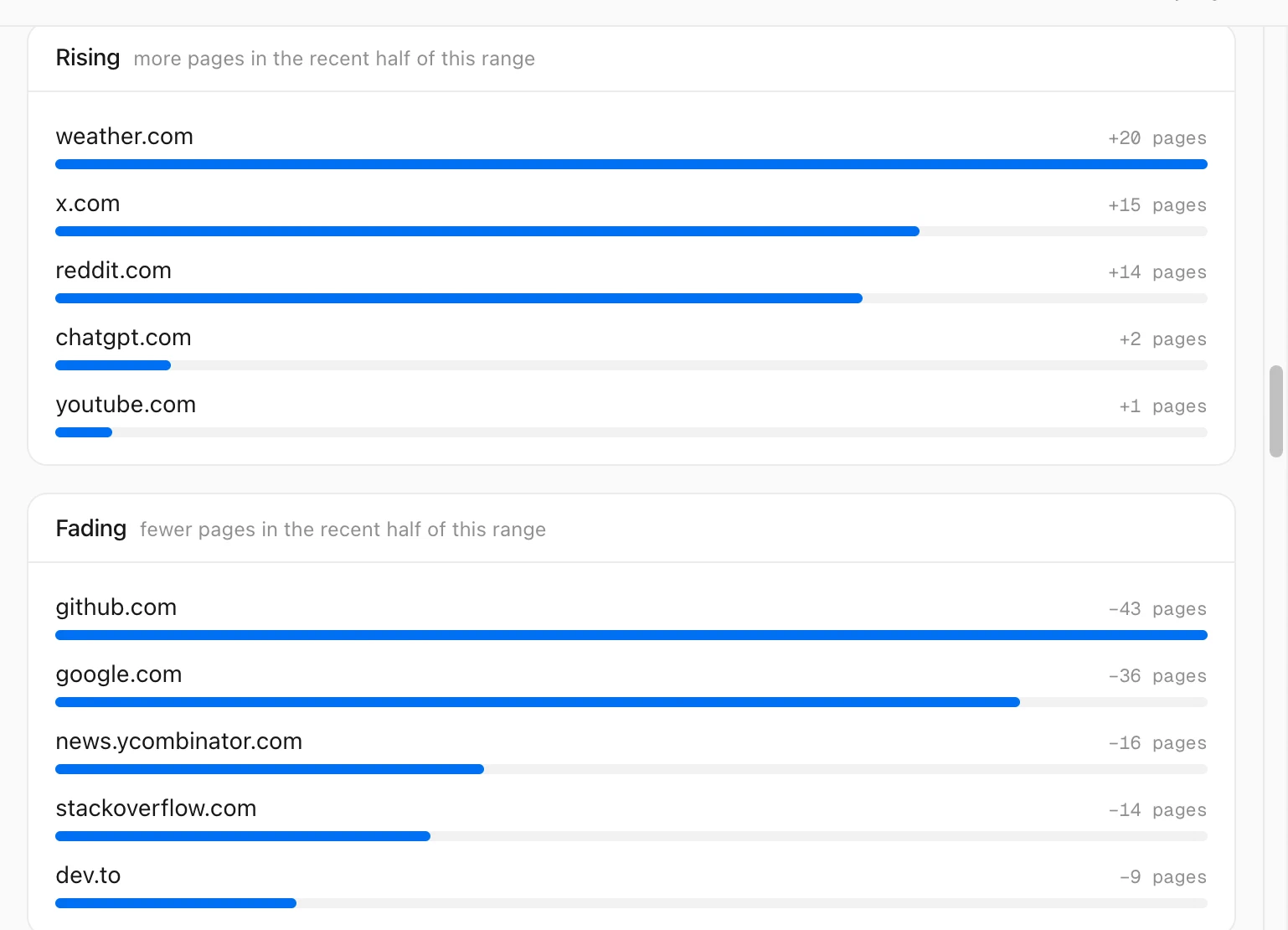
Trends splits your range in half and compares the two. Rising lists sites with more pages in the recent half, and Fading the ones with fewer.
Good to know
- Focus in the overview is the share of your visits that went to your top 5 sites.
- Pages, not time. Your browser doesn’t record how long a page was open, so Analytics counts pages and visits.
- Every site in a table is in the Sites view. See how to see every website you visited.
- Analytics is part of the trial. After the 7 days, it opens 3 times a day without a license.