Before you start: add History Monk from the Chrome Web Store or Firefox Add-ons. The Chrome Web Store version also installs in Edge.
Step 1: Open Analytics and click Searches
Click Analytics in the sidebar, then Searches at the top. The figures cover the range picked under Time in the sidebar.
Step 2: Read Top searches
Top searches lists the searches you ran most, with how many times. A search you repeated 5 times or more is marked worth a bookmark.
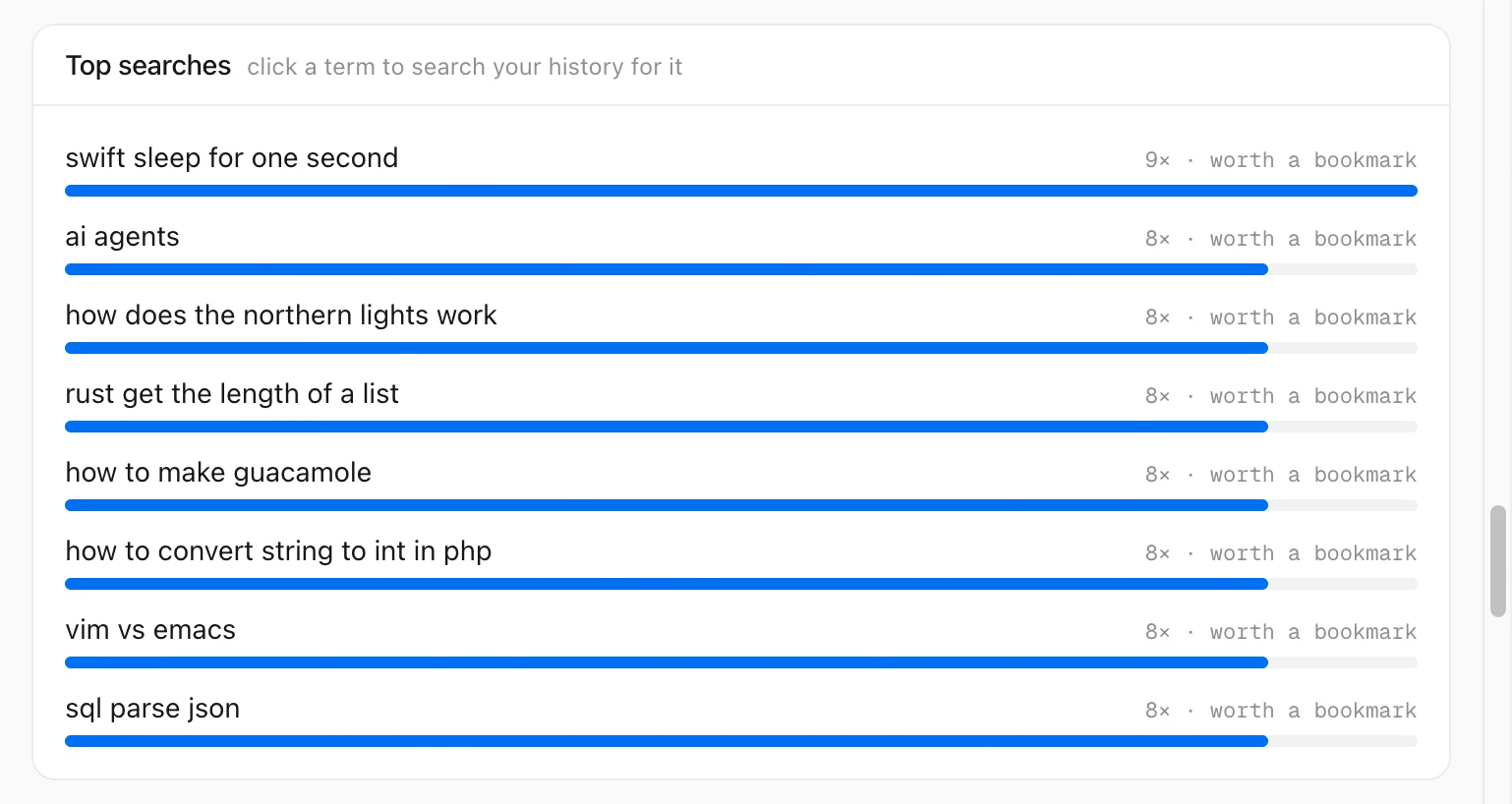
History Monk finds the search words in the addresses of search pages, like Google’s q= or YouTube’s search_query=. It works on your computer and sends nothing anywhere.
Step 3: Click a search to find its pages
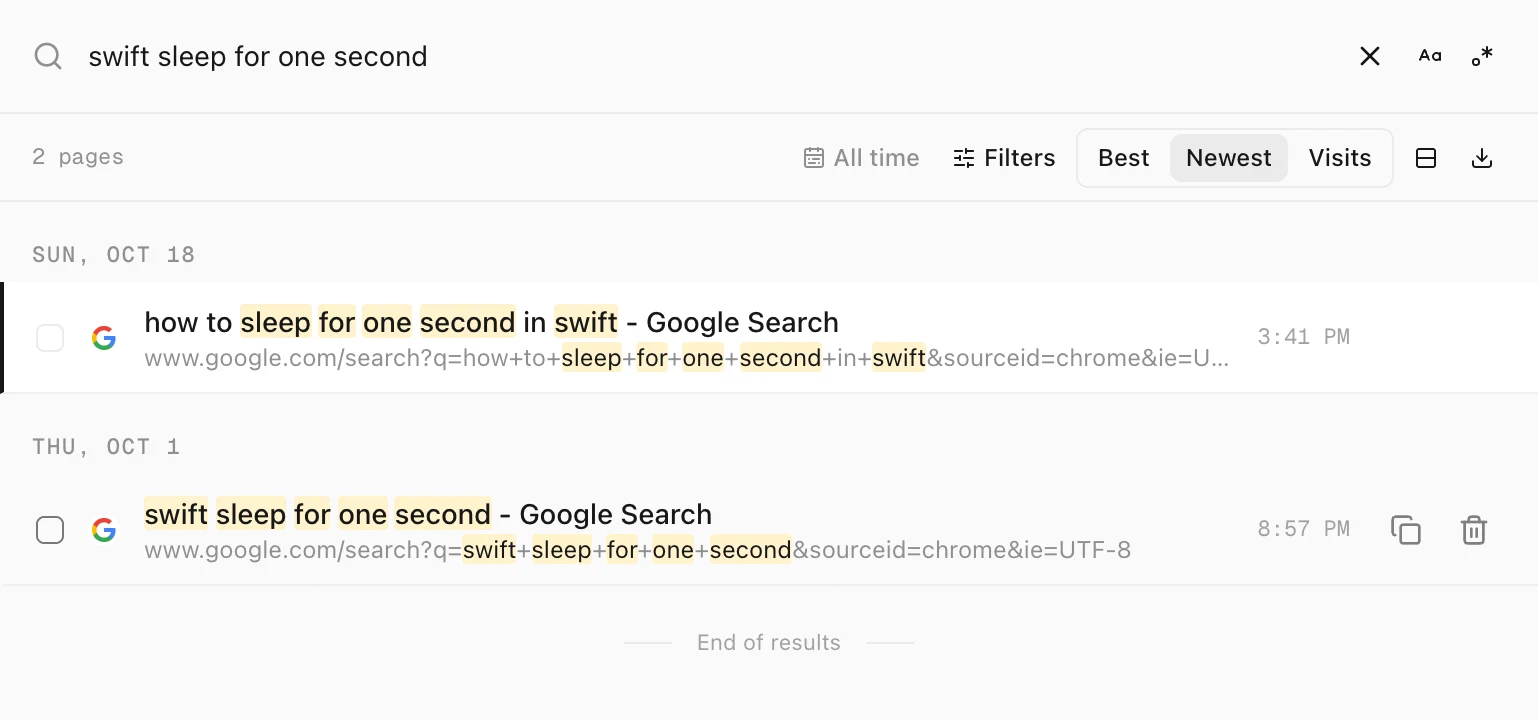
Click a search and History opens with those words in the search box, so you see every page that matches.
More in the Searches section
- Where you search counts your searches by site, like google.com or youtube.com.
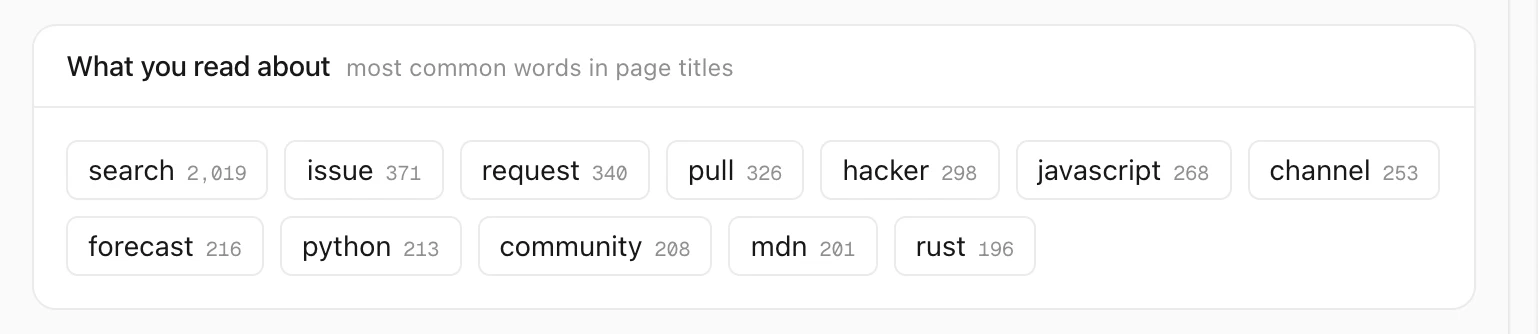
- What you read about lists the most common words in your page titles. Click a word to search for it.
Tips
- Clear the search pages afterwards. Cleanup has a group for them. See how to clear search pages from your history.
- Reopen what a search led to. See how to reopen every page from a search.
- Analytics is part of the trial. After the 7 days, it opens 3 times a day without a license.